
I get it. You saw a friend pull out a Mickey Mouse Chase debit card, or you spotted a Baby Yoda one on TikTok, and now you want one too. You opened the Chase app, tapped around, and could not find a “change card design” button anywhere. That is the most common frustration when people try to change Chase debit card design through the regular app menu.
Chase only offers a small set of licensed Disney, Pixar, Marvel, and Star Wars designs through its Disney Visa Debit Card program, not full custom photo uploads.
Here are the exact steps, eligibility rules, fee details, timing, and what happens to your old card number. This way, you can choose a new design without any guesswork.
Key Takeaways
This guide explains how to change a Chase debit card design through the Disney Visa Debit Card program, including app and website steps, eligibility, fees, delivery timing, and activation instructions.
Core Facts:
- Chase debit card design changes only work through the Disney Visa Debit Card program, offering licensed Mickey, Princess, Pixar, Star Wars, and Marvel artwork rather than custom photo uploads.
- Eligible accounts include Chase Total Checking, Chase Secure Banking, Chase Premier Plus Checking, and Chase Sapphire Checking, including joint holders and authorized users with their own card.
- Standard card replacement for a new design is usually free, with a fee applying only for expedited shipping or after multiple recent replacement requests.
- Standard delivery takes about 5 to 7 business days, while expedited shipping typically arrives in 1 to 3 business days for an added fee.
- The account and routing numbers stay the same after a design change, but the card number, CVV, and expiration date are reissued as new.
- New cards can be activated through the Chase Mobile app, Chase.com, an ATM with PIN entry, or the phone activation number printed on the card.
Best for:
- Chase checking customers who want a licensed Disney, Pixar, Star Wars, or Marvel design instead of their plain debit card.
- Joint account holders or authorized users who each want to choose their own card design on a shared eligible account.
- Cardholders preparing to update autopay and mobile wallet apps after a card design and number change.
What “Changing Your Chase Debit Card Design” Actually Means
Many people think Chase works like a few fintech apps where you can upload a personal photo or pick from dozens of art styles. That is not how it works here. When you ask to swap your design, you are really asking Chase to send you a new physical debit card with a different licensed artwork on the front.
The card still pulls from the same checking account. The chip still works the same way. Your daily spending limits do not change. Only the picture printed on the plastic changes.
The available art is part of the Disney Visa Debit Card lineup. That means your choices live inside the Disney, Pixar, Star Wars, and Marvel families. You are not picking a “theme” inside a settings menu. You are switching from a plain Chase card to a Disney-branded debit card, or switching from one Disney design to another.
Why You Won’t Find a General “Custom Design” Option
This is a product setup, not a missing app feature. Chase does not run a “card design studio” where you upload your own photo. Some banks and fintechs do that. Chase does not.
What Chase does offer is a fixed catalog of licensed art tied to The Walt Disney Company. Because these are licensed images, every design must be pre-approved. That is why you only see a curated set, and that is why the option is tucked inside the Disney Rewards area instead of a generic “card design” tab.
So if you keep looking for a button that says “Pick Your Design” with photo upload, you will keep coming up empty. The right path is the Disney Visa Debit Card flow, which is covered step by step further down.
Is There a Fee to Change Your Chase Debit Card Design
For most checking customers, switching to a Disney debit card design is treated as a standard card replacement. Chase usually issues standard card replacements for free. This also applies when you pick a new Disney design on an eligible checking account.
There are two situations where a small fee can show up. The first is if you ask for rush or expedited shipping so the card arrives in a day or two instead of the normal window. The second is if you have already requested several replacements in a short period. In both cases, the fee is shown to you before you confirm the order, so you will not be surprised.
💡 Pro Tip: Before you confirm a new design, check the order screen for any shipping charge line. If it says “Standard Delivery: Free,” you are good. If a rush fee appears and you do not need the card fast, switch back to standard shipping.
If you ever feel unsure, you can call the number on the back of your current card and ask the agent to confirm there is no charge before they place the order.
Which Chase Accounts Qualify for a Disney Debit Card Design
You need an open Chase personal checking account that supports a Visa debit card. This lists the top options. They are: Chase Total Checking, Chase Secure Banking, Chase Premier Plus Checking, and Chase Sapphire Checking. Business debit cards and prepaid cards are not part of this program.
Joint account holders can both carry a Disney design. Each cardholder can pick their own art, so one partner can carry a Star Wars card while the other carries a Tiana or Mickey design. Authorized users on a personal checking account also qualify, as long as they have their own card linked to the account.
If your account is new and your first Chase card isn’t here yet, wait until it’s active before asking for a Disney design swap. That keeps the process clean and avoids two cards mailing at the same time.
⚠️ Mistake to Avoid: Do not close your old checking account just to “reset” things and order a Disney card. You only need to keep your existing eligible checking account open and request a new design on the same account.
Chase Debit Card Design Options Available Right Now
The current Disney Visa Debit Card lineup includes a rotating set of artworks. The exact list can shift over time as Disney releases new art, but the steady categories include:
- Mickey Mouse and friends: Classic Disney designs featuring Mickey, Minnie, and other core characters.
- Disney Princess designs: Art featuring characters like Tiana and other princess-line favorites.
- Pixar designs: Cards featuring popular Pixar films and characters.
- Star Wars designs: Art featuring characters such as Baby Yoda (Grogu), Darth Vader, or other Star Wars icons.
- Marvel designs: Art featuring Avengers heroes like Spider-Man, Iron Man, or Captain America.

The live menu inside your Chase account is the only fully accurate list, since Disney refreshes the artwork from time to time. When you reach the design picker, you will see thumbnails of every current design and can tap each one to preview a larger view of the card front.
How to Change Your Chase Debit Card Design in the Chase Mobile App
The mobile app is the fastest way to swap your design. Make sure you are on the latest version of the Chase Mobile app on the App Store or Google Play before you start.
Step 1: Open the Chase Mobile app and sign in with your username and password or Face ID.
Step 2: Tap your checking account from the main account list.
Step 3: Scroll down or tap the menu icon to find “Things you can do” or a similar account services area.
Step 4: Look for an option called “Disney Visa Debit Card,” “Change your card design,” or “Get a Disney Card.” The exact wording can shift with app updates.
Step 5: Tap the option, and you will land on a screen with the current Disney designs. Browse the thumbnails and tap one to see a larger preview.
Step 6: Select your favorite design and tap “Order Card” or “Continue.”
Step 7: Confirm your mailing address. If it has changed, update it before you submit.
Step 8: Review the order, check the fee line (it should say “Free” for standard shipping), and tap “Submit” or “Place Order.”
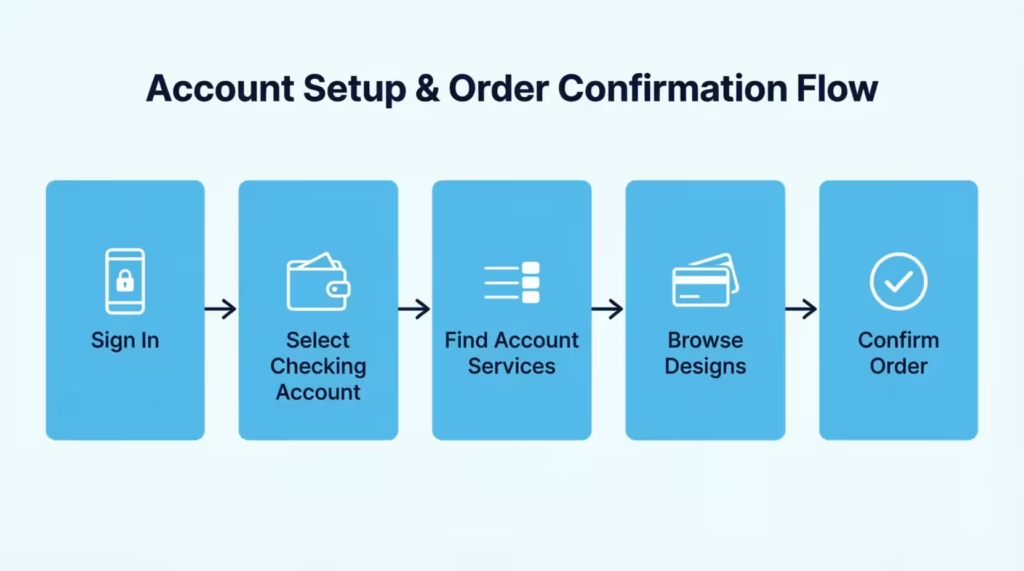
You will get an in-app confirmation and usually an email receipt within a few minutes.
What to Do If You Can’t Find the Design Option in the App
If you cannot spot the Disney design path inside the app, try these fixes in order:
- Update the app from the App Store or Google Play. Older versions hide the option.
- Force close the app and reopen it. Some menus only show after a fresh load.
- Tap the search icon inside the app and type “Disney” or “card design.” Many users find the link faster this way.
- Confirm your checking account is the one selected. Some menu items only show under personal checking, not under savings or credit cards.
- If none of that works, switch to the Chase.com website or call Chase. Both options are covered in the next sections.
How to Change Your Chase Debit Card Design on Chase.com
If you prefer a bigger screen or your phone app is acting up, the website works too.
Step 1: Go to Chase.com and sign in to your account.
Step 2: From your dashboard, click your checking account tile.
Step 3: Look at the side menu or the “Account services” link. Click “Disney Visa Debit Card,” “Get a Disney design,” or a similar item.
Step 4: The page may redirect you to the Disney Rewards or Disney Visa Debit Card section. That is normal, since this is where the design picker lives.
Step 5: Browse the available designs. Click any thumbnail to see a larger card preview.
Step 6: Select your design and click “Order Card” or “Continue.”
Step 7: Confirm your shipping address and review any fee. Standard shipping should be free.
Step 8: Click “Submit” to place the order. You will see a confirmation page with an estimated arrival window.
Requesting a Design Change by Phone
If digital options are not working, or if you are not comfortable doing this online, phone support is the simplest fallback. Call the number on the back of your current Chase debit card, or use the main Chase customer service line listed on the Chase Customer Service page.
Tell the agent: “I would like to switch my debit card to a Disney Visa Debit Card design, please.” The agent will confirm your account, ask which design you want, and place the order on your behalf. Have your account details and a backup ID question ready for verification.
What Happens to Your Old Debit Card and Card Number
Two important details here. First, your account number and routing number do not change. Direct deposits, wire transfers, and ACH payments that use those numbers keep working without any update from you.
Second, the physical card number on the front (or back) of your debit card usually does change. The CVV and expiration date will also be new. That is because Chase issues a new card with new printed numbers when you swap designs.
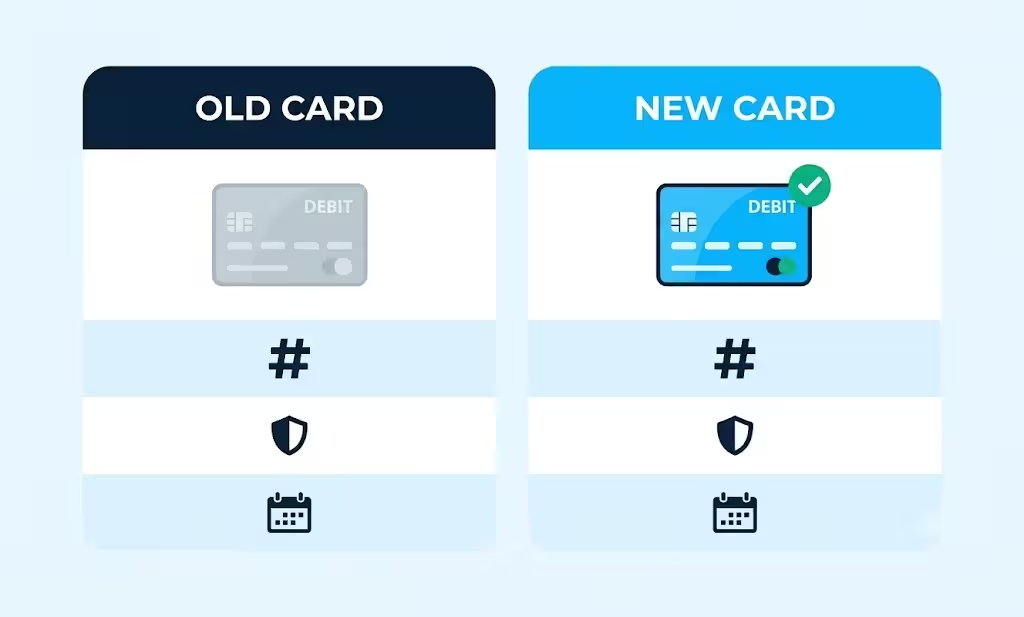
So your bank account stays the same, but the card itself is treated as a fresh card. Any place that stored your old card number for charges, like Netflix, Spotify, or a gym membership, will need the new card number once you activate it.
Will This Affect Your Autopay or Linked Subscriptions
Yes, this is the part most people forget. If the card number changes, anything billing your old card will fail on the next charge unless you update it. Use this order of operations to avoid missed payments:
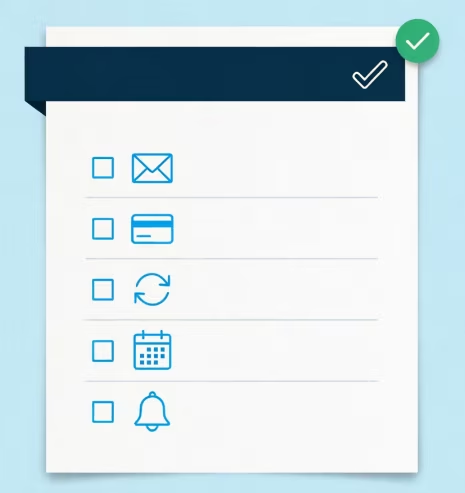
- Wait for the new design card to arrive in the mail.
- Activate the new card (steps further down).
- Log into each service that bills your old card and replace the saved card details with the new number, expiration date, and CVV.
- Pay close attention to subscriptions billed monthly, like streaming services, gym memberships, cloud storage, and insurance.
- Check your bank app a week later for any failed payment alerts.
If you use Apple Pay, Google Pay, or Samsung Pay, you may also need to remove the old card and add the new one in your wallet app.
📌 Did You Know: Mobile wallets do not always update card numbers automatically. After you activate a new Chase debit card, open your wallet app and check that the card listed matches the new number on the plastic in your hand.
How Long It Takes to Receive Your New Design Card
For most customers, standard delivery takes about 5 to 7 business days from the date you place the order. That window covers card production and mailing through the regular postal service.
If you need it faster, Chase usually offers expedited shipping for a fee. Expedited cards typically arrive in 1 to 3 business days. The exact fee and timeline are shown on the order screen before you confirm.
A few things can stretch the timeline:
- Orders placed on weekends or holidays start processing the next business day.
- Address changes made right before the order can delay shipping while Chase verifies the new address.
- Postal service delays in your area can add a day or two.
You can track the status in the Chase app under your account’s “Card status” or “Recent activity” area.
What to Do With Your Old Card While You Wait
Keep using your current debit card as normal until the new one arrives. It will still work for purchases, ATM withdrawals, and online payments. The old card stays active right up to the moment you activate the new one.
Once the new card arrives:
- Activate the new card (steps below).
- Cut the old card into several pieces, making sure to slice through the chip and the magnetic stripe.
- Throw the pieces away in two or more separate trash bags so the full card cannot be reassembled.
Do not just toss the old card whole into the bin. Even a deactivated card has account details printed on it that can be misused.
Activating Your New Chase Debit Card Design
When your Disney card arrives, you have four easy ways to activate it.
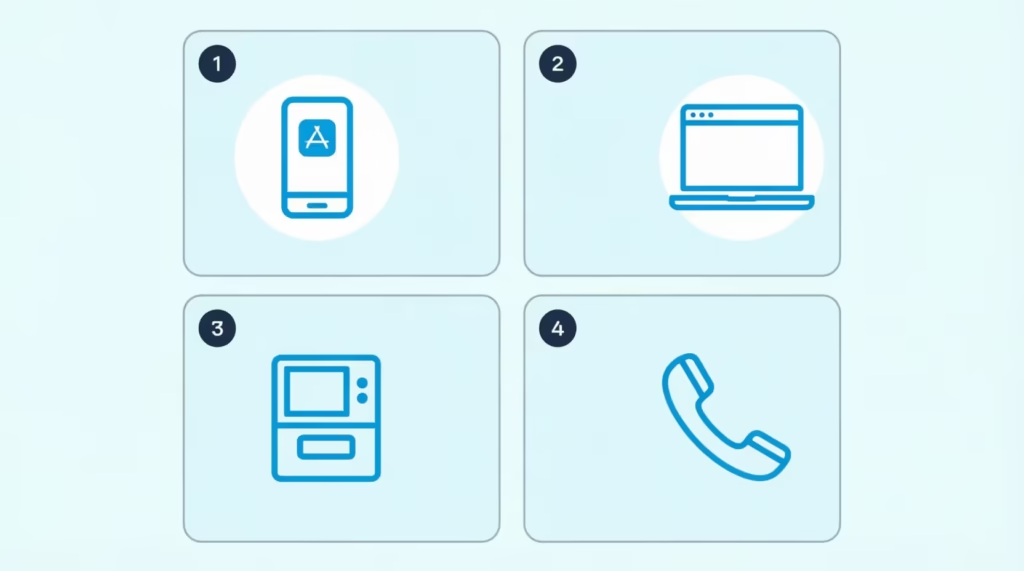
Option 1: Chase Mobile app. Sign in, tap the new card from your account screen, and tap “Activate.” Follow the prompts to set or confirm your PIN.
Option 2: Chase.com. Sign in, click the new card tile on your dashboard, and click “Activate card.”
Option 3: ATM. Insert the new card at any Chase ATM, enter the PIN listed in the card mailer, and complete one small transaction such as a balance check.
Option 4: Phone. Call the activation number printed on the sticker on the front of the new card and follow the voice prompts.
The moment activation finishes, the old card is shut off. Any charge that hits the old card number after that point will fail. So once you activate, treat the old card as dead plastic, update your subscriptions, and start using the new Disney design as your everyday card.
Frequently Asked Questions (FAQs)
Can I change my Chase debit card design?
Yes, but only through the Disney Visa Debit Card program. You can switch among licensed Disney, Pixar, Marvel, and Star Wars artwork, not upload a personal photo.
How do I get a Disney Chase debit card?
Open the Chase Mobile app, tap your checking account, then find the Disney Visa Debit Card option under account services. Browse the thumbnails, pick a design, confirm your address, and submit the free standard order.
How to get a Darth Vader Chase debit card?
Darth Vader is one of the rotating Star Wars artworks in the Disney Visa Debit Card lineup. Select it from the design picker in the Chase app or on Chase.com, since availability depends on what Disney currently licenses.
Does Chase make metal debit cards?
The article covers only the Disney Visa Debit Card lineup of Mickey, Princess, Pixar, Star Wars, and Marvel designs. No metal debit card option is mentioned for this program.
How can I change the design of my debit card?
For Chase, you select a new design through the Disney Visa Debit Card flow in the app, on Chase.com, or by phone. This issues a new physical card with new numbers, not a redesign of your existing one.
Can I use a Sharpie on my debit card?
This article does not cover decorating a debit card yourself with markers or stickers. It only addresses ordering an official licensed Disney design through Chase.
Will changing my Chase debit card design affect my account or routing number?
No, your account and routing numbers stay the same. Only the card number, CVV, and expiration date change since it’s a newly issued card.
How long does it take to get a new Chase debit card design?
Standard delivery takes about 5 to 7 business days and is usually free. Expedited shipping costs extra and typically arrives in 1 to 3 business days.
Is there a fee to change your Chase debit card design?
Standard replacement is usually free for eligible checking accounts. A fee only applies if you choose expedited shipping or have requested several replacements recently.
Wrapping Up
Switching a Chase debit card to a Disney, Pixar, Star Wars, or Marvel design is easier than you might think. Just remember, it’s not a fully custom option. Keep your checking account. Choose a licensed Disney Visa Debit Card in the app, on the website, or by phone. Then, accept your new card number and update any saved payments after activation.
Standard delivery is usually free and arrives within about a week, with expedited shipping available for a fee. Most readers find that ordering via the Chase Mobile app is easiest. The design picker, address check, and order confirmation all appear on one screen.
If you know a Disney, Marvel, or Star Wars fan tired of their plain debit card, share this guide. They can finally carry a design they love.