
You pull your Galaxy phone out at the coffee shop, hover it over the reader, and nothing happens. Or maybe you’re stuck at the setup screen, the “Next” button is grey, and the app keeps asking for a code that doesn’t match the one on the back of your card. Getting your American Express card into Samsung Wallet should take two minutes, but a few small details, like which CVV to type or whether your card is even eligible, can stop the process cold.
The fix is usually simple: enter the 4-digit code on the front of your Amex card (not the 3-digit code most cards use), confirm your card type is supported, and complete the bank verification step.
Below, we’ll walk through every step, show you what to do when an error pops up, and explain what changes once your card is set up.
Key Takeaways
This guide explains how to add an American Express card to Samsung Wallet, including eligibility requirements, the step-by-step setup process, the front-of-card security code, common errors, and how to confirm activation.
Core Facts:
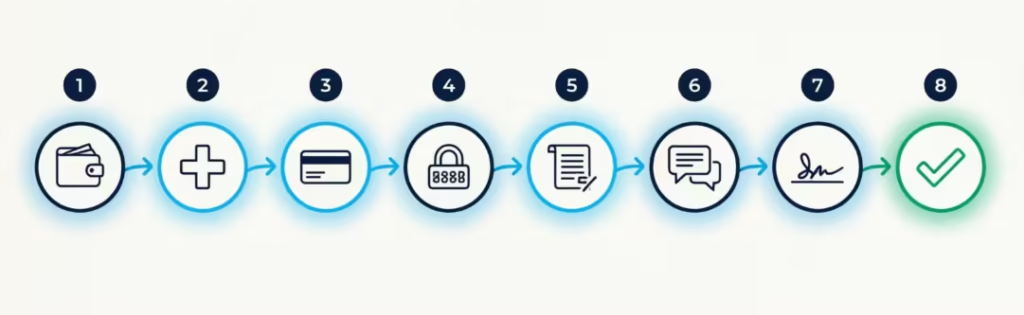
- Adding an Amex card to Samsung Wallet uses an 8-step process: open the app, select payment card, scan or enter card details, enter the security code, accept terms, verify identity, set a signature or PIN, and wait for confirmation.
- American Express cards use a 4-digit security code printed on the front of the card, not the 3-digit code found on the back of most other cards.
- Eligible cards include active personal and small business Amex credit or charge cards issued in the same country as the phone; gift cards, prepaid Serve and Bluebird accounts, and corporate purchasing or meeting cards are not eligible.
- Identity verification during setup can be completed by text message, email, or a call to Amex customer service, with codes typically arriving in under a minute.
- A common error cause is a region-locked phone, where the country listed in the Samsung Wallet account does not match the country that issued the Amex card.
- Once added, Samsung Wallet uses a separate digital token instead of the real card number for payments, and Membership Rewards, refunds, and foreign transaction fee terms continue to apply as normal.
Best for:
- Galaxy phone or Galaxy Watch owners trying to add an eligible American Express card to Samsung Wallet for contactless payments.
- Users encountering setup errors such as a greyed-out Next button, an invalid card message, or a card stuck in an activating status.
- Cardholders who want to confirm their digital card was added successfully or need to manage, suspend, or remove a card after a loss or replacement.
Which American Express Cards Work With Samsung Wallet
Before you start tapping through setup screens, it helps to know if your card is actually supported. Most personal Amex credit and charge cards issued in the United States work fine as a digital wallet card in Samsung Wallet.
This includes popular cards like the Amex Gold Card, Platinum Card, and Green Card. It also has Blue Cash Everyday, Blue Cash Preferred, and Cash Magnet. Also, there are Delta SkyMiles, Hilton Honors, and Marriott Bonvoy cards.
Small business cards from Amex also work in most cases. You can add the Business Gold Card, Business Platinum Card, and Blue Business Cash Card. Just make sure the card is active and issued by American Express in the country where your Galaxy phone is set up.
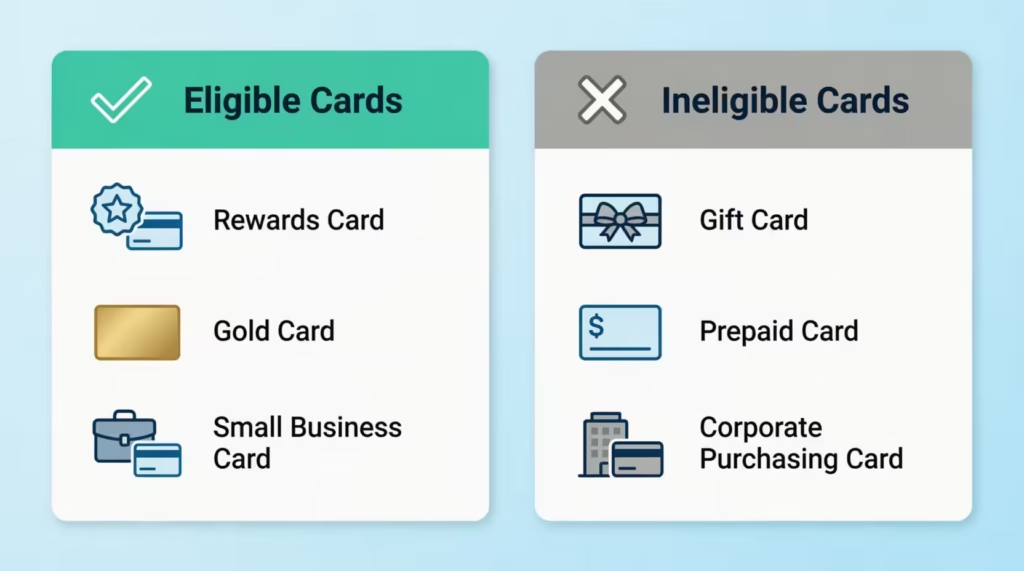
You need an eligible American Express card that is:
- Active and not expired
- A credit or charge card (not a stored-value or prepaid product)
- Issued by Amex in a country that supports Samsung Wallet
- Already in your name as the primary or authorized Amex Card Member
Corporate cards can be a bit trickier. Some corporate programs allow employees to load the card into a digital wallet, and others don’t. If your card was issued by your employer’s program, it’s worth checking with the program administrator before you try. The Samsung Wallet app will tell you if the card is blocked at the program level, but the error message is usually vague, so a quick call saves time.
It also helps to remember the difference between Samsung Wallet and Samsung Pay. Samsung Pay is the older payment service. Now, Samsung Wallet combines Samsung Pay’s tap-to-pay feature into one app.
This app also stores boarding passes, IDs, and loyalty cards. So when you add your Amex to Samsung Wallet, you’re really using the same payment system underneath, just inside a newer app.
💡 Pro Tip: If you have more than one Amex card, add the one you use the most first and set it as your default. That way, when you tap to pay without unlocking, it goes through automatically.
Amex Cards That Are NOT Eligible
Not every piece of plastic with an Amex logo can be loaded into Samsung Wallet. These cards will not work:
- American Express Gift Cards (the prepaid cards sold for birthdays and rewards)
- American Express Serve and Bluebird prepaid accounts
- Corporate Purchasing Cards used for centralized company buying
- Corporate Meeting Cards used for booking events
- Cards that have been reported lost, stolen, or closed
- Cards issued outside your phone’s home region (more on this later)
If you try to add one of these, you’ll usually see an “invalid card” or “this card type is not supported” message. It’s not a glitch; the card is simply not on Amex’s approved list for tap-to-pay digital wallets.
How to Add Your Amex Card to Samsung Wallet (Step-by-Step)
Here is the full process to add Amex to Samsung Wallet on a Galaxy phone. The steps look the same on the S series, Z Fold, Z Flip, and A series, since they all run One UI with the Samsung Wallet app.
Step 1: Open the Samsung Wallet app. Samsung Wallet comes pre-installed on most newer Galaxy phones. If you can’t find it, download it from the Google Play Store or the Galaxy Store. Sign in with the Samsung account you normally use on your phone.
Step 2: Tap the plus (+) icon to add a new item. You’ll see a list of card types. Choose “Payment card,” then “Credit or debit card.” This sends you into the card-entry flow.
Step 3: Scan your card or enter the details by hand. You have two options here:
- Card scan camera: Hold your Amex flat under good light. The camera reads the card number and expiration date. This works best on cards with raised numbers, like the classic Platinum or Gold.
- Manual card entry: Tap “Enter card manually.” Enter the 15-digit Amex number (most cards have 16 digits). Also, provide the expiration date and the cardholder name as it appears on the card.
If the scan keeps failing because the card is dark or shiny, switch to manual entry. It’s faster than trying to get the camera to focus.
Step 4: Enter the security code. This is the step where most people get stuck. Amex uses a 4-digit code printed on the front of the card, above and to the right of the card number. It is not the 3-digit code on the back like Visa or Mastercard. We cover this in detail in the next section.
Step 5: Accept the Amex terms and conditions. A long block of text will appear. This is your agreement with American Express about how the digital version of your card works. Scroll to the bottom and tap “Agree.”
Step 6: Verify your identity. Amex needs to confirm that the person adding the card is really you. The app will offer one or more verification methods:
- A text message to the phone number on file with Amex
- An email to the address on file
- A call to Amex customer service (used as a backup)
Pick the method you can access right now, get the one-time code, and type it into the Samsung Wallet app. The code usually arrives in under a minute.
Step 7: Set your signature or PIN. Some cards still ask you to draw a signature with your finger. Others skip straight to confirming your Samsung Pay PIN or fingerprint. Either way, this is the security layer that protects the card on your phone.
Step 8: Wait for the “Card added” confirmation. You’ll see a short animation and your card will appear in the Samsung Wallet home screen. At this point, the card is ready to use at any contactless terminal.
The whole process usually takes two to five minutes if you have your phone, your card, and your verification text or email all close together.
⚠️ Mistake to Avoid: Don’t switch apps or lock your phone in the middle of the verification step. If you leave the Samsung Wallet app before entering the one-time code, the session can time out and you’ll have to start over from Step 2.
Adding Amex to a Galaxy Watch
If you own a Galaxy Watch (Watch 4, Watch 5, Watch 6, or newer), you can add the same Amex card to your watch so you can pay without your phone.
Open the Galaxy Wearable app on your phone, tap “Watch settings,” then “Samsung Wallet.” From there, pick “Add card” and follow the same flow as on your phone. The watch creates its own digital card number, separate from the one on your phone, so each device gets its own token.
You’ll need to verify your identity again, even if you just added the card to your phone. That’s a security feature, not a glitch. Once it’s done, you can pay by holding the watch face near the contactless reader, no phone needed.
The Security Code Mix-Up That Stops Most People (3-Digit vs 4-Digit)
This single step trips up more people than any other part of the setup. Here’s why.
Most credit and debit cards, like Visa, Mastercard, and Discover, have a 3-digit card verification code. You can find it printed on the back, near the signature strip. People are so used to typing that 3-digit number that they flip their Amex over and try to find one in the same spot.
Amex doesn’t put it there. American Express uses a 4-digit CVV on the front of the card, printed in small numbers above and to the right of the main card number. It’s sometimes called the CID (Card Identification Number) instead of CVV, but it does the same job; it proves you have the physical card.
So the rule for Amex is simple:
- 3-digit code on the back? Not used for Amex.
- 4-digit code on the front? This is the one Samsung Wallet wants.
If you type a 3-digit number, the app will either reject it right away or let you continue and then fail at the bank verification step. Either way, the fix is the same: flip your Amex card over to the front, find the small 4-digit number near the card number, and type that.
On some newer “ultra-thin” Amex card designs (like the metal Platinum), the numbers are laser-etched and can be hard to read in low light. Hold the card under a bright lamp or shine your phone’s flashlight at an angle to make the digits pop.
📌 Did You Know: The 4-digit Amex code is called the CID, and it’s tied to the physical card, not the account. If you replace your card and get a new one in the mail, the CID changes even though your account number stays the same.
Fixing Common Errors When Adding Your Amex Card
If the setup isn’t going through, the problem usually falls into one of four buckets. Here’s how to work through each one when Samsung Wallet Amex not working is the issue.
“Next” Button Stays Greyed Out
A greyed-out “Next” button means the app doesn’t think you’ve finished a required field. The most common causes:
- Wrong card number length. Amex is 15 digits, not 16. If you typed 16 digits, delete one and check again.
- Wrong CVV length. The app expects 4 digits for Amex. If you only entered 3, the button stays grey.
- Expired date. If the expiration month or year has passed, the card is treated as inactive.
- Cardholder name doesn’t match. The name must match the embossing on the card exactly, including middle initials or “Jr.”
- Permissions not granted. Samsung Wallet needs access to your camera (for scanning), notifications, and location. Open Settings, find Samsung Wallet under Apps, and turn all permissions on.
Tap each field and check the entry carefully. The app won’t tell you which field is wrong, so it’s a process of elimination.
“Invalid Card” Error and Region-Locked Devices
The “invalid card” message often has nothing to do with your card and everything to do with where your phone was bought.
Samsung sells region-specific versions of its Galaxy phones. A phone bought in the United Kingdom may not let you add a U.S.-issued Amex, even if the phone works perfectly on a U.S. network. The card is fine. The phone’s Samsung Wallet is locked to a different country’s payment partners.
To check if you’re hit by a region lock:
- Open the Samsung Wallet app.
- Tap the menu (three lines or your profile icon).
- Look at the country listed under your account.
If the country shown doesn’t match where your Amex card was issued, that’s the root cause. Unfortunately, there’s no quick toggle. You need a Galaxy phone from the same region as your card. Or, you can use Amex’s other digital options, like Google Pay, which may have different region rules.
The same error can also show up if:
- Your card was recently replaced, and the old one is still in the system.
- Amex has flagged the account for fraud review (a quick call to Amex clears this).
- You’re trying to add a corporate card that your employer hasn’t approved for digital wallets.
App Glitches and Cards That Won’t Finish Activating
If the app crashes, freezes, or finishes setup but the card never says “active,” try this order:
- Force-close Samsung Wallet. Recent apps, swipe Samsung Wallet away, reopen.
- Clear the cache. Settings, Apps, Samsung Wallet, Storage, Clear cache. This doesn’t delete your cards.
- Update the app. Open the Galaxy Store, search for Samsung Wallet, and tap Update if available. App version mismatches cause card activation to stall.
- Restart your phone. A full reboot fixes more wallet problems than people expect.
- Check your internet. Samsung Wallet needs a stable connection for the Amex handshake. Switch from Wi-Fi to mobile data (or the other way) and try again.
If the card is stuck at “Activating,” wait 15 minutes before trying again. Sometimes the verification message from Amex is just delayed, and tapping “Retry” too soon starts a fresh request that conflicts with the first one.
When to Contact Amex or Samsung Support
Most setup problems are user-side or app-side. But you should call for help when:
- You’ve tried the steps above and the invalid card error keeps showing.
- Your text or email verification code never arrives, even after 10 minutes.
- The Samsung Wallet app says the card was added, but it doesn’t appear in your card list.
- You see a message like “Contact your card issuer.”
For card-side issues, call American Express at the number on the back of your card or use the secure chat in the Amex mobile app. Tell them you’re adding the card to Samsung Wallet so they can check for fraud holds or program restrictions.
For phone-side or app-side issues, use Samsung Support. Have your phone model and One UI version ready (Settings, About phone).
How to Confirm Your Amex Card Was Added Successfully
After setup, you want to be sure the card actually works before you walk into a store and find out the hard way. There are three quick checks.
Check 1: Look at the Samsung Wallet home screen. Open Samsung Wallet. Your Amex card will show as a tile near the top. It displays the last four digits of the digital card number, which is different from your physical card number, along with the card art. If you see “Activating” or “Pending verification,” the card isn’t ready yet; give it 5 to 15 minutes.
Check 2: Look for the confirmation email. Amex sends a confirmation message to the email address on your account whenever a card is added to a digital wallet. The subject line usually reads something like “Your American Express Card has been added to a digital wallet.” If you don’t see it, check your spam folder. No email after an hour means the activation didn’t finish, even if the app looks fine.
Check 3: Run a small test purchase. The most reliable test is to buy something small at a contactless terminal. A coffee or a bottle of water works. Hold your phone within an inch or two of the reader. You’ll feel a short vibration and see a checkmark on the screen when the payment goes through. If the reader beeps but the phone doesn’t react, your NFC may be off, open Quick Settings and tap the NFC icon to turn it on.
You can also check your Amex account online or in the Amex app. A successful test purchase appears as “pending” within a few minutes, and the merchant name often shows up as the store where you tapped.
What Changes Once Your Amex Card Is in Samsung Wallet
Adding your Amex to Samsung Wallet doesn’t change your account. Your card number, credit limit, billing cycle, and Membership Rewards all stay exactly the same. What changes is how you pay.
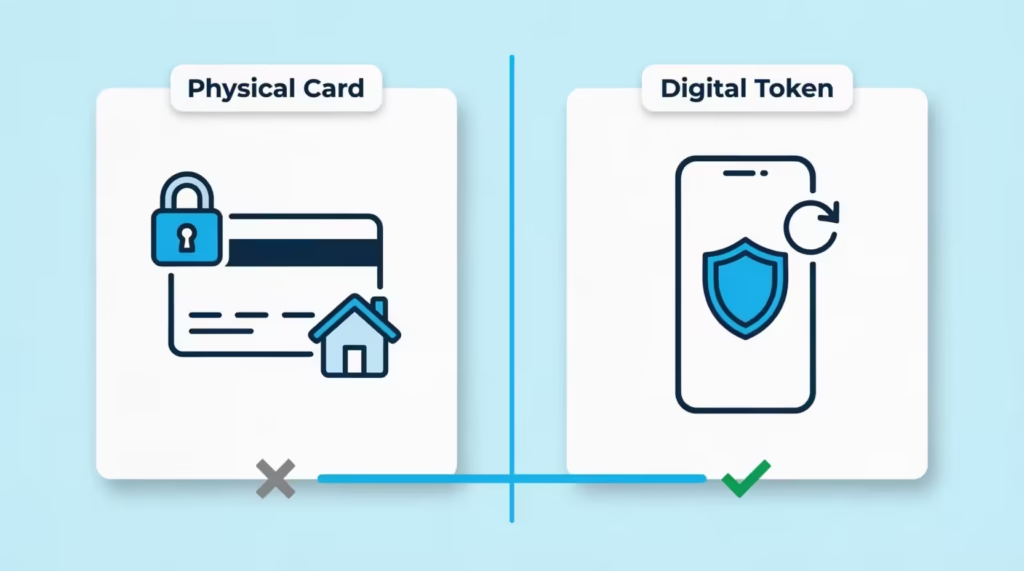
When you tap your phone at a terminal, Samsung Wallet doesn’t send your real 15-digit card number. It sends a separate digital token, also called a virtual account number, that only works for that one phone.
Even if a hacker grabs the token from a payment terminal, they can’t use it to buy anything online or clone your card. This is why contactless payment is generally safer than swiping or even inserting a chip.
A few things to expect after setup:
- You’ll still earn Membership Rewards. Points, cash back, or miles work just like a physical-card purchase. Statement credits and Amex Offers also still apply.
- Refunds go back to the same account. Even though the merchant sees a different number, refunds land on your real Amex account within the normal time frame.
- Foreign transaction fees follow your card’s rules. Samsung Wallet doesn’t waive or add fees. If your Amex normally has no foreign fees, you keep that benefit when tapping abroad.
- You’ll need biometric authentication or a PIN for every tap. Samsung Wallet requires either your fingerprint, face scan, or the Samsung Pay PIN you set during setup before the payment will go through. This is a security feature you can’t disable, and it’s why a lost phone is much safer than a lost physical card.
Most contactless readers in the U.S., U.K., Canada, Australia, and across Europe accept tap-to-pay from Samsung Wallet. If a reader has the wave symbol (four curved lines), it works. A few older terminals only accept chip insert, but they’re becoming rare.
If Your Amex Card Is Lost, Stolen, or Replaced
If something happens to the physical card, the digital version in your phone behaves differently than you might expect.
- Lost or stolen card: Call Amex right away; the number is on the back of your card and also on the Amex website. When Amex cancels the physical card, the digital token in Samsung Wallet usually stops working within minutes. But it can sometimes lag. To be safe, open Samsung Wallet, long-press your Amex tile, and tap “Remove card.”
- Replacement card with the same number: Rare, but if Amex sends a replacement with the same 15-digit number (for example, a new design), the digital card in Samsung Wallet keeps working without any action from you.
- Replacement card with a new number: This is the common case. The old digital card stops working the moment the new card is activated. Remove the old card from Samsung Wallet, then add the new one using the same steps as before.
Always remove the old card from Samsung Wallet before you cut up the physical one. It avoids a few days of confusion where the phone tries to use a dead token.
Managing Your Amex Card in Samsung Wallet After Setup
Once your Amex is set up, you have full control over it from inside the app. To Manage Digital Wallets options, open Samsung Wallet and tap on your Amex card tile. A menu opens with these choices:
- Set as default card. This is the card that pays when you tap your phone without opening the app first. You can only have one default at a time.
- Hide card. Hides the card from the home screen but keeps it active. Useful if you don’t use it often.
- Suspend card. Temporarily turns off the digital card so it can’t be used to pay. Your physical Amex still works. Use this if your phone is lost but you’re not yet ready to cancel the card with Amex.
- Remove card. Deletes the digital card number from your phone entirely. The next time you want to use it, you’ll have to go through the full setup again.
- View transactions. Shows recent purchases made with the digital card. Note that this only includes phone taps, not purchases made with the physical card.
You can also rearrange the order of cards on the Samsung Wallet home screen. Long-press a card and drag it up or down. The card at the top is the easiest to reach when you double-press the side button to launch Samsung Wallet from a locked screen.
You can easily change a handy setting in Samsung Wallet. Just go to Settings and turn off “Quick access.” This stops the wallet from opening when you double-press the side button. Some people find it triggers by accident when the phone is in a pocket.
If you ever switch to a new Galaxy phone, your cards do not transfer automatically. The digital tokens are tied to the device, not your Samsung account. You’ll need to suspend the card or remove the card options on the old phone, then add the Amex fresh on the new one. It takes about five minutes per card.
Frequently Asked Questions (FAQs)
How do I add an American Express card to Samsung Wallet?
Open Samsung Wallet, tap the plus icon, choose “Payment card,” then “Credit or debit card.” Scan or manually enter your Amex, type the 4-digit code from the front, accept the terms, and verify your identity by text or email.
Are Amex cards 16 digits?
No, American Express cards have 15 digits, not 16. Entering 16 digits during Samsung Wallet setup will keep the “Next” button greyed out.
Why won’t my credit card work on Samsung Wallet?
The most common causes are entering the wrong security code length, an expired card, or a cardholder name that doesn’t match the card exactly. Region-locked phones can also block cards issued in a different country than where the device was purchased.
Is Samsung Wallet the same as Samsung Pay?
Samsung Wallet is the newer app that combines Samsung Pay’s tap-to-pay function with boarding passes, IDs, and loyalty cards in one place. Samsung Pay still powers the payment technology underneath, but Samsung Wallet is the current app you use.
Can I have two Amex cards on one Samsung Wallet app?
Yes, you can add multiple Amex cards to one Samsung Wallet account. You can also set one card as your default for tap-to-pay without opening the app first.
Why can’t I add my Amex card to Samsung Wallet?
Common reasons include the card being a gift card or prepaid product, which aren’t eligible, or the phone being region-locked to a different country than where the card was issued. Corporate purchasing and meeting cards are also blocked from digital wallets.
Does Samsung Wallet work on Galaxy Watch for Amex payments?
Yes, Galaxy Watch 4, 5, 6, and newer models can store an Amex card separately from your phone. You’ll need to verify your identity again even if the card is already on your phone, since each device gets its own digital token.
What happens if my Amex card is lost or replaced after adding it to Samsung Wallet?
If the card is lost or stolen, the digital token in Samsung Wallet usually stops working within minutes of Amex canceling it, though you can manually remove it sooner. A replacement card with a new number requires removing the old digital card and re-adding the new one.
Is NFC needed for Samsung Wallet tap-to-pay?
Yes, NFC must be turned on for your phone to communicate with contactless terminals. If a reader beeps but your phone doesn’t respond, check Quick Settings to confirm NFC is enabled.
Wrapping Up
To add your American Express card to Samsung Wallet, follow these steps:
- Check if your card is eligible.
- Enter the 4-digit code on the front (not the 3-digit code on the back).
- Complete the Amex verification within the app.
Once that’s done, your digital card is safer than the physical one. It still earns Membership Rewards and works at any contactless terminal that supports tap-to-pay. For most readers, the best way is to scan the card. Switch to manual entry only if scanning fails. Then, do a small test purchase after setup to make sure everything works.
If this guide helped you skip the setup headaches, share it with a friend who just got a Galaxy phone; it could save them the same frustration.