
I’ve helped readers troubleshoot digital wallet setup for years, and the same question always comes up: how do you get an American Express card into Apple Wallet without running into errors or confusing prompts? Maybe your new Amex card hasn’t shown up in the mail yet, or you tried scanning it and got stuck. Maybe someone handed you an Amex gift card, and you want to add it to your phone right away.
Adding an Amex card to Apple Wallet only takes a few minutes once you know the right steps.
This guide covers every step of the process: the standard setup, what to do if your card hasn’t arrived, how gift cards work differently, and how to fix common errors.
Key Takeaways
This guide explains how to add an American Express card to Apple Wallet, covering card eligibility, the standard setup process, adding a card before it physically arrives, gift card setup, and common error fixes.
Core Facts:
- Eligible cards include active American Express consumer, small business, and corporate credit or charge cards, while some corporate purchasing and meeting cards are excluded from Apple Pay.
- Cards can be added two ways: through the Wallet app by tapping the plus sign, or through the Amex App by selecting Apple Pay under the Account tab.
- American Express offers an Instant Card Number for eligible new approvals, allowing card use in Apple Wallet before the physical card arrives in 5 to 7 business days.
- Amex Gift Cards require a minimum balance of $1.00 to be added to Apple Wallet, and some e-gift cards require account registration first.
- If a card scan fails, switching to manual entry using the card number, expiration date, and security code resolves most add errors.
- Apple Pay creates a separate Device Account Number for each device, so the actual 15 digit Amex card number is never shared with merchants during a transaction.
Best for:
- New Amex cardholders who want to start using their card digitally before the physical card arrives in the mail.
- Anyone who received an Amex Gift Card and wants to add it to their iPhone for use through Apple Pay.
- Cardholders who tried adding their Amex card to Apple Wallet but hit a scanning error, verification issue, or eligibility message.
Which Amex Cards Are Eligible for Apple Wallet
Most American Express cards work with Apple Wallet, but not every Amex product qualifies. Knowing this before you start saves you a wasted attempt.
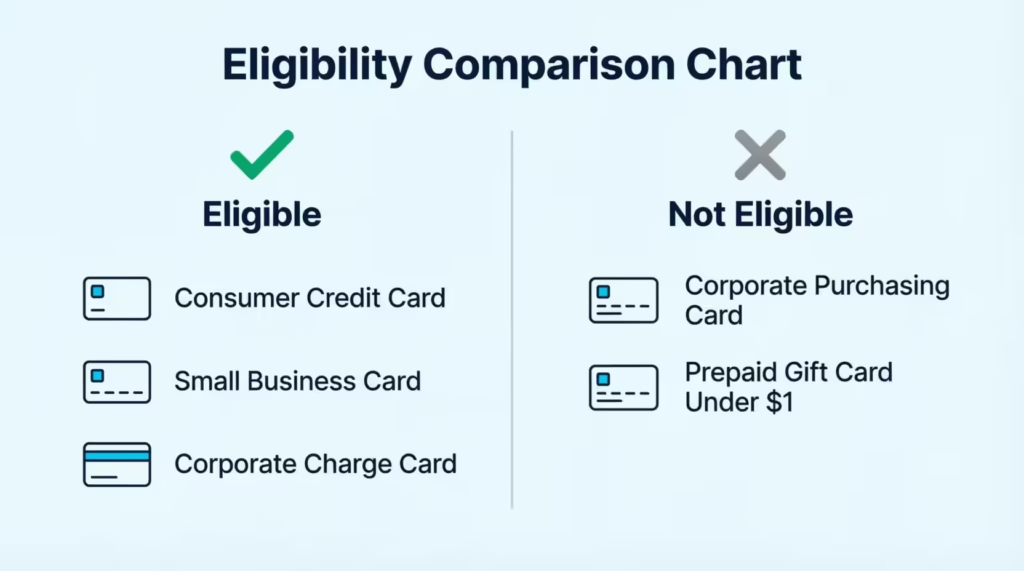
Eligible cards are:
- Active American Express consumer credit cards
- Small business credit cards
- Corporate credit or charge cards
If your card falls into one of these categories, it should add to Apple Wallet without any special steps.
A few card types are excluded. Some corporate purchasing cards and corporate meeting cards don’t qualify for Apple Pay, even though they’re issued by Amex. If you have one of these less common business card types, check with your card administrator before trying to add it.
Prepaid products work differently. An Amex Gift Card is not the same as a regular credit card, and it follows its own set of rules. The basic setup steps look similar, but the eligibility requirements are different. This guide covers that process separately later on, so skip ahead if a gift card is what you’re trying to add.
One more quick check: your device needs to support Apple Pay. Most iPhones released in the last several years qualify, along with compatible Apple Watch, iPad, and Mac models. If you’re using an older device, confirm it’s on Apple’s supported list before moving forward.
How to Add Your Amex Card to Apple Wallet
Once you know your card qualifies, adding it takes just a few steps. There are two official ways to do this: through the Wallet app directly, or through the Amex App. Both methods lead to the same result, so use whichever one is already open on your phone.
To add your card through the Wallet app, open the Wallet app on your iPhone and tap the plus sign in the top right corner. You’ll be asked to choose how you want to enter your card details. After that, follow the on-screen prompts to finish the setup. The whole process usually takes less than two minutes.
Adding Your Card Through the Amex App
If you already have the Amex App installed, this is often the fastest route. Open the app and go to the Account tab, then select Apple Pay. Choose the card you want to add, confirm your details, and follow the prompts on screen.
This method walks you through the same verification steps as the Wallet app, just from a different starting point.
If you don’t have the Amex App yet, you can download it for free from the App Store.
Scanning vs. Manually Entering Your Card
When you tap the plus sign in Wallet, you’ll see an option to scan your card with your phone’s camera or to type in the details by hand. Scanning is quick when it works. Hold your card flat under good lighting, and your phone should pick up the card number and expiration date automatically.
Scanning doesn’t always work, though. Glare, worn-down numbers, or a card design that isn’t standard can all cause the scan to fail. If that happens, don’t keep retrying the camera. Switch to manual entry instead.
You’ll need your 15-digit card number, the expiration date, and the four-digit security code printed on the front of your card. Typing these in by hand works every time, even when scanning doesn’t.
Completing the Verification Step
After you enter your card details, Apple Pay may ask you to confirm your identity. This usually means a one-time verification code sent by text or through the Amex App.
This step can feel confusing the first time, especially if you weren’t expecting it. It’s a normal part of the security process, not a sign that something went wrong.
The code typically arrives within a minute. Enter it on the screen where prompted, and your card setup will finish automatically. If the code doesn’t show up, wait a moment before requesting a new one rather than restarting the whole process.
📌 Did You Know: Your actual 15-digit Amex card number isn’t stored on your phone or shared with stores when you use Apple Pay. Apple Pay uses a unique Device Account Number for your phone. This is one reason mobile payments are safer than swiping a physical card.
Setting Your Amex Card as the Default Payment Method
The first card you add to Apple Wallet automatically becomes your default card for Apple Pay purchases. If that’s the card you want to use most often, you don’t need to do anything else.
If you’d rather use a different card by default, changing it takes just a few taps. Open Settings on your iPhone, then go to Wallet & Apple Pay, and select Default Card. Choose the Amex card you want to use, and it will become your go-to card for every Apple Pay transaction going forward.
You can also change the default card directly inside the Wallet app. Press and hold your Amex card, then drag it to the front of the stack. This sets it as your default without needing to open Settings at all.
This setting matters for one specific feature too. When you use Express Transit at participating transit systems, your default card is the one that taps to pay. You won’t need Face ID or a passcode. Make sure the card you want for transit is the one you’ve set as default.
Adding Your Amex Card Before It Arrives (Instant Card Number)
If you were recently approved for a new Amex card, you don’t have to wait for the physical card to show up in the mail before using it. American Express has a feature called Instant Card Number. This lets eligible applicants get their card number right after approval.
Here’s how it works: When you apply for an Amex card online or by phone, American Express checks if it can verify your identity. If approved, you may get an Instant Card Number right away. If you qualify, you’ll receive your full 15-digit card number, expiration date, and security code right away. You’ll usually find this in your approval screen or in a welcome email.
Once you have that number, you can add it to Apple Wallet the same way you’d add any other card: open the Wallet app, tap the plus sign, and enter the details manually. From that point forward, you can use your card for purchases through Apple Pay, both in stores and online, while you wait for the physical card to arrive.
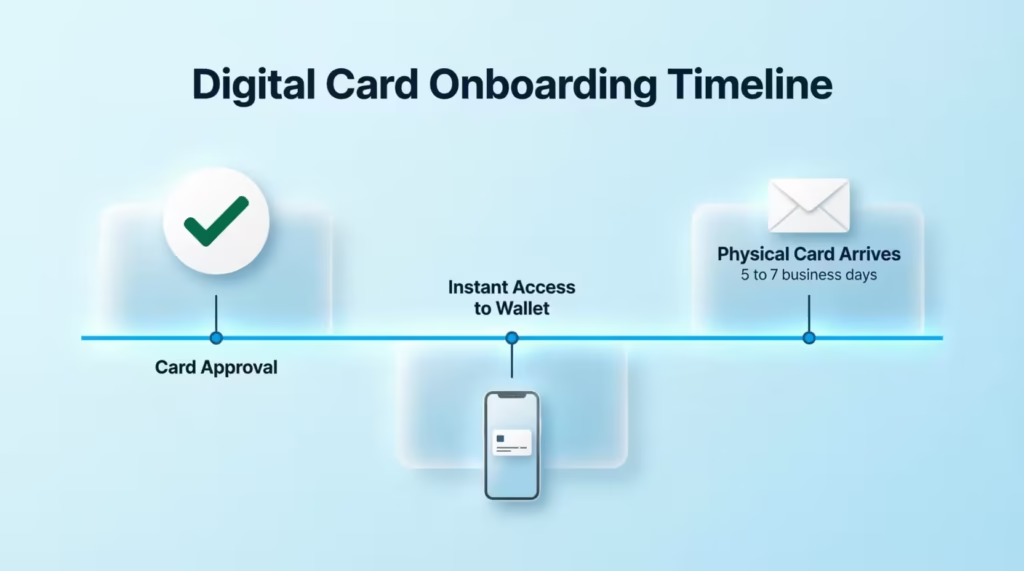
When the physical card does show up, usually within five to seven business days, you won’t need to add it again. It carries the exact same 15-digit number as the one already sitting in your Wallet app.
Adding a Card With No Physical Card at All
The same Instant Card Number system can help if you’ve lost your physical card, never received it, or simply don’t have it on hand. If you’re a cardmember, log in to your account on the Amex App or at americanexpress.com. Check if an Instant Card Number is available for you.
Not every situation qualifies for this option. Eligibility depends on Amex’s ability to verify your identity, so availability can vary from one cardmember to another. If you don’t see this option available, contact American Express support directly. They can walk you through alternative ways to access your card details or expedite a replacement.
How to Add an Amex Gift Card to Apple Wallet
Adding an Amex Gift Card to Apple Wallet works a bit differently than adding a regular credit card, mainly because of how prepaid cards are treated.
First, check your gift card’s balance. American Express requires a minimum balance of $1.00 for a gift card to be eligible for Apple Pay. If your card balance is below that, you’ll need to use some of it elsewhere first, or the add attempt will fail.
Once you’ve confirmed the balance, the steps to add it are similar to a standard card. Open the Wallet app, tap the plus sign, and either scan the card or enter the details by hand. You’ll need the card number, expiration date, and the security code from the back of the card. Follow the verification prompts the same way you would for a regular Amex credit card.
Some gift cards may ask you to register them with American Express before they can be added to a digital wallet. If you see a prompt asking you to create or log into an Amex account during setup, this is a normal part of the process for certain gift card types, not an error.
Why Some Amex Gift Cards Won’t Add
Many people find it frustrating that Amex gift cards, especially e-gift cards, often won’t add to Apple Wallet. This happens even though Amex says they are eligible. A few specific reasons explain most of these failures.
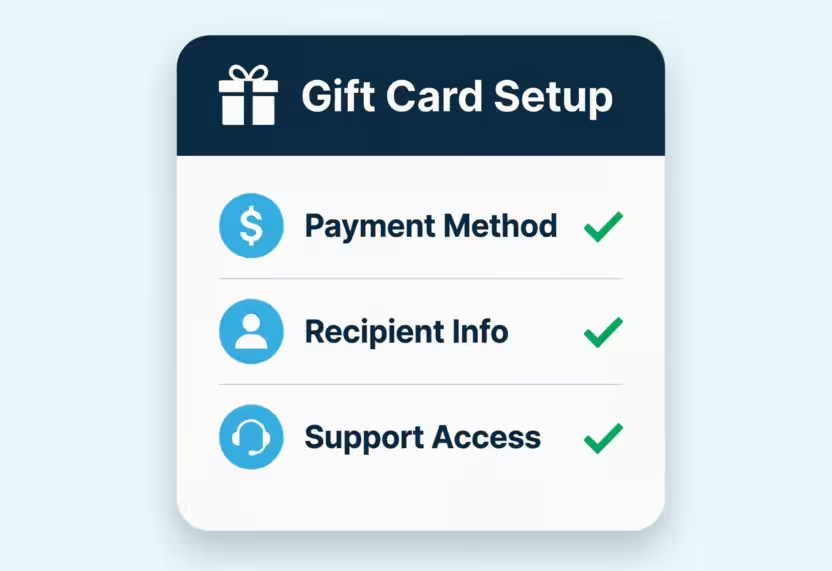
The balance requirement is the most common culprit. If your card balance has dropped below $1.00, even slightly, Apple Pay will reject the add attempt. Registration issues come up next. Some e-gift cards require you to set up an Amex account using the card details before the system recognizes it as a valid card to add.
If you’ve never had an Amex account and try to register with just gift card info, the system might say the details don’t match. This happens because gift cards aren’t linked to a regular cardmember profile like credit cards are.
⚠️ Mistake to Avoid: Don’t assume a failed add means your gift card is invalid. Many failures come down to balance or registration issues rather than the card itself being broken. Check your balance first, then try the registration step, before assuming you need to contact support.
If your balance is over $1.00 and you can’t register, call American Express customer service. They can check if your gift card works with digital wallets. They can also help fix any account-matching problems.
Fixing Common Errors When Adding Your Amex Card
Most Amex card additions go smoothly, but a few errors come up often enough to walk through directly.
If you get a message that your card “cannot be added at this time,” first check if your card type is eligible. Use the eligibility section above for reference. If your card qualifies but the error persists, try switching from camera scanning to manual entry.
Typing the card number, expiration date, and security code by hand fixes many errors. This is especially true when the original mistake was due to scanning issues, not eligibility problems.
Verification code problems are the next most common issue. If your one-time code never arrives, check that your phone has a strong signal and that your contact information on file with Amex is current.
Wait a minute or two before requesting a new code rather than restarting the entire setup. If multiple codes fail to arrive, the issue is more likely related to your contact details on file than to Apple Wallet itself.
When none of these fixes work, it helps to know who to contact. If the issue seems related to your card account, eligibility, or verification, contact American Express support.
If the issue seems related to the Wallet app itself, such as the app crashing or freezing during setup, contact Apple support instead. Knowing which company handles which part of the process saves time compared to going back and forth.
What Apple Pay Shares With Merchants When You Use Your Amex Card
A common hesitation before setting up Apple Pay is not knowing what information gets shared every time you tap to pay. Understanding this can ease some of that uncertainty.
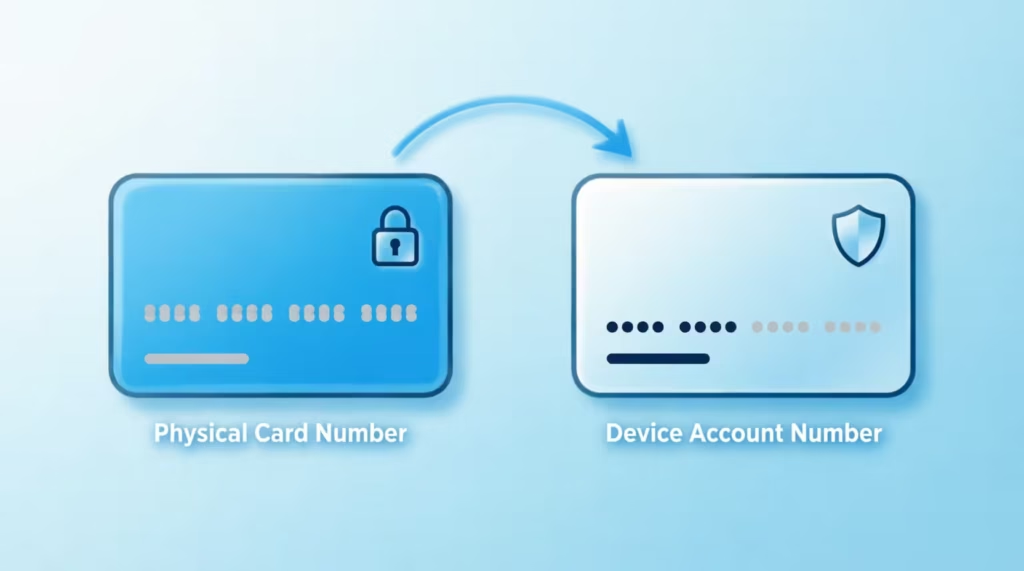
When you use Apple Pay, your actual 15-digit Amex card number is never shared directly with merchants. Instead, Apple Pay creates a unique Device Account Number specific to your phone or watch. This number replaces your real card number in transactions. So, if a merchant’s system is hacked, your actual card details stay safe.
This same protection carries over to fraud coverage. If you’re held responsible for unauthorized charges via Apple Pay, the same protections as your physical Amex card usually apply.
This is true if you’ve taken reasonable steps to secure your device and account information. This means not sharing your passcode and not letting someone else register their Face ID or fingerprint on a device tied to your card.
Frequently Asked Questions (FAQs)
Why can’t I add an Amex card to Apple Wallet?
The most common causes are a scanning failure, an ineligible card type, or a verification code that didn’t go through. Try manual entry instead of scanning, and confirm your card is an eligible consumer, small business, or corporate credit or charge card.
Can you add an Amex card to Apple Wallet before it arrives?
Yes, if you qualify for Amex’s Instant Card Number feature after approval. You’ll get your full card number, expiration date, and security code right away, which you can enter manually into the Wallet app.
Can you use Amex without a physical card?
Yes, through Instant Card Number for new approvals, or by contacting Amex support if you’re an existing cardmember without your physical card on hand. Eligibility depends on Amex’s ability to verify your identity.
How to add a card to Apple Pay without a physical card?
Use Amex’s Instant Card Number if you were recently approved, or check your Amex account online for digital access to your card details. Enter those details manually in the Wallet app by tapping the plus sign and choosing manual entry.
Is Amex a 3-digit or 4-digit CVV?
American Express uses a 4-digit security code, printed on the front of the card above the card number. This differs from Visa and Mastercard, which use a 3-digit code on the back.
Why does my card not let me add it to Apple Pay?
This usually happens because of a scanning error, an ineligible card type, or an outdated app version. Switching to manual card entry resolves most scanning-related failures.
Does Apple Pay accept Amex cards?
Yes, Apple Pay accepts eligible American Express consumer, small business, and corporate credit or charge cards. Certain corporate purchasing and meeting cards, along with prepaid gift cards under $1 in balance, are excluded.
How to verify an Amex card for Apple Pay?
After entering your card details, Amex sends a one-time verification code by text or through the Amex App. Enter the code on screen to complete setup, and wait a minute before requesting a new one if it doesn’t arrive.
Why does it say this card is not eligible for Apple Pay?
Your card type may fall outside Amex’s eligible categories, such as certain corporate purchasing or meeting cards, or it could be a gift card with a balance under $1.00. Confirm your specific card type before retrying.
What information does Apple Pay share with merchants when I use my Amex card?
Apple Pay never shares your actual 15-digit card number with merchants. Instead, it creates a unique Device Account Number for your phone, which protects your real card details during every transaction.
Wrapping Up
Setting up your Amex card in Apple Wallet involves more than just a quick tutorial. Here’s what to consider:
- Check your eligibility.
- Decide between the Wallet app and the Amex App.
- Get through any scanning or verification issues.
- Use your Instant Card Number while waiting for your physical card.
- Remember to handle gift cards differently from regular credit cards.
Using the Amex App account tab is usually the quickest option for most cardholders. It guides you through eligibility and verification all in one place.
If you’re waiting for a new card, use Instant Card Number. It’s a great shortcut. It allows you to start earning rewards on how to add an Amex card to Apple Wallet before your physical card arrives.
If you know someone who just got an Amex card and is waiting for it, share this guide. It could help them avoid a week of missed purchases and rewards.