
You bought a new iPhone or Apple Watch, and now you keep seeing that little wave symbol at the store register. You know your Capital One card belongs in there for tap-to-pay, but the setup screen feels confusing. Maybe you tried once, hit a “we hit a snag” error, and gave up.
Here’s the short answer: you can add almost any Capital One personal credit or debit card to Apple Pay in under three minutes using either the Apple Wallet app or the Capital One Mobile app.
Below, I’ll walk you through every step, the fix for that annoying verification error, how rewards still work, and the smartest digital wallet pick for your device. Let’s get your card ready to tap.
Key Takeaways
This guide explains how to set up a Capital One card with Apple Pay and other digital wallets, including eligible cards, step-by-step setup methods, verification troubleshooting, rewards considerations, security features, and digital wallet options for different devices.
Core Facts:
- Most Capital One personal credit cards, debit cards, and small business cards can be added to Apple Pay, while commercial cards, private-label retail cards, virtual card numbers, and cards held by users under age 13 cannot.
- Capital One cards can be added to Apple Pay through either the Apple Wallet app or the Capital One Mobile app, with the mobile app often providing a smoother setup experience.
- Apple Watch requires a separate Apple Pay setup even when the same Capital One card is already added to an iPhone.
- A common Apple Pay verification error can often be resolved by adding the card through the Capital One Mobile app while connected to mobile data instead of Wi-Fi.
- Apple Pay purchases earn Capital One miles, cash back, or points at the same rates as physical card transactions and continue to qualify for card protections and benefits.
- Capital One cards can be added simultaneously to Apple Pay, Google Pay, Samsung Pay, and Paze, allowing the same card to be used across multiple payment platforms.
Best for:
- Capital One cardholders who want to set up Apple Pay on an iPhone, Apple Watch, or other compatible device.
- Users experiencing Apple Pay setup or verification errors and looking for troubleshooting steps.
- Consumers comparing Apple Pay, Google Pay, Samsung Pay, and Paze to determine the best digital wallet for their device and shopping habits.
Which Capital One Cards Work With Apple Pay and Digital Wallets
Before you open the Wallet app, it helps to know if your card is even on the guest list. Most Capital One products are welcome, but a few are not. Knowing this up front saves you the frustration of a failed setup.
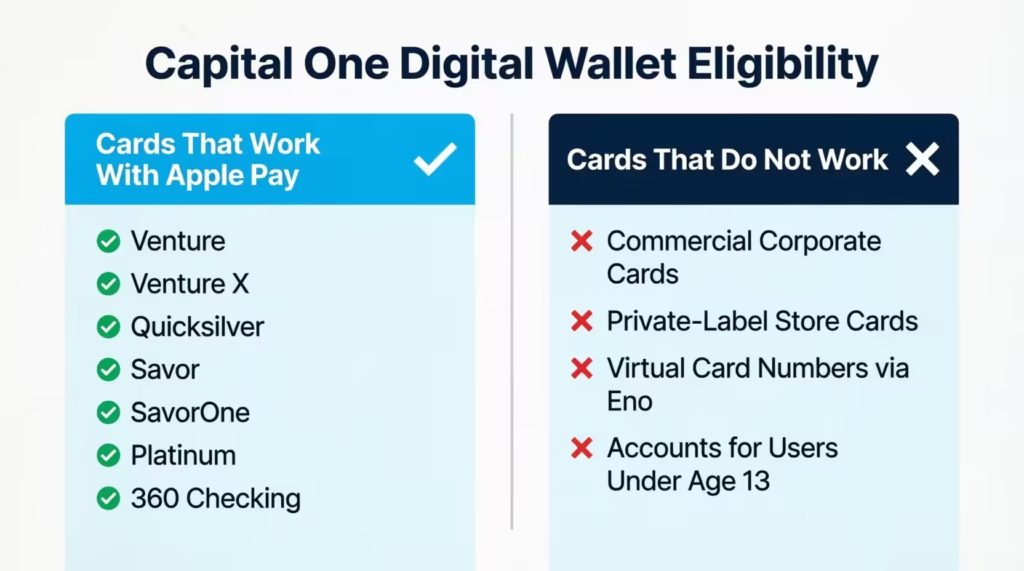
Nearly all Capital One Apple Pay eligible cards include personal credit cards, debit cards, and small business cards. That covers popular picks like the Venture, Venture X, Quicksilver, Savor, SavorOne, Platinum, and the 360 Checking debit card. If you carry one of these, you’re set.
The list of cards that will not work is short but important:
- Capital One offers commercial credit cards to large corporate clients.
- Private-label credit cards like the old Kohl’s Card, which is a co-branded retail card serviced through Capital One, but tied to a single store.
- Virtual card numbers are created through Eno, Capital One’s browser tool.
- Cards held by users under age 13, since Apple requires account holders to be at least 13 years old.
So the digital wallet eligibility rule is simple. If it’s a standard Capital One personal or small business card with your name embossed on it, you can add it. If it’s a store-only card or a temporary virtual number, you cannot.
💡 Pro Tip: If you have multiple Capital One cards, add them all to your wallet now. You can switch which one is the default later in the Wallet settings, but having every card pre-loaded means you never have to scan a new one in a checkout line.
How to Add Your Capital One Card to Apple Pay on iPhone
Adding your card takes about two minutes if your phone is set up correctly. Apple Pay needs a few basics first: an iPhone 6 or newer, the latest version of iOS, a passcode or Face ID enabled, and an active iCloud sign-in. If you skipped the passcode step when you got the phone, Apple Pay will not work until you turn one on.
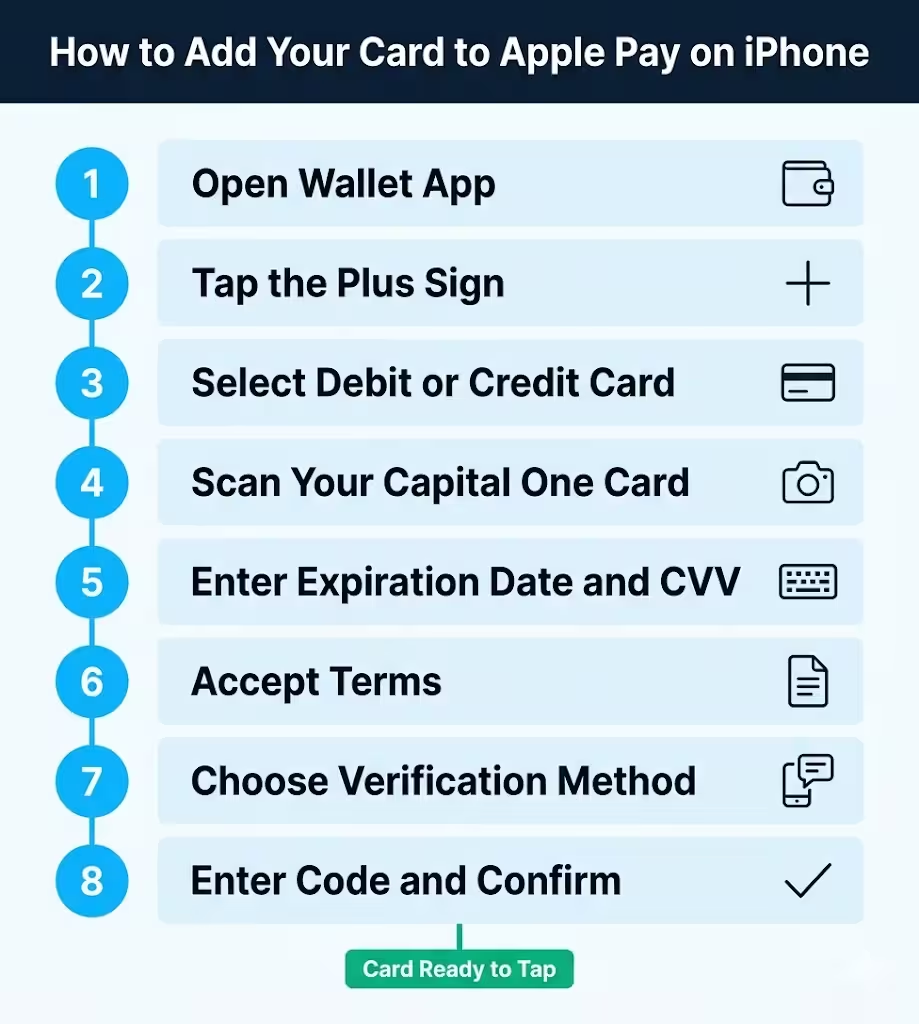
Here are the steps to add your Capital One card to Apple Pay through the Apple Wallet:
- Open the Wallet app on your iPhone. The icon looks like a small black wallet.
- Tap the plus sign (+) in the top-right corner.
- Select Debit or Credit Card, then tap Continue.
- Hold your Capital One card inside the camera frame. The phone scans the card number and name.
- Type in the expiration date and three-digit security code from the back of your card.
- Read and accept the terms.
- Choose a verification method. Capital One usually offers a text message, email, or in-app verification.
- Enter the one-time code, and your card is ready to tap.
Once verified, your card shows up as a digital image inside the Wallet app. The first card you add becomes the default. You can change this later under Settings > Wallet & Apple Pay > Default Card.
How to Add Your Capital One Card to Apple Pay Using the Capital One Mobile App
The Capital One Mobile app offers a smoother path because the bank already knows who you are. You skip the camera scan and most of the verification steps. Many users report this route avoids the common “snag” error, too.
To use the Capital One app for iPhone setup:
- Open the Capital One Mobile app and sign in.
- Tap your card on the account dashboard.
- Scroll to find Digital Wallet or Add to Apple Wallet.
- Tap Add to Apple Wallet and follow the on-screen prompts.
- Confirm the card details and accept the terms.
The card lands in your Apple Wallet without a separate code. This is the cleanest method for most users, especially anyone setting up a brand-new card that just arrived in the mail.
How to Add Your Capital One Card to Apple Watch
Apple Watch needs its own setup, even if the card is already on your iPhone. The Watch holds card data on its own chip so you can pay without your phone nearby. This trips up a lot of people who assume one setup covers both devices.
To add the Capital One card Apple Pay profile to your Watch:
- Open the Watch app on your iPhone (not the Watch itself).
- Tap the My Watch tab at the bottom.
- Scroll down and choose Wallet & Apple Pay.
- Tap Add Card, then pick Debit or Credit Card.
- If your card already lives on your iPhone, tap Add next to it. If not, scan it like before.
- Complete the same verification step Capital One offers.
Once added, double-press the side button on your Watch to pay. Hold the face near the contactless reader, and you’ll feel a small buzz when the payment clears.
What to Do If Your Capital One Card Won’t Add to Apple Pay
Sometimes the setup just won’t go through. The error reads “we hit a snag” or “card not added,” and there’s no clear reason. Before you panic, work through a short checklist. This is the most common form of Capital One Apple Pay not working, and almost every cause has a quick fix.
Start with these basic checks:
- Activate the card first. A brand-new card from the mail will not add until you activate it by phone or in the app.
- Update iOS. Older iOS versions sometimes block new card adds. Go to Settings > General > Software Update.
- Check your region. Apple Pay must be supported in your country. If you move or travel often, this can cause silent failures.
- Confirm your name matches. The name on the card must match the name on your Apple ID account profile.
- Restart your iPhone. A simple reboot clears stuck Wallet processes.
- Sign out and back into iCloud. This refreshes the link Apple uses to talk to your bank.
- Check Capital One’s app status. If the bank’s servers are down, no setup will work until they’re back.
If none of these fix it, the issue is almost always with the verification step, not the card add itself. That’s where the next section comes in.
The Verification Error Fix: Using the Capital One App and Turning Off Wi-Fi
This is the most common roadblock and the most frustrating one. The card looks like it was added, but then you get a verification failure. Cardholders have reported this issue across forums and support threads, and the fix that works most often is unusual but reliable.
Here’s the Apple Pay troubleshooting fix that solves the “we hit a snag” error:
- Open the Capital One Mobile app.
- Go to Settings, then turn Wi-Fi off on your iPhone.
- Make sure you’re connected to mobile data (4G or 5G).
- Inside the Capital One app, find your card and tap Add to Apple Wallet from there.
- Complete the prompts. Verification often clears on the first try.
- Once the card shows as verified in Wallet, turn your Wi-Fi back on.
Why does this work? Capital One’s verification handshake sometimes fails over certain Wi-Fi networks, especially home routers with strict DNS settings or public Wi-Fi. Mobile data uses a cleaner path to the bank’s servers. After the card is verified once, Wi-Fi works fine for normal payments.
⚠️ Mistake to Avoid: Do not try to re-add the same card five times in a row. After two failed attempts, Capital One may flag your account for security review, which can delay setup by 24 hours. Switch to mobile data and try the Capital One app route instead.
Do You Still Earn Capital One Rewards When Paying With Apple Pay?
This is one of the most common worries for new mobile wallet users. The short answer is yes. Paying with Apple Pay is treated the same as a regular swipe or tap with the physical card. Rewards post the same way, statements show the same merchant, and your Capital One benefits Apple Pay payments keep all the protections of the underlying card.
That means:
- Miles, cash back, or points earn at your card’s normal rate.
- $0 Fraud Liability still applies, so you are not on the hook for unauthorized charges.
- Purchase protections like extended warranty and travel coverage work the same.
- Statement credits and welcome bonuses count Apple Pay purchases toward the spend requirement.
In fact, Apple Pay can be safer than a physical card. The wallet sends a one-time device account number instead of your real card digits, so the merchant never sees your true card number. If a store’s payment system gets hacked, your Capital One number stays private.
When Your Enhanced Category Earn Rate May Not Apply
Here’s where things get a little tricky. While base rewards always post, enhanced category bonuses sometimes do not. This happens because of how merchants code their transactions.
Every business has a Merchant Category Code (MCC) that tells the bank what kind of shop it is. Grocery stores have one code. Gas stations have another. Bonus categories on cards like the Capital One Savor (which earns extra cash back at grocery stores and entertainment) pay based on this code.
When you tap with Apple Pay, the same MCC usually passes through. But not always. Some smaller merchants, online checkouts, or third-party payment processors strip the category data. The transaction still earns rewards, but only at the base rate of 1% instead of the boosted 3%.
For example, a shopper named Jennifer uses her Savor card at a small specialty market. In person with the chip, she earns 3% back. But if she pays online for the same store through Apple Pay and a third-party processor handles it, the transaction may post as a generic purchase. The 3% drops to 1%.
This is not a Capital One rule. It’s a merchant data issue. You can still earn miles Apple Pay style on every purchase, just check your statement now and then to confirm bonus categories are posted correctly. If a category bonus is missing, call the number on the back of your card. Capital One can often adjust it.
How to Use Apple Pay With Your Capital One Card in Stores
Once your card is loaded, paying in stores is faster than swiping. The trick is knowing the right gesture for your device. Many first-time users freeze at the register because they’re not sure what to press. Here’s how to use Apple Pay in-store with full confidence.
Look for the contactless symbol at checkout. It looks like a sideways Wi-Fi icon, four curved lines that grow wider. Almost every major retailer in the U.S. now has it, including Target, Walgreens, McDonald’s, Costco, and most grocery chains.
For an iPhone with Face ID (iPhone X and newer):
- Double-click the side button on the right side of your phone.
- Glance at the screen, so Face ID can recognize you.
- Hold the top of your iPhone near the reader.
- Wait for a small check mark and a buzz. That’s the contactless payment Capital One confirmation.
For an iPhone with Touch ID (iPhone 8 and earlier):
- Hold your phone near the reader without pressing anything.
- The Wallet app opens automatically.
- Place your finger on the Home button.
- Wait for the buzz.
For Apple Watch:
- Double-press the side button (the flat one below the crown).
- Hold the watch face near the reader.
- Feel the tap.
You don’t need to unlock the phone first or open any app. The whole Capital One Apple Pay checkout takes about two seconds.
How to Pay With Apple Pay for In-App Purchases
Many apps now skip the credit card form entirely and offer Apple Pay as a one-tap option. Think of Uber, DoorDash, StubHub, or Target’s shopping app. This saves you from typing your card number on a small screen.
To pay inside an app:
- Add your items and head to checkout.
- Look for the Apple Pay button, usually a black button with the Apple logo.
- Tap it.
- Confirm with Face ID, Touch ID, or your passcode.
The order goes through with the default card in your Wallet. You can change the card before confirming by tapping the card name on the Apple Pay screen.
How to Use Apple Pay to Pay Online in Safari
Apple Pay also works on websites that accept it, but only inside Safari. Chrome and Firefox do not support it on iPhone or Mac.
To use tap to pay iPhone style on a website:
- Shop in Safari on iPhone, iPad, or Mac.
- At checkout, choose the Buy with Apple Pay button.
- On iPhone or iPad, confirm with Face ID or Touch ID.
- On Mac, the prompt jumps to your iPhone or Apple Watch for authentication. A buzz on your other device means the payment cleared.
Shipping and billing details auto-fill from your Wallet settings, so you don’t retype them every time.
What to Do If Your Phone Is Lost or Stolen
Losing a phone with payment cards on it feels scary, but Apple Pay is built for this exact moment. Your real card number is never stored on the device, only an encrypted token. Even if a thief unlocks your phone, they’d still need your Face ID, Touch ID, or passcode to use Apple Pay.
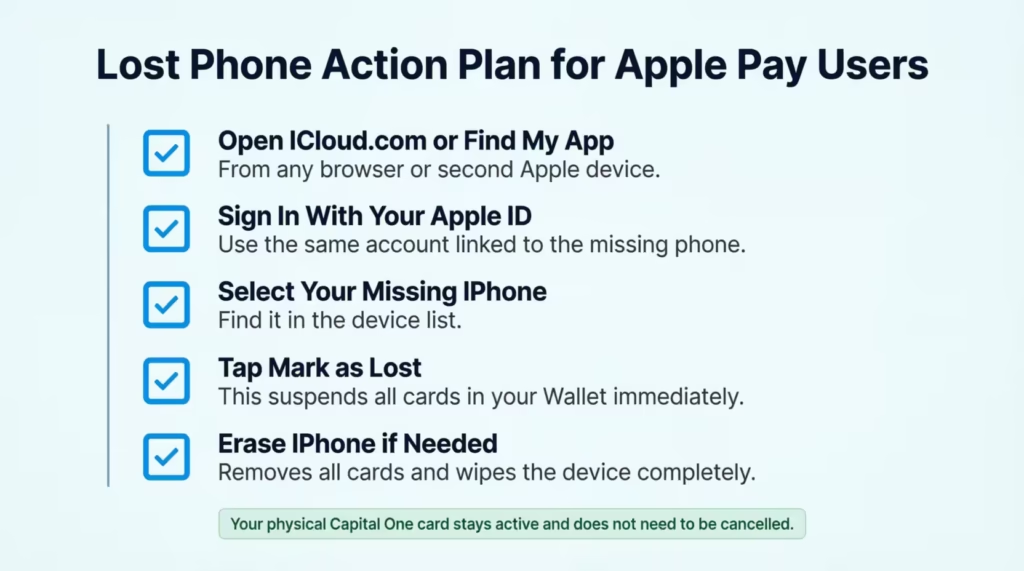
Still, you should act fast. Here’s the Apple Pay lost phone action plan:
- From any browser or another Apple device, open iCloud.com or the Find My app.
- Sign in with your Apple ID.
- Select your missing iPhone from the device list.
- Tap Mark As Lost (sometimes called Lost Mode).
- This step suspends all cards in your Wallet automatically, including the Capital One card security profile.
The lock works even if the phone is offline. As soon as it reconnects to any network, Apple pushes the suspend signal.
If you don’t expect to get the phone back, choose Erase iPhone instead. This wipes the device and removes every card. You can also log into your Apple ID account online and remove individual cards from the ” Remove Card ” Apple Pay menu.
Important note: your physical Capital One card stays active. You don’t need to call the bank to cancel anything. Once you get a new phone, just add the same card to its Wallet and pick up where you left off. If the stolen iPhone Apple Pay profile is gone for good, your card itself is still safe to swipe in stores.
📌 Did You Know: Apple Pay has never had a major card breach tied to its tokenization system since launching in 2014. The encrypted device account number means even Apple itself never sees your real card digits.
Adding Your Capital One Card to Other Digital Wallets
Apple Pay is not the only option. Capital One supports Google Pay, Samsung Pay, Paze, and PayPal. If you switch devices often or want a backup, here are the other paths.
How to Add Your Capital One Card to Google Pay
Google Pay (now part of Google Wallet) is the Android equivalent of Apple Pay. It works on most Android phones from the last six years and on Wear OS smartwatches.
To add your card:
- Open the Google Wallet app on your Android phone.
- Tap Add to Wallet, then Payment Card.
- Use the camera to scan your Capital One card, or type the digits manually.
- Enter the expiration date and CVV.
- Accept Capital One’s terms.
- Verify with a code sent by text, email, or through the Capital One app.
Once verified, double-press your phone’s power button or unlock it and tap to pay. The icon and gestures are slightly different from those on the iPhone, but the result is the same.
How to Add Your Capital One Card to Samsung Pay
Samsung Pay is built into Samsung Galaxy phones and watches. It used to have a unique edge with Magnetic Secure Transmission (MST), which let you pay at older swipe-only terminals, but Samsung removed MST from newer models. Today, it works through NFC, just like Apple Pay and Google Pay.
To set it up:
- Open the Samsung Wallet app on your Galaxy device.
- Tap the plus sign (+) and choose Add card.
- Scan or type your Capital One card details.
- Accept the terms and verify the card through your chosen method.
- Set a Samsung Pay PIN or use your fingerprint for confirmation at checkout.
To pay, swipe up from the bottom of the screen and hold the phone near the reader.
How to Set Up Paze With Your Capital One Card
Paze is newer and works only for online checkouts, not in-person taps. It was built by major U.S. banks, including Capital One, as a faster alternative to typing card numbers on retailer sites. It already works at stores like Sephora, Fanatics, and 1-800-Flowers.
Set up is automatic for most Capital One cardholders. If your card is eligible, it’s already enrolled. To use it:
- Shop on a partner site.
- At checkout, click the Paze button.
- Enter your email and verify with a one-time code.
- Choose your Capital One card from the list.
- Confirm the purchase.
You never type a card number. Paze pulls the data from your bank account directly.
Which Capital One Digital Wallet Should You Use?
With so many options, picking the right one comes down to your device and where you shop. Here’s a simple Capital One digital wallet comparison to help you decide.
If you own an iPhone, iPad, or Apple Watch, use Apple Pay. It works in stores, in apps, and in Safari. It’s the most seamless option for anyone in the Apple ecosystem. The Apple Pay vs Google Pay Capital One debate doesn’t really apply here, since Google Pay is not available on Apple devices.
If you own an Android phone, use Google Pay (Google Wallet). It works across Pixel, OnePlus, Motorola, and most other Android brands. The feature set is nearly identical to Apple Pay.
If you have a Samsung Galaxy phone or watch, you can use either Google Pay or Samsung Pay with Capital One. Samsung Wallet adds some extras like digital car keys and boarding passes that Google Pay does not. If you live in the Samsung ecosystem, stick with Samsung Wallet.
For online shopping, use Paze Capital One as a backup. It works on websites where Apple Pay or Google Pay are not offered, especially on Windows PCs and Chrome browsers. Paze fills the gap left by your phone’s wallet on the desktop.
Quick decision guide:
- iPhone user shopping in stores → Apple Pay.
- Android user shopping in stores → Google Pay or Samsung Pay (if Samsung phone).
- Any user shopping online without Apple/Google Pay → Paze.
- Smartwatch user wanting to leave the phone at home → Apple Pay (Apple Watch) or Google Pay (Wear OS).
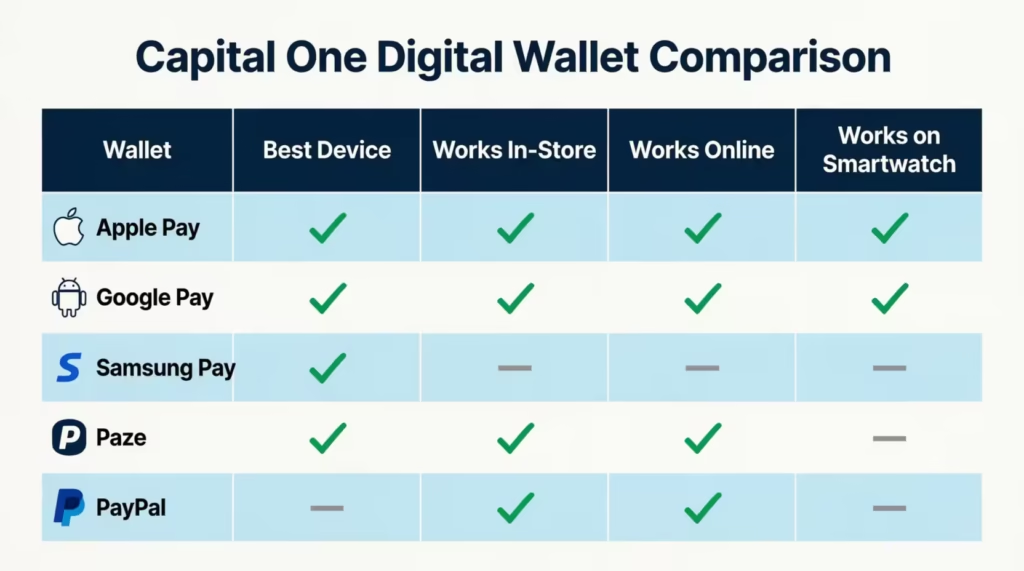
You don’t have to pick one. Capital One lets you load the same card into all of them. Having multiple wallets ready means you’re covered no matter which checkout option a store offers.
Frequently Asked Questions (FAQs)
What is the difference between Apple Pay and Apple Wallet?
Apple Wallet is the app on your iPhone that stores cards, passes, and tickets. Apple Pay is the payment function that uses those stored cards to complete purchases in stores, apps, and Safari.
How much is the Apple Pay fee for $100?
Apple Pay charges no fee to consumers for purchases. The cost of accepting contactless payments is paid by the merchant, not the cardholder, so you pay exactly the same price whether you tap or swipe.
What are the disadvantages of Apple Wallet?
Apple Wallet requires an iPhone 6 or newer, an active iCloud account, and a passcode or Face ID before it works. Online payments are limited to Safari only, and some merchants use payment processors that strip category data, which can reduce bonus rewards to the base earn rate.
Which is safer, a credit card or a digital wallet?
A digital wallet is generally safer because it never sends your real card number to the merchant. Instead, it transmits a one-time encrypted token, so your actual Capital One digits stay private even if a store’s payment system is compromised.
Do Capital One rewards still post normally when you pay with Apple Pay?
Yes, Apple Pay purchases earn miles, cash back, or points at the same rate as a physical card swipe. One exception: smaller merchants using third-party processors sometimes strip category data, which can reduce a bonus earn rate like 3% down to the 1% base rate.
What is a digital wallet?
A digital wallet is an app on your phone or smartwatch that stores your card information and lets you pay by tapping near a contactless reader. It replaces the physical card at checkout without exposing your real account number to the merchant.
How do I set up a digital wallet with my Capital One card?
Open the Wallet app on iPhone, tap the plus sign, scan your Capital One card, and verify your identity with a code sent by text or email. Alternatively, open the Capital One Mobile app, tap your card, and select “Add to Apple Wallet” to skip the camera scan entirely.
What are the biggest security threats when using Apple Pay?
The most realistic risk is losing your phone, since a thief with your device could attempt to access stored cards. Locking your iPhone remotely through iCloud immediately suspends all Wallet cards, including your Capital One card, even before the phone connects to a network.
Can you add a Capital One card to both Apple Pay and Google Pay at the same time?
Yes, Capital One lets you load the same card into Apple Pay, Google Pay, Samsung Pay, and Paze simultaneously. Having multiple wallets active means your card works regardless of which checkout option a store or website offers.
Bottom Line
Setting up your Capital One card for tap-to-pay is one of those small upgrades that pays off every single day. We covered which cards work, both setup paths through the Wallet and Capital One apps, the Wi-Fi fix for the verification error, how rewards still post, and what to do if your phone goes missing.
Based on how clean the experience is, the most effective approach for Apple users is to load every Capital One card you own into Apple Pay, add the same to Apple Watch as a backup, and keep Paze ready for desktop checkouts. For most readers, this combo covers every payment moment.
If you know someone who keeps fumbling with a physical card at the register, share this guide. It could save them from giving up on mobile payments altogether.