
I know the feeling. You’ve got your shiny Amex Platinum, Gold, or Delta card in hand, your Android phone is ready, and you just want to tap your way through checkout like everyone else. But adding an American Express card to Google Wallet isn’t always as smooth as a Visa or Mastercard. Sometimes it works in seconds. Sometimes it throws a vague error. Sometimes the verification code never arrives.
Adding an eligible Amex card to Google Wallet takes about three minutes: open Google Wallet, tap “Add to Wallet,” pick “Payment card,” scan or type your card details, enter the security code, and confirm with the one-time code Amex sends you.
In this guide, we’ll show you all the methods that work. We’ll explain the verification step and help you fix common “won’t add” errors. Plus, we’ll tackle tricky topics like gift cards, watches, and adding a card when you don’t have it handy.
Key Takeaways
This guide explains how to add an American Express card to Google Wallet, including the Android and Chrome browser methods, the four digit CID and one-time code verification steps, common error fixes, and gift card limitations.
Core Facts:
- Adding an eligible Amex card to Google Wallet takes about three minutes using the Add to Wallet button, the Payment Card option, and verification with a security code and one-time code.
- Google Wallet requires Android 9.0 or higher, NFC turned on, and a screen lock set on the device before a payment card can be saved.
- The Amex security code (CID) is four digits and printed on the front of the card, unlike the three-digit code printed on the back of most other card networks.
- Adding a card through Chrome at wallet.google.com works for online checkout only, since contactless tap-to-pay requires NFC hardware not available on iPhones or laptops.
- American Express Gift Cards and eGift Cards cannot be added to Google Wallet because they use a separate prepaid processing system that does not support Google’s tokenization.
- All rewards, including Membership Rewards points, Delta SkyMiles, Hilton Honors points, and Blue Cash Back, apply normally to Google Wallet tap transactions, which appear on statements with a “GglPay” prefix.
Best for:
- Android users setting up an eligible Amex credit or charge card for tap-to-pay for the first time.
- Readers troubleshooting a card that fails to add due to app, device, or verification errors.
- Anyone trying to determine whether an Amex gift card can be used with Google Wallet.
Add Your Amex Card to Google Wallet
Most people start here, and it’s the cleanest path. Before you tap anything, make sure your phone runs Android 9.0 or higher, has NFC turned on, and uses a screen lock. Without those three things, the Google Wallet app simply won’t let you save a payment card.
Open the Google Wallet app on your Android device. If it isn’t installed yet, grab it from the Play Store. Sign in with the Google account you actually use every day, because your saved cards live inside that account. Switch accounts later, and your cards won’t follow you.
Once inside the app, tap the “Add to Wallet” button near the bottom of the screen. A list of card types appears. Pick “Payment card,” then choose “New credit or debit card.” Google offers two ways to enter your details.
The camera scan is faster, so hold your Amex card flat in good light and let the lens grab the 15-digit number on the front. If the scan fails, it might be due to Amex’s silver and rose-gold fonts confusing the camera. So, tap “Enter details manually.” Then, type in the card number, expiration date, and the four-digit CID code above the card number.
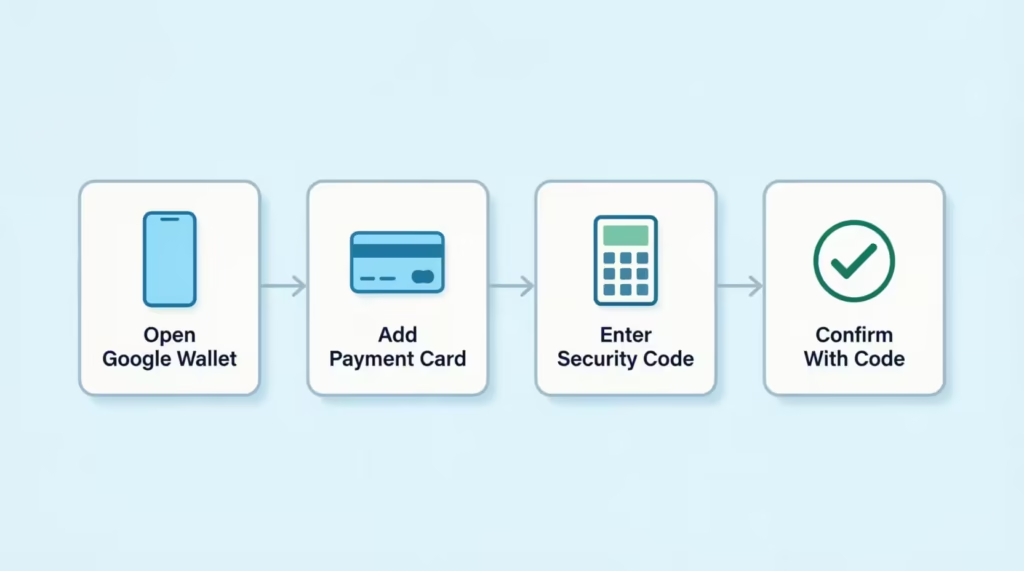
After you submit, Amex runs a quick eligibility check. Once approved, you’ll see your card appear in Google Wallet with the familiar Amex artwork. You’re now ready to tap to pay anywhere you see the contactless symbol or the Google Pay logo, exactly as the official Amex Google Pay setup guide describes.
💡 Pro Tip: Add your card while connected to home Wi-Fi instead of mobile data. The verification code from Amex sometimes lags on weak cell signals, and a stable connection cuts the failure rate noticeably.
Add Amex Through the Amex App Instead
If the Google Wallet flow keeps failing, try the reverse direction. The Amex App can push your card into Google Wallet for you, and it skips the manual card entry step.
Open the Amex App and log in with your User ID and password. Tap “Account” in the bottom navigation, then scroll until you find “Add Card to Wallets & Merchants.” Tap that, then select “Google Pay.”
Every Amex card on your account shows up there. Pick the one you want to add, confirm your device, and the app handles the handoff to Google Wallet in the background. Amex outlines this exact path in its official Google Pay FAQ and actually recommends it when the standard flow stalls.
This route is especially useful if you have several Amex cards. Instead of scanning each one, you pick from a list. It’s also the cleanest way to add a card whose physical copy is still in the mail.
Add Your Amex Card Without an Android Phone (Using Chrome)
Not everyone wanting to use Google Wallet has an Android phone. Some readers are on iPhone and still want their Amex saved in their Google Account for one-click checkout in Chrome. Others are on a laptop and want online purchases to autofill.
Head to wallet.google.com in your Chrome browser and sign in with your Google account. Click “Add to Wallet,” then “Payment card,” then “Credit or debit card.” Type in your Amex card number, the expiration date, the four-digit CID, and your billing address. Save it.
Your card is now stored in your Google account. When you check out on a website that accepts Google Pay, your Amex shows up as a saved option. No more digging through your wallet for the long card number.
Here’s the catch, and it matters: without an Android phone, you cannot use this card for in-store tap-to-pay. The contactless tap relies on NFC hardware that iPhones and laptops do not expose to Google Wallet. Your card in the browser is for online checkout only. If you want the full “leave my wallet at home” experience, an Android device is required.
What the Security Code and Verification Step Mean
This is where a lot of people get stuck. After you enter your card number, Amex does two checks back to back, and both can feel confusing if you weren’t expecting them.
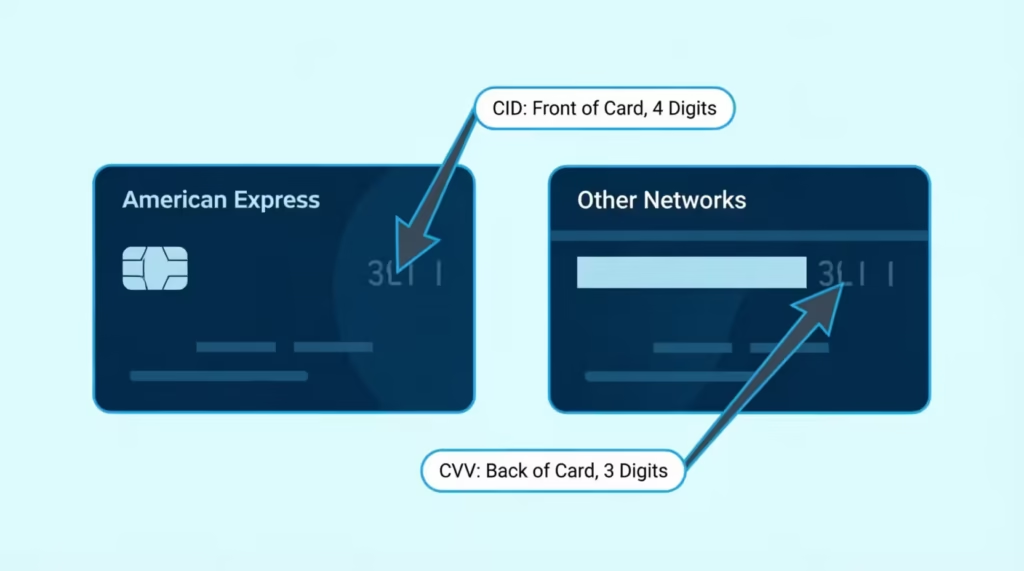
The first is the security code (CVV). On American Express cards, this is the four-digit number printed on the front of the card, above and to the right of the long card number. It is not on the back. This trips up first-time Amex users, because every other major card prints its three-digit code on the back. If Google Wallet says “invalid security code,” check the front of the card first.
The second check is the one-time verification code. Amex sends a short numeric code to the email address or mobile number it has on file for you. The code usually arrives within a minute and stays valid for about 10 minutes. You type it back into Google Wallet, and the app finishes linking your card.
If the code never lands, three things are usually to blame. Your contact details on file might be outdated, so log in to the Amex App and check your profile under “Account Services.” Your email provider may have filtered the message as spam, so search your inbox for “American Express.” Or the original code expired while you were waiting, in which case tap “Resend code” and watch your inbox right away.
Amex sometimes offers a third option: call customer service to receive the code by voice. The number on the back of your card connects you to an agent who can read the code to you over the phone after a quick identity check. This is the backup path when text and email both fail.
📌 Did You Know: The one-time code is called a “tokenization passcode” inside Amex’s systems. It doesn’t authorize a purchase. It only lets Amex issue a digital token, which is a stand-in number stored on your phone. That’s why your actual 15-digit card number isn’t saved on the device.
Why Your Amex Card Won’t Add to Google Wallet
If the card just refuses to load, the cause almost always falls into one of a handful of buckets. Walking through them in order saves time.
Start with the basics. Update the Google Wallet app and the Amex App to the latest version in the Play Store. Outdated apps are the main reason new cards don’t add. Amex and Google update their card tokenization handshake several times a year.
Next, check the card itself. Is it active? A card that arrived yesterday but hasn’t been activated will silently fail. Activate it inside the Amex App under “Account Services” or by calling the number on the activation sticker.
Is the account in good standing? A past-due balance can block new wallet enrollments. Are you the primary cardholder or an authorized user with wallet permission? Some authorized users on family accounts can’t enroll on their own.
After that, check the device. NFC must be on (Settings → Connected devices → Connection preferences → NFC). A screen lock must be set.
The phone must not be rooted, because Google blocks Wallet enrollment on rooted devices for security reasons. If you’re on a brand-new phone, sign in to your Google account once, give the phone a minute to sync, and try again.
“Unknown Error” or “Something Went Wrong” Messages
These vague errors rarely mean your card is ineligible. They usually mean a transient glitch in the handshake between Google and Amex.
Try this sequence. Close Google Wallet completely (swipe it out of the recent apps tray, don’t just minimize it). Reopen it and try again. If that fails, restart the phone. If that fails, clear the Google Wallet app’s cache (Settings → Apps → Google Wallet → Storage → Clear cache, not Clear data). Then try once more.
Still failing? Switch from Wi-Fi to mobile data, or vice versa. Some corporate or public Wi-Fi networks block the encrypted ports that Google Wallet needs to connect with Amex’s tokenization service. A quick network swap often fixes what looks like a card problem.
⚠️ Mistake to Avoid: Don’t tap “Add card” over and over within a few seconds. Each failed attempt can trigger a temporary cooldown on Amex’s side, and rapid retries sometimes flag your card for a fraud review that takes hours to clear.
Delays From Amex’s Side (Bank Token Issues)
Sometimes the problem isn’t your phone at all. Amex has to authorize the creation of a digital token before Google Wallet can finish adding your card. If Amex’s tokenization service is slow, backed up, or has flagged your account, the card won’t go through no matter what you do.
You can often tell this is the issue if you’ve tried all the fixes above. Your card works for online purchases, and other cards add to Google Wallet easily on the same phone.
In that case, call the number on the back of your card and ask the agent to “check for a token authorization hold on my account for Google Wallet.” That’s the magic phrase. Most agents can clear the hold in a few minutes once they know what to look for.
If the agent says everything looks fine on their end, wait 24 hours and try again. Amex’s tokenization queue sometimes catches up overnight, and a card that won’t add today will quietly add tomorrow.
Can You Add an Amex Gift Card to Google Wallet?
Short answer: no. American Express Gift Cards and eGift Cards cannot be added to Google Wallet or Google Pay. They are eligible for Apple Pay and Samsung Pay, but Google is not on the supported list. Amex confirms this directly on its gift card mobile wallet FAQ page, where Google Pay is conspicuously absent from the list of accepted wallets.
This catches a lot of people by surprise, especially when the gift card was a present, and they assumed it would behave like a regular Amex. It will not. Google Wallet’s “Add card” flow may reject the gift card number. If it accepts the number, it will likely fail during verification. This happens because gift cards lack a registered phone number or email for receiving a one-time code.
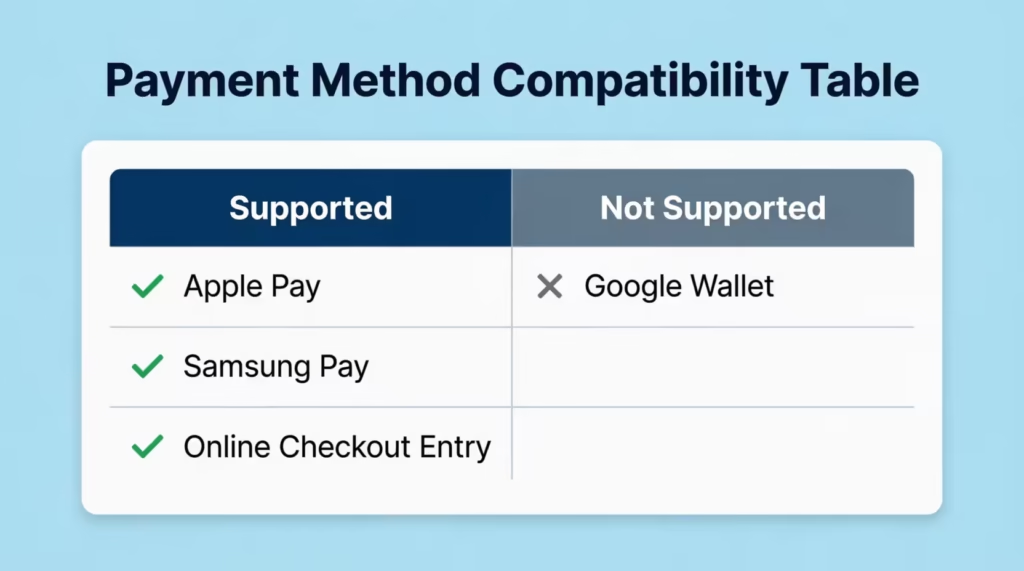
The reason is structural. Google Wallet only supports cards backed by a full credit or debit account that can be tokenized. Amex prepaid gift cards use a different processing system through InComm. This system does not link to Google’s tokenization. There’s no setting to flip and no workaround inside the app.
What to Do With an Amex Gift Card Instead
You still have plenty of ways to spend the balance. For online shopping, type the gift card number directly into the checkout form like any other credit card. Most websites accept it without issue, as long as you enter the billing ZIP code that was set when the card was registered (you can register it at americanexpress.com/gift-cards).
For in-store shopping, swipe or insert the physical card at any merchant that accepts American Express. The card has a magnetic stripe and, on newer issues, a chip. Some small merchants with mobile readers may not accept Amex prepaid products. So, check the register’s accepted-card stickers first.
To use a gift card balance with Google Wallet, follow this workaround: First, buy something you planned to get using your gift card. Then, pay for the rest with your regular Amex in Google Wallet.
Adding Your Amex Card Without the Physical Card in Hand
Lost the card, left it at home, or still waiting for the replacement to arrive in the mail? You can still add it to Google Wallet, as long as your account is set up in the Amex App.
Open the Amex App and log in. Tap “Account,” then “Add Card to Wallets & Merchants,” then “Google Pay.” Because Amex already has your full card number on file, you don’t have to type anything. Just pick the card and confirm the device. Google Wallet opens by itself. It verifies your account with a one-time code sent to your email or phone. Then, your card is ready to use.
This is the single best workflow if you opened a new card account and the physical card hasn’t shipped yet. Amex often shows your card number in the app minutes after approval. This way, you can use Google Pay days before the card arrives in your mailbox.
Using an Amex Virtual Card Number Instead
For online shopping, Amex has a special option: the Amex Virtual Card Number. You don’t even need Google Wallet for this. This creates a unique 15-digit number for your account. You can use it for online or in-app purchases. You can also set spending limits or merchant locks.
Enroll by logging in at americanexpress.com and navigating to “Account Services → Digital Wallets & Payment Features.” Generate a virtual number, and Amex will autofill it into Chrome the next time you check out on a participating site. It’s different from Google Wallet. For online use, it’s faster and safer. The merchant never sees your real card number.
Adding Amex to a Smartwatch or Wear OS Device
The watch flow is its own beast, and a surprising number of people land here after a Fitbit setup quietly broke.
For a Pixel Watch or any Wear OS watch (Samsung Galaxy Watch on Wear OS 3+, TicWatch, Mobvoi, etc.), the process runs through the watch’s companion app on your phone. Open the Google Pixel Watch app (or the Galaxy Wearable / Wear OS app, depending on the brand). Tap “Wallet & payments,” then “Add card.”
Your watch will prompt you to either copy a card already in your phone’s Google Wallet or add a new one. Pick your Amex, complete the same one-time code verification, and the card is now on the watch’s secure element. You can tap to pay even when your phone is in another room. Google’s smartwatch tap-to-pay help page walks through device-specific quirks if your watch model behaves differently.
For Fitbit, things changed in 2024. Older Fitbits ran Fitbit Pay on a separate backend, but Google has migrated all newer Fitbits (Sense 2, Versa 4, Charge 6, and later) to Google Wallet. If you have one of these newer models, follow the Pixel Watch instructions above using the Fitbit app.
If you own an older Fitbit (like Versa 3, Sense original, or Charge 5), Fitbit Pay is going away. You might not be able to enroll your Amex on those devices anymore. Fitbit’s own support pages confirm which models are migrating and which are sunsetting.
One quirk worth knowing: even when the card adds to your watch successfully, your watch and phone each hold a separate digital token for the same card. That’s why your phone might still tap to pay even if the watch fails, and vice versa. They’re treated as two devices on Amex’s end.
What Changes After Your Amex Is in Google Wallet
Once your card is added, almost nothing changes about how you actually use it, and that’s the point. You still earn full Membership Rewards points, Delta SkyMiles, Hilton Honors points, or Blue Cash Back with every tap.
It’s just like swiping the physical card. The contactless transaction runs through the same network with the same rewards categories. Amex’s Google Pay FAQ states clearly that all rewards apply normally to Google Pay transactions.
The one visible difference shows up on your billing statement. Amex labels every Google Pay tap with the prefix “GglPay” followed by the merchant name. So a $4.75 latte at Starbucks bought with a tap will appear on your statement as “GglPay Starbucks #1234.”
This is normal. It’s not a separate merchant; it’s Amex’s way of tagging the transaction as contactless from a Google device. If you use Apple Pay on a different card, you’ll see “AplPay” the same way.
Security gets a quiet upgrade too. Google Wallet stores a virtual card number (a token) on your phone, not your real 15-digit Amex number. If your phone is lost or stolen, you can remotely wipe the token from myaccount.google.com/find-your-phone without canceling the underlying card. Your physical card keeps working while the digital one is locked out.
Your credit limit, due dates, statement cycle, and APR all stay exactly the same. Google Wallet is just a way to present the card at the register. The account behind it is unchanged.
Setting Your Default Card for Tap-to-Pay
If you have multiple cards in Google Wallet, like a personal Platinum and a business Blue Cash, only one card will tap by default. Picking the right one matters, especially if your cards earn different rewards in different categories.
Open Google Wallet. The card at the top of your card stack is the default. To change it, press and hold any card and drag it to the top of the pile. The Amex you just moved up will now tap automatically whenever you hold the phone near a contactless terminal.
To use a different card for a purchase, open Google Wallet first. Select your card, then hold your phone to the terminal quickly. The terminal will use the selected card for that single transaction, then revert to your default for the next one. Here’s how to use your dining-bonus card at restaurants and your travel-bonus card at airports. You won’t need to rearrange your stack each time.
Frequently Asked Questions (FAQs)
Why can’t I add an Amex card to Google Wallet?
The most common causes are an outdated Google Wallet or Amex app, an inactive card, a past-due account balance, or a rooted phone. Updating both apps and confirming your card is activated resolves most failures.
Why won’t my Google Wallet let me add a card?
Your phone needs Android 9.0 or higher, NFC turned on, and a screen lock set, or Google Wallet will block the card entirely. A rooted device also gets blocked automatically for security reasons.
Is Amex a 3-digit or 4-digit CVV?
American Express uses a 4-digit security code called the CID, printed on the front of the card above the long card number. This differs from other major card networks, which print a 3-digit code on the back.
How do I manually add a card to Google Wallet?
Open Google Wallet, tap “Add to Wallet,” choose “Payment card,” then “New credit or debit card.” Tap “Enter details manually” and type in the card number, expiration date, and 4-digit CID.
Can I use Google Pay on Fitbit?
Yes, newer Fitbit models like the Sense 2, Versa 4, and Charge 6 have migrated to Google Wallet and support tap-to-pay through the Fitbit app. Older models such as the Versa 3 or Charge 5 are losing Fitbit Pay support and may not allow new card enrollments.
Can you use Amex without a physical card?
Yes, if your account is already set up in the Amex App, you can add your card to Google Wallet without ever typing the number in. Open the app, go to “Account,” then “Add Card to Wallets & Merchants,” then select Google Pay to add it from your card data on file.
Why is Google Pay not accepting my credit card?
Amex Gift Cards and eGift Cards can’t be added to Google Wallet because they run on a separate prepaid processing system that doesn’t support Google’s tokenization. Regular Amex credit and charge cards don’t have this restriction and should add normally once eligibility checks pass.
What’s the difference between GPay and Google Wallet?
Google Wallet is the current app name for storing payment cards, transit passes, and IDs on Android devices and Wear OS watches. Transactions made by tapping your phone still show up on your Amex statement with a “GglPay” prefix before the merchant name.
Can you add an Amex card to Google Wallet before it physically arrives?
Yes, as long as Amex has approved your account and shows the card number in the Amex App, you can add it to Google Wallet through the app’s “Add Card to Wallets & Merchants” option. This lets you use Google Pay days before the physical card reaches your mailbox.
Why does my Amex show up as “GglPay” on my statement?
Amex labels every Google Wallet tap-to-pay transaction with “GglPay” followed by the merchant name, such as “GglPay Starbucks #1234.” This is just a tag identifying the purchase as a contactless tap from a Google device, not a separate charge or billing error.
Wrapping Up
To get your Amex working in Google Wallet, you need four things:
- A supported card
- An Android device or Chrome browser set up correctly
- A clean verification with the four-digit CID and one-time code
- Patience if Amex’s tokenization service is slow
Gift cards are out, but every consumer credit and charge card is fair game. Watches add through their companion app, and the GglPay label on your statement is normal, not a billing error.
For most readers, starting in the Amex App is easier than using Google Wallet. It skips manual entry and uses the card data Amex already has.
If you know someone who just got their first Amex and is stuck on the verification screen, share this guide. It’ll save them an hour of trying to figure it out.