
You’re about to buy something online, but a small voice in your head says, “What if this site leaks my card number?” Maybe you just read about a data breach, or a phishing email got too close for comfort. You want to keep shopping, but not at the cost of your real card details. Learning how to get a virtual credit card from Capital One offers is the cleanest fix.
The short answer: eligible Capital One cardholders can generate a free virtual card number through the Capital One Mobile app or the Eno browser extension, then use it like a normal card online.
Below, we’ll walk you through every step, both paths, the catches, and what to do when something goes wrong.
At a Glance
This guide explains how to get a Capital One virtual credit card number through the mobile app or the Eno browser extension, covering eligibility checks, two setup paths, merchant-specific versus general-use cards, and how to troubleshoot a declined virtual card.
Core Facts:
- Eligible Capital One cardholders can generate a free virtual card number through the Capital One Mobile app on iPhone or Android, or through the Eno browser extension on Chrome, Firefox, or Edge.
- The mobile app path takes under two minutes once your account is set up and requires identity verification via one-time code, fingerprint, or Face ID.
- Virtual card numbers are merchant-specific (locked to one store) or general-use (reusable across multiple sites); merchant-specific cards block charges from any other merchant automatically.
- Virtual card purchases earn the same rewards as the physical card, share the same credit limit, and appear on the same monthly statement with no separate billing.
- Virtual cards work for online shopping, in-app purchases, and subscriptions but cannot be used at physical store registers, with Apple Pay, or for Google Wallet tap-to-pay in stores.
- The most common causes of a virtual card decline are a billing address mismatch, a locked card, a maxed credit limit, an expired virtual card number, or a merchant policy that blocks virtual numbers.
Best for:
- Capital One cardholders who regularly shop online and want to protect their real card number from data breaches or merchant leaks without changing how rewards or billing work.
- Anyone managing multiple subscriptions who wants the ability to cancel a service by locking or deleting a single virtual card number instead of disputing charges.
- New Capital One cardholders whose physical card has not yet arrived but who need to make an online purchase immediately using the mobile app or Eno.
Is Your Capital One Card Eligible for Virtual Cards?
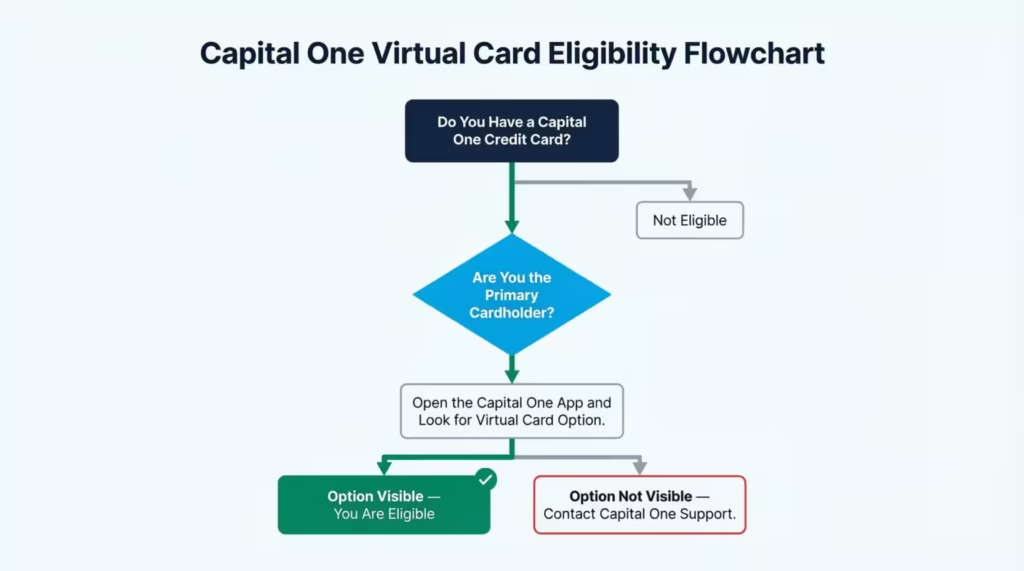
Before you start tapping through menus, it helps to know that not every Capital One card supports virtual numbers. Capital One does not publish a full public list of eligible cards, which is why so many people get stuck early. Most personal Capital One credit cards (think Venture, Quicksilver, Savor, Platinum, and similar) tend to work. Some co-branded cards, like certain retailer partnerships, and many small business cards may not.
There’s also an authorized user eligibility detail to keep in mind. In most cases, only the primary cardholder can generate a virtual card number. If you’re an authorized user, you may not see the option at all, even if the main account supports it.
The simplest way to check is right inside your account. Sign in to the Capital One Mobile app or the website, tap or click on your card, and look for a button or link labeled something like “Get Your Virtual Card,” “Virtual Card Numbers,” or the Eno icon. If you see it, you’re good. If you don’t see anything related to a virtual card after a careful look, your card likely isn’t supported.
When that happens, don’t guess. Contact Capital One support through the in-app chat or the number on the back of your card. A quick message confirms eligibility in minutes, instead of you reinstalling extensions or hunting through menus that don’t apply to your card.
💡 Pro Tip: If you have more than one Capital One card, check each one separately. It’s common for one card on the same account to support virtual numbers while another does not.
What Is a Capital One Virtual Card Number?
A Capital One virtual card number is a digital stand-in for your real credit card. It’s a unique 16-digit number, with its own expiration date and security code, that links back to your actual account in the background. When you pay with it, the charge still hits your real card. You still earn the same rewards. You still get one normal statement.
The big win is safety. If a merchant gets hacked or leaks card data, only the virtual number is exposed. Your real card stays private, so you don’t have to cancel it, wait for a new one in the mail, or update every saved payment on file.
What to Do If Your Card Is Not Eligible
If your card doesn’t support virtual numbers, you still have options. First, call or message Capital One support and ask directly. Sometimes the feature is rolling out, or your card type has a different fraud-protection path you didn’t know about.
Second, consider using Click to Pay, which many Capital One cards support at checkout on participating merchant sites. It’s not the same as a virtual card, but it does hide your real card details from the merchant during the transaction. It’s a solid backup for safer online shopping while you decide whether to apply for a different card that supports virtual numbers.
How to Get Your Capital One Virtual Card on Mobile
If you mostly shop from your phone or tablet, the Capital One Mobile app is the fastest way in. You don’t need any extra software. The feature is built right into the app.
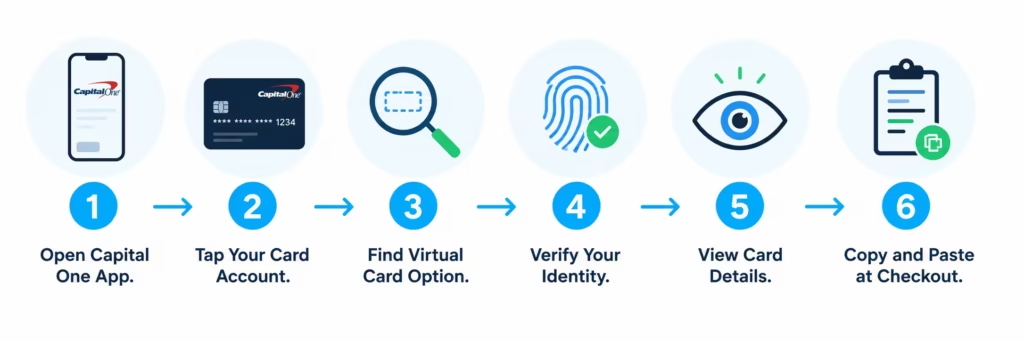
Here’s the full path, step by step:
- Open the Capital One Mobile app on your iPhone or Android device. If you haven’t installed it yet, grab it from the App Store or Google Play, then sign in with your usual Capital One username and password.
- Find your credit card account on the home screen. Each of your accounts shows up as a tile. Tap the tile for the card you want to use online.
- Look for the virtual card option. On the account screen, scroll until you see a button or link such as “Get Your Virtual Card,” “Virtual Card Numbers,” or the Eno shortcut. Tap it.
- Verify your identity. Capital One will usually ask you to confirm it’s really you. This might be a one-time code sent by text or email, a fingerprint scan, or Face ID. Approve the prompt so you can move on.
- View and copy your virtual card details. Once verified, the app shows your virtual card number, expiration date, and security code. Tap the copy icon next to each field, or use the “copy all” option if it’s offered.
- Paste the details at checkout. Switch to the shopping app or website, find the payment section, and paste your virtual number, expiration, and CVV into the right fields. Make sure the billing address matches the one on file with Capital One.
That’s it. The whole process to get a virtual card from Capital One offers on mobile usually takes under two minutes once your account is set up. If you ever need that same number again, you can pull it up the same way. It doesn’t change unless you choose to lock or delete it.
How to Install the Capital One Eno Browser Extension
If you shop on a laptop or desktop, you’ll want Eno, Capital One’s free assistant that lives inside your web browser. Eno is what creates virtual numbers for you on desktop, and it can autofill them at checkout so you don’t have to copy and paste.
Eno works on three main browsers: Google Chrome, Firefox, and Microsoft Edge. Safari is not supported at this time, so Mac users who prefer Safari will need to switch to one of the three for online shopping with virtual cards.
To install it:
- Open your browser (Chrome, Firefox, or Edge) on your computer.
- Go to the official Capital One Eno page. The safest way is to type capitalone.com/eno directly into the address bar instead of searching, so you don’t land on a copycat site by accident.
- Click “Add to” your browser. Depending on the browser, the button might read “Add to Chrome,” “Add to Firefox,” or “Get” (for Edge). Confirm the permissions prompt that asks Eno to read and change site data on pages you visit. This permission is what lets Eno spot checkout pages.
- Pin the Eno icon to your browser toolbar so you can find it later. In Chrome and Edge, click the puzzle-piece icon and pin Eno. In Firefox, right-click the icon and choose “Pin to Toolbar.”
- Sign in to Eno. Click the Eno icon in the toolbar and enter your Capital One username and password. You may be asked to verify your identity with a one-time code, just like in the app.
- Link your account. After sign-in, Eno automatically connects to your eligible Capital One credit cards. You don’t need to add card numbers by hand. If you have several cards, all eligible ones will appear inside Eno.
Once installed and signed in, Eno will quietly watch for checkout pages. When it spots one, the Eno icon turns purple. That’s your signal that a virtual number can be created right where you are.
How to Generate a Virtual Card at Checkout Using Eno
Using Eno at checkout is where the extension really pays off. Here’s how it works in practice:
- Add items to your cart on the store’s website and go to the checkout page as usual.
- Click the Eno icon when it turns purple, or click “Pay with Eno” inside the credit card field if you see it pop up.
- Pick the Capital One card you want the virtual number to be tied to. Eno shows all your eligible cards in a small dropdown.
- Let Eno generate a merchant-specific virtual number. This new number is locked to the store you’re in. Eno will name it after the merchant, for example, “Amazon” or “Target,” so you can find it later.
- Autofill or copy-paste. In most cases, Eno fills in the card number, expiration date, and CVV automatically. If the site has an unusual checkout form, click the copy buttons inside the Eno window and paste each field by hand.
- Finish your purchase. Use the same billing address that’s on file with Capital One, then complete checkout normally.
You won’t have to repeat this setup every time you shop at the same store. The merchant-locked number stays in your account and can be reused at that one store for future orders.
How to Get a General Use Capital One Virtual Card Number
Sometimes you want a virtual number you can use at many different stores, not just one. That’s what a general-use virtual card is for. It’s a single reusable number you control from your Capital One account.
To generate one:
- Sign in to the Capital One website on your computer, or open the Capital One Mobile app on your phone.
- Open your credit card account by clicking or tapping the right card.
- Navigate to the virtual card section. On the website, look for a link like “Virtual Card Numbers” in the account menu. In the app, scroll the card details screen until you see the “Get Your Virtual Card” button.
- Choose to create a general-use number if you’re offered a choice between “general use” and “add to a store.” (Some accounts only show one option by default, in which case the standard number is general-use.)
- Verify your identity with a one-time passcode or biometric prompt.
- Save the new virtual credit card number, expiration date, and CVV. You can copy them to a secure note in a password manager so you don’t have to log in every single time.
A general-use number sticks around. You can paste it at multiple stores, save it inside merchant accounts, and use it for one-off purchases on websites you’ve never bought from before. It only changes if you decide to delete or replace it from your Capital One account.
How to Create a Merchant-Specific Capital One Virtual Card
A merchant-specific virtual card is the safer option for any site you plan to use more than once. Each number is tied to a single store. If anyone tries to charge that number somewhere else, it gets blocked automatically.
To create one:
- Open Eno on your computer, or open the Capital One Mobile app on your phone.
- Find the “Add to a store” or “Create for merchant” option. In Eno, this usually appears when you’re on the store’s website or inside the Eno dashboard. In the app, look for the option after tapping “Virtual Card Numbers.”
- Verify your identity with the prompt Capital One sends.
- Assign a store name. Eno often fills this in for you (for example, “Walmart”), but you can edit the name so it makes sense to you, like “Walmart – groceries.”
- Use the new card details at that store’s checkout. From now on, only that one merchant can charge this number.
The big benefit is the lock. Because the number is bound to one merchant, a leak or breach at any other site is meaningless to your account. You can also lock or delete that single number anytime from the Capital One app or Eno without affecting your real card or your other virtual cards.
⚠️ Mistake to Avoid: Don’t reuse one general-use number for a subscription you keep long-term. If that number leaks, every saved place you used it can be hit. Use a merchant-specific card for subscriptions, then lock or delete it the moment you cancel.
General-Use vs. Merchant-Specific: Which One Should You Get?
The two card types solve different problems, so the right choice depends on how you shop.
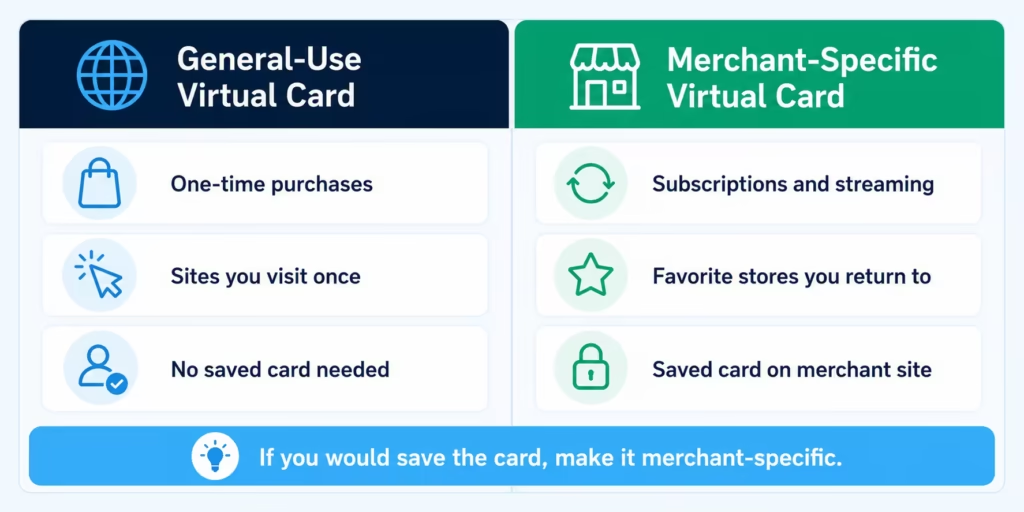
Use a general-use virtual card when you:
- Are making a one-time purchase from a site you may never visit again.
- Want a quick number for a small online store, a marketplace seller, or a travel booking site?
- Don’t plan to save the number anywhere after the order ships.
Use a merchant-specific virtual card when you:
- Shop at the same retailer often, like Amazon, Target, or your grocery delivery service.
- Have a recurring subscription, like a streaming service, gym app, or software tool.
- Want extra peace of mind that your card details are locked to one place?
A simple rule of thumb: if you’d save the card on the merchant’s site, make it merchant-specific. If you’re checking out as a guest, a general-use number is fine.
Do Capital One Virtual Card Purchases Earn Rewards?
Yes. Every purchase made with a Capital One virtual credit card number earns the same rewards as your physical card. Cash back cards still earn cash back at the same rate. Miles cards still earn miles. Points cards still earn points. There’s no separate, lower rate for virtual transactions.
The reason is simple. A virtual number is not a different card. It’s just another way to send a charge to your one real account in the background. Because the underlying card is the same, the reward rules are the same, too. Bonus categories, sign-up bonus tracking, and any promotional offers apply normally.
Your billing cycle works the same way as well. A purchase you make with a virtual number on the 5th of the month posts to your real account just like any other transaction. It shows up on the same statement, counts toward your credit limit the same way, and is paid off through your usual Capital One payment process. There’s no separate virtual statement.
You also keep all the same credit card fraud protection benefits, including zero liability for unauthorized charges. Combined with the safety of not exposing your real number, virtual cards basically give you stronger fraud protection on top of the protection you already had.
📌 Did You Know: Even returns and refunds work normally with virtual card numbers. When a merchant refunds a purchase you paid for with a virtual card, the money goes back to your real Capital One account, even if you’ve already deleted that virtual number.
Where You Can and Cannot Use a Capital One Virtual Card
Virtual cards are powerful, but they’re not built for every payment situation. Knowing the limits up front saves you from awkward moments at a register or a failed checkout.
Where you can use a Capital One virtual card:
- Online shopping on websites and inside shopping apps. This is the core use case, and it covers everything from Amazon to small Shopify stores.
- Online subscriptions, like streaming, software, news, or fitness apps that bill your card on a schedule.
- Google Pay autofill on the web. When Google Pay offers to autofill a saved card in your browser, a virtual card number works just like a normal one. This is great for online shopping security because you can use Google’s autofill without giving the merchant your real number.
- In-app purchases inside apps that ask for a card number, as long as the app accepts manual card entry.
Where you cannot use a Capital One virtual card:
- Physical stores. Virtual cards are number-only. There’s no plastic to swipe, tap, or insert, and the number isn’t tied to a chip.
- Apple Pay. You can’t load a Capital One virtual card into your Apple Wallet for tap-to-pay or in-app Apple Pay. Use your real card in Apple Pay instead.
- Google Wallet for in-store tap-to-pay. This is different from Google Pay autofill on the web. Tap-to-pay in stores requires a real, tokenized card, not a virtual number.
- Anywhere a card needs to be presented, such as picking up a hotel reservation or a rental car, where the front desk wants to see the same card used to book.
For in-person spending, your physical Capital One card is still the right tool. Save virtual numbers for screens, where they shine.
How to Manage Your Capital One Virtual Cards
Once you start using virtual numbers regularly, you’ll want a simple way to see them, control them, and clean up the ones you no longer need. The good news is that both the Capital One Mobile app and the Eno extension give you the same management tools.
View your active virtual cards.
Open the app or Eno, go to your card account, and look for “Virtual Card Numbers” or “Manage Cards.” You’ll see a list of every active number, the merchant it’s tied to (if any), and the date you created it.
Lock or unlock a virtual card.
Each entry has a lock toggle. Locking a number freezes new charges without canceling them. This is handy if you’re not sure whether a subscription will charge you next month, or if you want to pause a card while you investigate a charge.
Delete a virtual card.
Tap the number you want to remove, then choose “Delete” or “Remove.” Deleting a virtual number does not affect your real card, your credit limit, or your rewards. It just stops any future charges to that one number.
Manage subscriptions through virtual cards.
If a streaming service or app is hard to cancel through its website, you can simply lock or delete the merchant-specific virtual number tied to it. The next billing attempt will fail, and most services will email you to update your payment. That’s your cue to officially cancel on their site, on your terms.
Card replacement persistence.
When your real Capital One card is lost, stolen, or expired, Capital One automatically updates your virtual numbers to point to the new card. You don’t have to re-create each merchant-specific virtual card from scratch. Your subscriptions and saved store profiles keep working, which is one of the quiet superpowers of using virtual numbers for recurring bills.
💡 Pro Tip: Set a calendar reminder once every 3 to 6 months to open your Capital One virtual card setup and delete any numbers you no longer use. A short cleanup keeps the list easy to scan and removes any old numbers connected to merchants you’ve moved on from.
Why Your Capital One Virtual Card Was Declined and How to Fix It
A declined virtual card is annoying, especially when you know the real card works fine. Most declines come from a small handful of fixable issues. Walk through this list in order before you call support.
1. Billing address mismatch.
This is by far the most common cause. Even though the virtual number is “virtual,” the billing address must match the address Capital One has on file for your real account. If you typed your shipping address into the billing field by mistake, the charge will be declined. Re-enter the billing address exactly as it appears on your Capital One account.
2. Merchant policy or merchant rejection.
Some merchants block virtual or “prepaid-style” numbers, especially for rentals, hotels, or services where they expect to see the same physical card on arrival. If a merchant’s policy doesn’t allow your number, switching to a different virtual number won’t help. Use your real card for that purchase, or pick a different vendor.
3. The virtual card is locked.
It’s easy to lock a number and forget. Open Eno or the app, find the virtual card you used, and check the lock toggle. If it’s locked, unlock it and try the purchase again.
4. Credit limit issues.
Virtual cards share your real card’s credit limit. If your account is close to the limit, or if a recent large charge is still pending, a new transaction may be declined for available credit, not because the virtual number itself is the problem. Check your current balance and available credit inside the app, then make a payment or wait for pending charges to clear before retrying.
5. Expired virtual card or wrong details.
Virtual numbers have their own expiration dates, separate from your real card’s expiration. If your card has been around for a while, double-check that the expiration and CVV you’re typing match the most recent details shown in Eno or the app. Sometimes copying old details from a password manager is the silent culprit. Generate or refresh the number if needed.
If you’ve checked all five and the virtual card not working issue is still there, that’s the right time to contact Capital One support. Have the merchant name, the amount, and the time of the attempt ready so they can look up the decline reason directly.
Frequently Asked Questions (FAQs)
Can I use my Capital One virtual card before it arrives?
Yes. You can generate a virtual card number through the Capital One Mobile app or the Eno browser extension as soon as your account is open, without waiting for the physical card to arrive in the mail.
Can I use my Capital One virtual card immediately after generating it?
Yes, you can use it at checkout the moment you generate it. Copy the virtual card number, expiration date, and CVV from the app or Eno extension and paste them into any online payment form right away.
Is a Capital One virtual credit card free?
Yes, Capital One virtual card numbers are free for eligible cardholders. There is no fee to generate, use, or delete them through the Capital One Mobile app or the Eno browser extension.
Which Capital One cards are eligible for virtual numbers?
Most personal Capital One credit cards, including Venture, Quicksilver, Savor, and Platinum, are generally eligible. Some co-branded retail cards and most small business cards are not, so check inside your app or contact Capital One support to confirm your specific card.
Are there any downsides to Capital One virtual cards?
Virtual cards only work for online and in-app purchases. You cannot use them at physical store registers, with Apple Pay, or at merchants that require you to present the same card used to book, such as hotel check-ins or car rental pickups.
Does Capital One give you a virtual card number instantly?
Once you request one through the Capital One Mobile app or the Eno extension, the virtual number is generated in under two minutes. The only delay is the identity verification step, which usually involves a one-time code or biometric prompt.
Can I get cash from a Capital One virtual card?
No. Virtual card numbers are digital only, so there is no way to use one at an ATM or get a cash advance with it. For cash access, you need your physical Capital One card.
What is the cardless option at Capital One?
Capital One offers two cardless payment paths: the Capital One Mobile app, which lets you generate virtual card numbers from your phone, and the Eno browser extension for Chrome, Firefox, and Edge, which creates and autofills virtual numbers at online checkouts on a desktop or laptop.
Can I have more than one Capital One virtual card active at the same time?
Yes. You can hold multiple virtual card numbers simultaneously, one for each merchant you shop with regularly, plus a separate general-use number for one-off purchases. All of them link back to the same real card and credit limit.
Bottom Line
Capital One virtual numbers turn ordinary online shopping into something a lot safer. We walked through eligibility, two clear setup paths (the mobile app and the Eno extension), the difference between general-use and merchant-specific numbers, how rewards and billing work, where these numbers don’t apply, day-to-day management, and how to fix a decline.
Based on the evidence above, the most effective approach is to use merchant-specific virtual cards for subscriptions and favorite stores, and a general-use number only for one-off purchases. Knowing how to get a virtual credit card from Capital One offers means you can shop online with real peace of mind.
If you know someone nervous about online fraud, share this guide so they can protect their account, too.