
Getting a new Discover card is exciting. But that card sitting on your desk is useless until it’s activated. I know how frustrating it feels to want to make a purchase and realize you can’t yet.
Whether it’s your first Discover card or a replacement for one that expired, the activation process is quick and straightforward.
You can activate your Discover card online, through the app, or by phone in just a few minutes.
In this guide, I’ll walk you through every method, step by step, so you can start spending today.
Key Takeaways
This guide explains how to activate a Discover credit card using three methods (online, mobile app, or phone), what information you need before starting, how to troubleshoot activation errors, and what to set up immediately after activation is complete.
Core Facts:
- Discover card activation requires your 16-digit card number, expiration date, CVV, and the last four digits of your Social Security Number. Your date of birth may also be requested as a secondary verification step.
- Three activation methods are available: online at discover.com/activate, through the Discover mobile app, and by phone at 1-800-347-2683. All three produce the same result and take under two minutes to complete.
- Online and app activation are processed instantly. The card is ready to use as soon as the confirmation screen appears, with no waiting period after submission.
- Replacement and renewed card activation follows the same process as a new card. Account history, credit limit, and rewards balance carry over automatically. Autopay linked to your Discover account is not affected.
- A card declined after activation is most often caused by a merchant not accepting Discover, a billing address mismatch, insufficient available credit, or no PIN being set for chip+PIN terminals – not by a failed activation.
- Five immediate post-activation steps reduce first-use problems: sign the back of the card, set a PIN, register for online account access, enroll in autopay, and enable account alerts.
Best for:
- New Discover cardholders who just received their card and want to activate and start using it the same day.
- Existing cardholders who received a replacement or renewed card and are unsure whether the process differs from new card activation.
- Anyone whose Discover card was successfully activated but is still declining at merchants and needs a structured path to diagnose the problem.
What You Need Before Activating Your Discover Card
Before you start the activation process, take 60 seconds to gather everything you’ll need. Starting without the right information is the most common reason people get stuck halfway through.
Discover will ask you to verify your identity and confirm your card details. Have these items ready:
- Your physical card – You’ll need the 16-digit card number on the front, the expiration date, and the 3-digit security code (CVV) on the back.
- The last four digits of your Social Security Number (SSN) – Discover uses this to confirm your identity. You won’t need your full SSN for most activation methods.
- Your date of birth – This may appear as a secondary verification step depending on the method you choose.
- A working internet connection, the Discover app, or access to a phone – depending on which method you pick.
- Confirmation that the card arrived in your name – If the card looks tampered with or the name doesn’t match, call Discover before activating.
That’s it. No extra documents, no account paperwork. Just your card and two pieces of personal information.
Which Activation Method Should You Choose
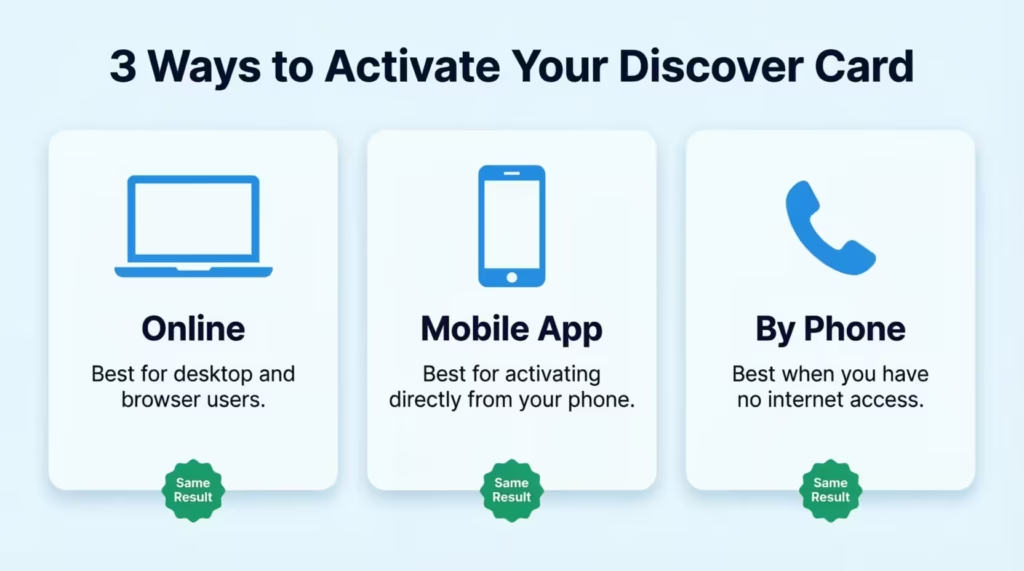
Discover offers three ways to activate your card: online at discover.com/activate, through the Discover mobile app, or by phone. All three methods work equally well and produce the same result. The right choice depends on where you are and what device you have handy.
| Method | Best For |
|---|---|
| Online (discover.com/activate) | Desktop or laptop users who prefer a browser |
| Discover Mobile App | Smartphone users who already have the app installed |
| Phone | Users without internet access or who prefer speaking to an automated system |
Pick the one that fits your situation right now and follow the steps in the matching section below.
How to Activate Your Discover Card Online
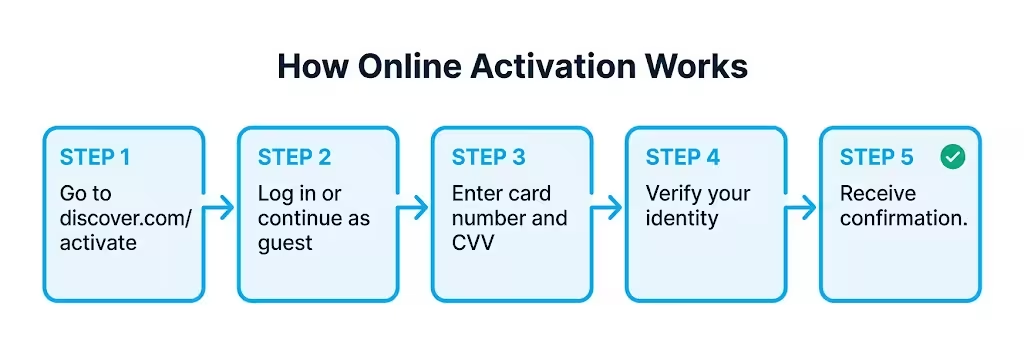
The online method is the most straightforward option if you’re at a computer or prefer using a browser on your phone. Go directly to discover.com/activate – not the general Discover homepage or a login page. Using that exact URL takes you straight to the activation form without extra clicks.
Follow these steps:
- Open your browser and go to discover.com/activate. You’ll see an activation form, not a general account login page.
- Log in if you already have a Discover online account. If you’re a new Discover cardholder with no online account yet, look for the option to activate without logging in. Discover allows activation without prior account registration.
- Enter your 16-digit card number. This is the number printed across the front of your card. Type it carefully – even one wrong digit will cause an error.
- Enter your card’s expiration date and CVV. The expiration date is printed below the card number. The CVV is the 3-digit code on the back, in the signature panel area.
- Complete identity verification. Discover will ask for the last four digits of your SSN. In some cases, it may also ask for your date of birth as a secondary check.
- Submit the form. After you hit submit, Discover will process the request instantly. You’ll see a confirmation message on screen telling you the card is now active.
The confirmation screen is your signal that activation is done. It usually says, “Your card has been successfully activated.” It might also ask you to set up online account access if you haven’t done that yet.
💡 Pro Tip: Bookmark discover.com/activate before you start. Searching “Discover card activate” can sometimes return third-party sites that mimic Discover’s design. Going directly to the URL protects you from phishing pages.
How Long Does Online Activation Take
Online activation is nearly instant. From the moment you submit the form, your card is typically active within seconds. There’s no waiting period on Discover’s end. As soon as you see the confirmation screen, the card is ready to use.
The only delay you might experience is your own internet connection speed. On a stable connection, the entire process from landing on the page to seeing confirmation takes under two minutes.
How to Activate Your Discover Card Through the Mobile App
If you’re activating from your smartphone, the Discover app makes the process fast and clean. You also get an extra benefit: once activated, you can quickly add your card to Apple Pay or Google Pay right through the app, even before the physical card leaves your hand.
Step 1: Download the Discover app if you don’t have it already. The app is free on both the Apple App Store and Google Play. Search for “Discover Mobile” and look for the official app published by Discover Financial Services.
Step 2: Log in or create a Discover account. If you’re a new cardholder, you’ll create a username and password here. This takes about two minutes. If you already have an online account, use those same credentials.
Step 3: Find the activation option. After logging in, look for the “Account” or “Card” section in the app’s bottom navigation. Discover typically surfaces an “Activate Card” banner or notification automatically when a new card is linked to your account. If you don’t see a banner, tap on your card image and look for “Activate Card” in the card management options.
Step 4: Enter your card details. The app will prompt you to confirm the last four digits of your card number and the CVV. It may also ask for the last four digits of your SSN.
Step 5: Confirm and submit. Tap the activation button. The app will display a confirmation screen within seconds. Your card is now active.
📌 Did You Know: After activating through the Discover app, you can immediately add your new card as a contactless payment method on your phone. This means you can make tap-to-pay purchases before the physical card’s chip is even tested at a terminal.
How to Activate Your Discover Card by Phone
Phone activation is the right choice if you don’t have reliable internet access right now, or if you simply prefer talking to an automated system. It works on any phone, including landlines.
Find the activation phone number. Look at the sticker affixed to the front of your new card when it arrived. Discover places where the activation number is directly on that sticker. You can also find it in the card’s welcome letter.
The standard Discover customer service number is 1-800-347-2683. You might also find a dedicated activation line on your card sticker.
Follow the automated instructions. The automated system will guide you through these steps in order:
- Enter or say your 16-digit card number.
- Enter the last four digits of your SSN.
- Confirm your date of birth if prompted.
- The system will confirm your identity and process the activation.
Listen for the confirmation. The automated voice will tell you clearly that your card has been activated. This is your confirmation. No follow-up call is needed.
The entire phone activation process takes about two to three minutes. You don’t need to speak with a live agent unless you run into a problem. If you want a live agent for any reason, say “agent” or “representative” when the automated menu begins, or press 0.
How to Activate a Replacement or Renewed Discover Card
If Discover sent you a replacement card because yours was lost, stolen, or damaged, or if you got a renewed card after your old one expired, the activation process is the same as activating a new card. Use any of the three methods above.
A few things that often confuse existing cardholders in this situation:
Your account history carries over automatically. Activating the replacement card does not reset your account. Your credit limit, payment history, rewards balance, and account standing all remain exactly the same. You’re just swapping the physical card, not opening a new account.
Your old card stops working immediately. As soon as you activate the new card, the old card number is deactivated. Don’t try to use both at the same time.
Your card number may be different. If the replacement was issued after a loss or theft, Discover issues a new card number as a security measure. If your card simply expired and was renewed, the card number typically stays the same, but the expiration date and CVV will be new.
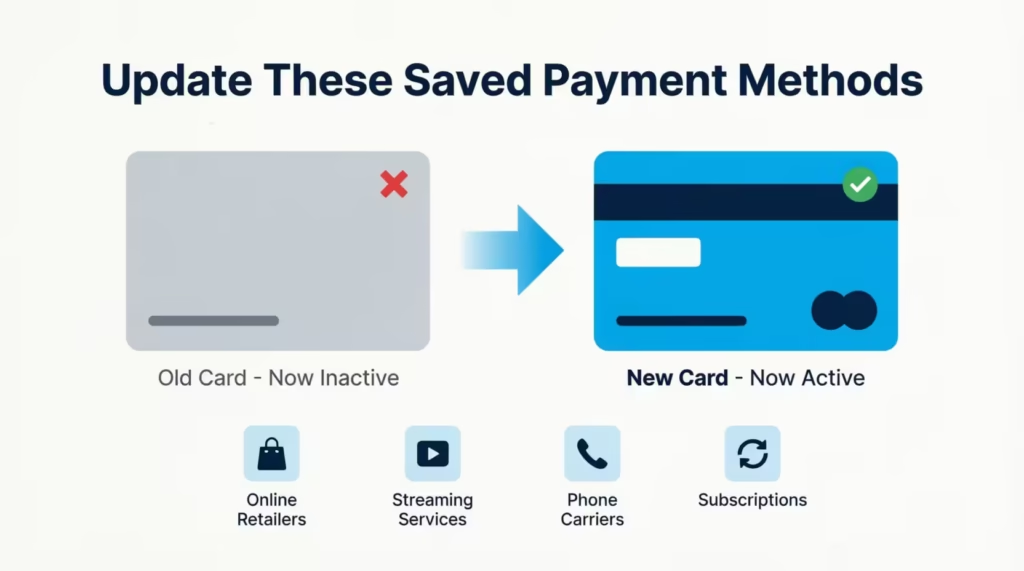
Update your saved payment methods with the new card details. This is the step most people forget. If you have the old card stored with merchants like Amazon, Netflix, or your phone carrier, those charges will fail after activation. Log in to each merchant’s account settings and update the card number, expiration date, and CVV. Also, check any automatic transfers or subscriptions billed to the card.
Autopay linked to your Discover account is not affected. If you set up autopay to pay your Discover bill from your bank account, that link is tied to your Discover account, not the card number. It will continue working without any changes.
What to Do If Activation Fails or Errors Out
Most activations go through without any issues. But if you hit an error during the process, the fix is usually simple.
The most common causes of activation failure:
Information entry error. A single wrong digit in your card number, a mistyped SSN, or an incorrect expiration date will stop activation instantly. Before trying again, double-check every field against the physical card. The most common mistake is entering the full SSN instead of just the last four digits.
Browser or app technical issue. If the page freezes or gives a generic error, try clearing your browser’s cache and cookies, then reload the page. If you’re using the app, close it fully and reopen it. Outdated app versions occasionally cause verification errors, so check for an available update in your app store.
Account verification mismatch. If the personal information you’re entering doesn’t match what Discover has on file from your application, the system will reject the verification. This sometimes happens if you moved recently or used a slightly different name format during the application.
What to do if the error persists:
- Try a different activation method. If online activation fails, switch to the app or phone. Each method uses a slightly different verification path.
- If all three methods fail, call Discover directly at 1-800-347-2683. A live agent can activate your card manually during the call. Have your card, SSN, and date of birth ready. The call typically takes under five minutes.
⚠️ Mistake to Avoid: Don’t attempt activation more than three times in a row with the same incorrect information. If you fail several times in a row, your activation may be put on hold. To fix this, you will need to call Discover.
Card Activated but Still Not Working? What to Check
You completed activation and got the confirmation screen, but then your first transaction was declined. This is frustrating, but it’s almost always caused by something other than the activation itself.
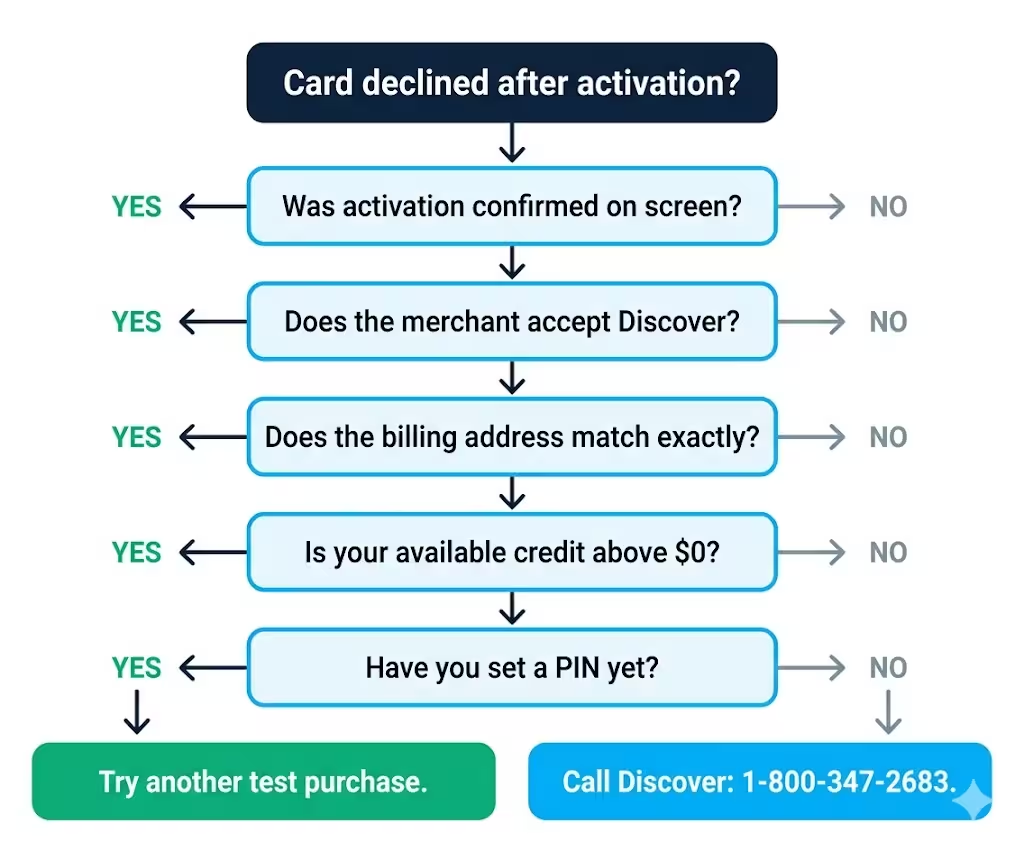
Work through these checks in order before calling Discover:
1. Confirm activation was actually completed. Go back to discover.com/activate or the Discover app and check your card status. Look for a confirmation email from Discover as well. If there’s any doubt, the app’s card management section will show your card’s current status.
2. Check if the merchant accepts Discover. Not every merchant accepts Discover. Discover’s acceptance network is wide, but it’s not as universal as Visa or Mastercard. If your card declined at a small retailer, gas station kiosk, or international vendor, acceptance may be the issue rather than your card. Try your card at a major retailer or grocery store as a test.
3. Verify the billing address. For online purchases, the billing address you enter at checkout must exactly match the address Discover has on file. Even a slight difference, like “St” vs “Street,” can trigger a decline on address verification checks.
4. Check your available credit. If a payment was already due on your account at the time you received the card, your available credit might be lower than you expect. Log in to your Discover account online or in the app to see your current available credit balance.
5. Check whether you’ve set a PIN. If your card declined at a chip+PIN terminal, like at gas station pumps or some grocery store kiosks, it’s likely because you haven’t set a PIN yet. The card can’t process chip+PIN transactions without one. Setting up your PIN is covered in the next section.
If all five checks pass and the card still won’t work, call Discover at 1-800-347-2683. A live agent can review the decline reason on their end and tell you exactly what’s causing it.
What to Do Immediately After Your Discover Card Is Activated
Activation is step one. The five minutes right after activation are when most new cardholders either set themselves up well or leave things in an incomplete state that causes problems later.
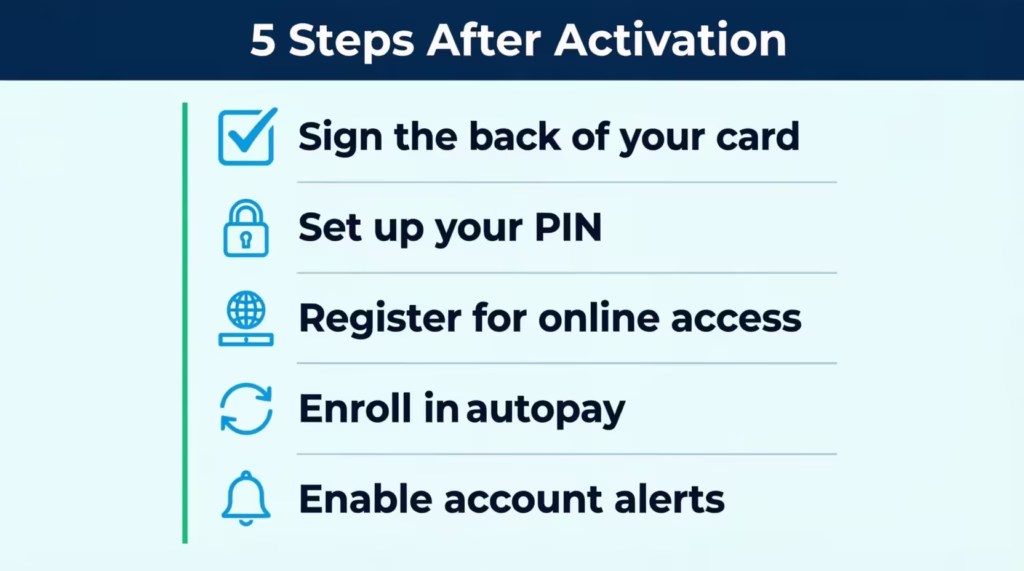
Work through each of these steps before your first purchase.
Sign the Back of Your Card
This takes about five seconds, and most people skip it. Sign the back of the card immediately using a permanent or ballpoint pen. Your signature goes in the white signature panel on the back, the same strip where the CVV is printed.
Many merchants are required to check that the signature on the back of the card matches the signature on your receipt. A card that says “See ID” on the back instead of having a signature breaks Visa and Mastercard rules. For Discover cards, an unsigned card might be refused by some merchants. Sign it now so it’s done.
Set Up Your Discover Card PIN
A PIN is required in two situations: using your card at a chip+PIN terminal, and taking a cash advance at an ATM. Without a PIN, the card might not work at some places. This often happens at gas station pumps and self-checkout kiosks that need a PIN.
To set your PIN:
- Log in to your Discover online account at discover.com or open the app.
- Go to “Account” or “Card Services.”
- Look for “Create/Change PIN” or “Set PIN.”
- Choose a 4-digit PIN that you haven’t used for other accounts.
Your PIN is separate from your online account password. Keep it confidential and don’t write it on the card.
Register for Online Account Access
If you activated online, you may have already created an account. If you were activated by phone or as a guest, set up your online account now at discover.com.
Online account access lets you view statements, make payments, track your spending, and manage alerts. It’s also required to enroll in autopay, which is covered next. Creating an account takes about three minutes. You’ll need your card number and a valid email address.
Enroll in Autopay
A missed payment on a credit card costs money. Discover charges a late fee, and a missed payment can affect your credit score. Autopay prevents this from happening, even if life gets busy.
To set it up:
- Log in to your Discover account online or in the app.
- Go to “Payments” or “Manage AutoPay.”
- Choose your payment amount: the minimum payment, the full statement balance, or a fixed dollar amount.
- Link your checking account by entering your routing number and account number.
- Confirm the next scheduled payment date.
Setting up autopay for the full statement balance is the safest option if your goal is to avoid interest charges. The minimum payment keeps you current but allows a balance to carry over and accumulate interest.
Enable Account Alerts
Account alerts tell you when something happens with your card: a purchase is made, a payment is due, or unusual activity is detected. Enabling them now means you catch fraud early, not weeks later on a statement.
To turn on alerts:
- Go to “Account Settings” or “Notifications” in your Discover app or online account.
- Enable purchase alerts (sent after every transaction), payment due reminders, and unusual activity alerts.
- Push notifications through the app are the fastest option. Email works too, but a push notification will reach you in seconds, while email can sit unread.
Discover also provides free access to your FICO Score through the app and online account once you’re registered. It updates monthly and gives you a baseline view of where your credit stands right now.
Frequently Asked Questions (FAQs)
Am I supposed to activate my credit card?
Yes, every new credit card requires activation before it can be used. Discover cards arrive inactive as a security measure, so an intercepted card can’t be used by anyone who finds it in the mail.
Is a credit card automatically activated?
No. Discover cards are not active when they arrive. You must complete activation online, through the app, or by phone before the card will process any transaction.
What happens if I don’t activate my Discover card?
The card won’t work. Any purchase attempt will be declined until you complete activation. There’s no penalty for delaying, but the card remains unusable until you go through the process.
Is my Discover card already activated?
If you haven’t gone through the activation process yourself, it’s not activated. Try making a small purchase – a decline at the point of sale is a reliable sign the card still needs activation.
How can I confirm my card is activated?
Log in to your Discover account online or in the app and check your card status under account or card management. You can also look for the confirmation email Discover sends immediately after a successful activation.
Can I use my Discover card without the physical card?
Yes, once activated, you can add your Discover card to Apple Pay or Google Pay through the Discover app and make contactless purchases without the physical card present.
How do I speak to a real person at Discover?
Call 1-800-347-2683 and say “agent” or press 0 when the automated menu starts. A live representative will assist you directly without requiring you to navigate the full automated system first.
How long does it take to receive a new Discover card in the mail?
Discover typically delivers new cards within 5 to 7 business days of approval or reissuance. Expedited delivery may be available for replacement cards by calling Discover’s customer service line.
Do I lose my Discover rewards if I get a replacement card?
No. Your Cashback Bonus balance is tied to your Discover account, not your card number. Activating a replacement card leaves your earned rewards completely intact.
Bottom Line
Activating a Discover card takes just a few minutes, and the steps are the same whether you use the website, app, or phone. Before you start, gather your card details and the last four digits of your SSN. Then, choose the method that works best for you and follow the confirmation screen.
The speed at which issues arise after first use shows that the five post-activation steps: setting a PIN, signing the card, enrolling in autopay, enabling alerts, and registering online, are as crucial as the activation itself. The best way is to finish all five tasks right after you get that confirmation message. This ensures your card is fully ready before the first transaction.
If you liked this guide, share it with a friend or family member waiting for their first Discover card. They’ll appreciate the tips on what to do after activation.