
Want to change your Discover card design but not sure where to start? You’re not alone. The option is tucked inside a menu called “Add or Replace a Card,” which sounds scarier than it is. Many cardholders also worry it might cost money or hurt their credit.
Here’s the short answer: you can request a new card design for free in a few minutes, and it does not affect your account, your rewards, or your credit.
Below, you’ll find the exact steps for the website and the mobile app, what changes and what stays the same, and how the ongoing Capital One migration affects your request.
Key Takeaways
This guide explains how to change your Discover card design online or through the mobile app, including the exact steps, what stays the same on your account, what changes on the new card, and how the Capital One migration affects the process.
Core Facts:
- Discover does not charge a fee to change your card design, and there is no published limit on how many times you can request a new one.
- The design change process follows six steps online: log in, open Card Services, select “Add or Replace a Card,” browse the gallery, choose the cardholder, and confirm the request.
- A card design change is purely cosmetic and does not affect your card number, rewards balance, credit limit, or credit history.
- The replacement card will have a new CVV and typically a new expiration date, which may require updating saved payment methods and digital wallets.
- New applicants see a smaller design selection at application, while the full design gallery unlocks once the account is established.
- Discover accounts are migrating to Capital One’s website and app in waves, and cardholders should confirm which platform currently manages their account before submitting a request.
Best for:
- Discover cardholders who want a new card design without disrupting their account, rewards, or recurring payments.
- Cardholders managing an account with authorized users who want to update one cardholder’s card design independently.
- Readers trying to determine whether to use Discover.com or Capital One’s platform during the ongoing account migration.
Understanding the Discover Card Design Change Process
Changing your card’s look is a cosmetic card change. Nothing about your account changes. You keep the same account, the same card number, and the same rewards. Discover Card Services simply mails you a new physical card with the design you picked.
There’s no new application. There’s no credit check. You’re not opening or closing anything. Think of it like ordering a replacement card that happens to look different.
The rest of this guide walks you through the exact steps on both Discover.com and the Discover mobile app. It also covers one big wrinkle for 2026: Discover accounts are moving to Capital One in waves, and that affects where you submit your request.
Is Changing Your Card Design Free?
Yes. Discover does not charge a fee to change your card design. It’s free no matter which design you pick from the gallery, including special or limited-edition looks.
There’s also no published limit on how many times you can do it. If you get tired of a design next year, you can request another one at no cost.
Why It’s Called “Add or Replace a Card”
Don’t let the word “Replace” throw you off. That menu option is a general tool. It covers lost cards, stolen cards, damaged cards, and design changes all in one place.
Picking a new design through this menu does not cancel your card. It does not close your account. It does not change your card number. It simply tells Discover to mail you a fresh card with a new look. Your current card keeps working while you wait.
Who Can Change Their Discover Card Design
Any existing Discover cardholder can request a new design at any time. You don’t need to wait until your card expires, gets lost, or wears out. If you have a Discover it Cash Back, Discover it Miles, or Discover it Secured card, the option is available to you once your account is established.
One exception applies to brand-new applicants. When you first apply, you’ll see a smaller set of designs to choose from. The full Discover card design gallery opens up after your account is up and running. More on that in the design options section below.
This process applies to Discover credit cards. If you have a Discover debit card from Discover Bank, design options work differently and are far more limited.
How to Change Your Discover Card Design Online
This section applies if your account still lives on Discover.com. If you’ve already gotten a notice that your account moved to Capital One, skip ahead to the migration section below.
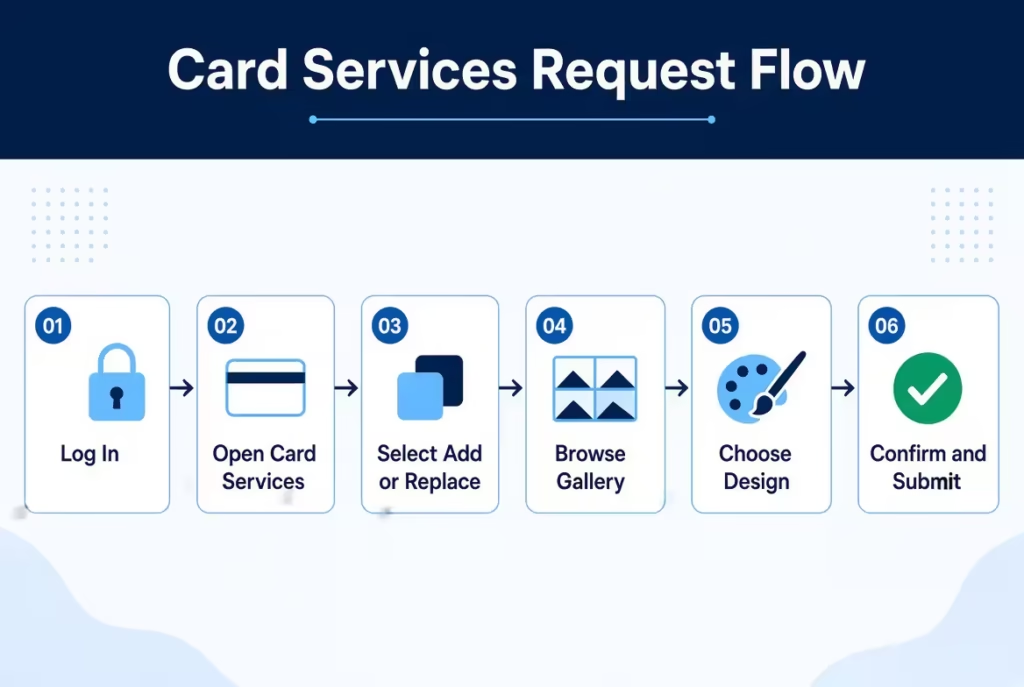
Follow these steps:
- Log in to your account at Discover.com.
- Open the Manage tab or go to Card Services.
- Select Add or Replace a Card.
- Choose the option for a new card design. This opens the Card Design Gallery.
- Browse the designs and pick the one you want.
- Select which cardholder’s card you’re changing, if more than one person is on the account.
- Confirm your choice and submit the request.
That’s it. You’ll get a confirmation, and your new card goes in the mail.
💡 Pro Tip: Before you submit, double-check which cardholder is selected in the flow. If you have an authorized user, it’s easy to accidentally change their card instead of yours, or the other way around.
How to Change Your Discover Card Design on the Mobile App
Prefer your phone? The Discover mobile app does the same job, and the result is identical to the website path.
- Open the Discover app and log in.
- Tap into your card account.
- Find the card management area, then tap Add or Replace a Card.
- Browse the same Card Design Gallery and pick your design.
- Confirm the cardholder and submit.
Discover lists “request a new card design” as a standard app feature on its mobile app overview page. If you don’t have the app yet, search for “Discover Mobile” in the Apple App Store or Google Play. Look for the official app published by Discover Financial Services.
Discover Card Design Options: What’s Available
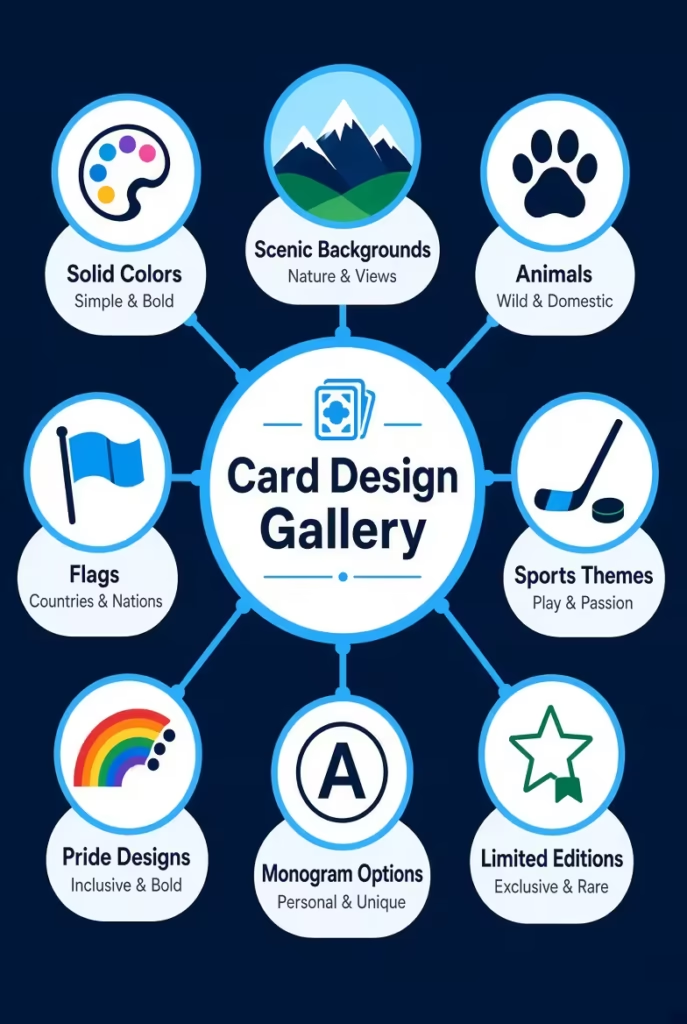
Once you open the gallery, you’ll find more than 100 designs. They fall into broad categories, so it’s easy to browse:
- Solid colors and simple patterns
- Scenic and nature looks
- Animals
- Flags
- Sports themes, including NHL team card designs
- Pride card designs
- Monogram card options with your initials
- Limited-edition designs that rotate in and out
The NHL team designs are a standout. Few major issuers let you put your favorite hockey team on your card, and it’s one of the most popular picks in the gallery.
📌 Did You Know: Discover has offered custom card designs for years, and the gallery has grown well past 100 options. Most big card issuers offer just one fixed look per card, so this feature is genuinely unusual.
New Cardholder vs. Established Cardholder Access
If you just applied for a Discover card, you may notice the design choices at application are limited. Nothing is broken. New applicants see a smaller starter set.
Once your account is established, the full gallery unlocks. In most cases that means after your first statement or two. At that point, you can use the Add or Replace a Card flow described above and pick from everything Discover offers.
Changing the Design on an Authorized User’s Card
An authorized user card can get its own design, separate from the primary card. Your cards don’t have to match.
The primary cardholder handles the request. In both the website and app flows, you’ll see a step where you pick which cardholder’s card to change. Select the authorized user’s card there, choose the design, and submit.
The authorized user doesn’t need to log in or do anything. The same delivery timeline applies, and the new card ships to the primary cardholder’s address on file.
What Stays the Same on Your Account
This is the part that matters most, so let’s be direct. A design change does not touch your account in any financial way:
| Stays the same | Why it matters |
|---|---|
| Card number | Saved payments tied to the number itself still reference the same account |
| Rewards balance | Your cash back or miles carry over untouched |
| Credit limit | No change to your available credit |
| Autopay and recurring billing | Payments from your bank account keep running as before |
| Credit history and account age | No hard inquiry, no new account on your credit report |
There’s no credit check because you’re not applying for anything. Your account’s age, which matters for your credit history, is completely unaffected.
What Changes on Your New Card
Two small things do change, and they’re worth knowing about up front:
- New CVV. The three-digit security code on the back will be different.
- New expiration date. Your replacement card typically comes with a fresh expiration date.
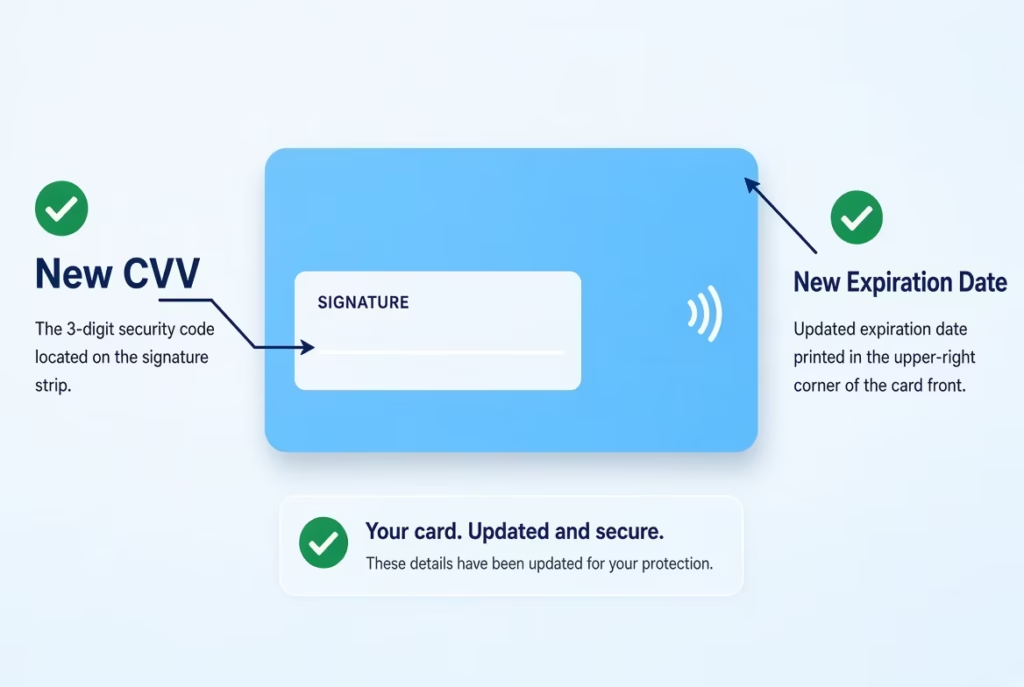
This happens with any reissued card. It’s standard security practice, not something specific to design changes.
The practical impact: anywhere you saved your card with the old security code or expiration date may need an update. Most charges tied to your card number will still go through, but some merchants verify the expiration date or CVV and can decline outdated details.
Updating Saved Payment Methods and Digital Wallets
After your new card arrives, take a few minutes to update your key accounts:
- Update subscriptions and streaming services with the new expiration date and CVV.
- Check recurring bills like utilities, insurance, and gym memberships.
- For Apple Pay, Google Pay, or Samsung Pay, remove the old card and add the new one.
Some merchants use automatic card-updater services that pull new card details from the network. That helps, but don’t rely on it for critical payments. Verify your most important accounts by hand so nothing gets declined.
⚠️ Mistake to Avoid: Don’t assume every saved payment updated itself. A missed subscription payment can mean a canceled service or a late fee. Spend five minutes checking your top recurring charges the day your new card arrives.
How Long Delivery Takes
Replacement cards from Discover typically arrive within about one to two weeks by standard mail. For context, Discover tells cardholders to expect a replacement card within about six business days for lost or stolen cards, and design-change cards follow a similar standard-mail path. There’s no expedited shipping option for a routine design change.
If two full weeks pass with no card, call the number on the back of your current card or reach out through Discover’s customer service page. An agent can confirm the request went through and check the mailing status. Calling is also better than submitting a second request, which could confuse with two cards in transit.
Can You Use Your Old Card While You Wait?
Yes. Your old card stays active. Both cards share the same account number, so your current card works normally right up until it reaches its original expiration date.
That means no gap in your spending. Keep using your card for groceries, bills, and everything else while the new one is in the mail.
What to Do With Your Old Card Afterward
Once your new card arrives, you have options. You’re not required to deactivate the old one. Both cards draw on the same account, so holding onto it isn’t a security risk on its own.
You can let it expire naturally. Or, if you’d rather have only one active card, call customer service and ask to deactivate the old one. If you keep it, store it somewhere safe and treat it like any other active card.
The Capital One Migration: How It Affects Your Design Change Request
Here’s the part older articles miss. Capital One completed its acquisition of Discover, and Discover card accounts are now moving to Capital One’s website and app in waves. According to Capital One’s transition guide, the moves continue throughout 2026 and into early 2027. Not everyone moves at once.
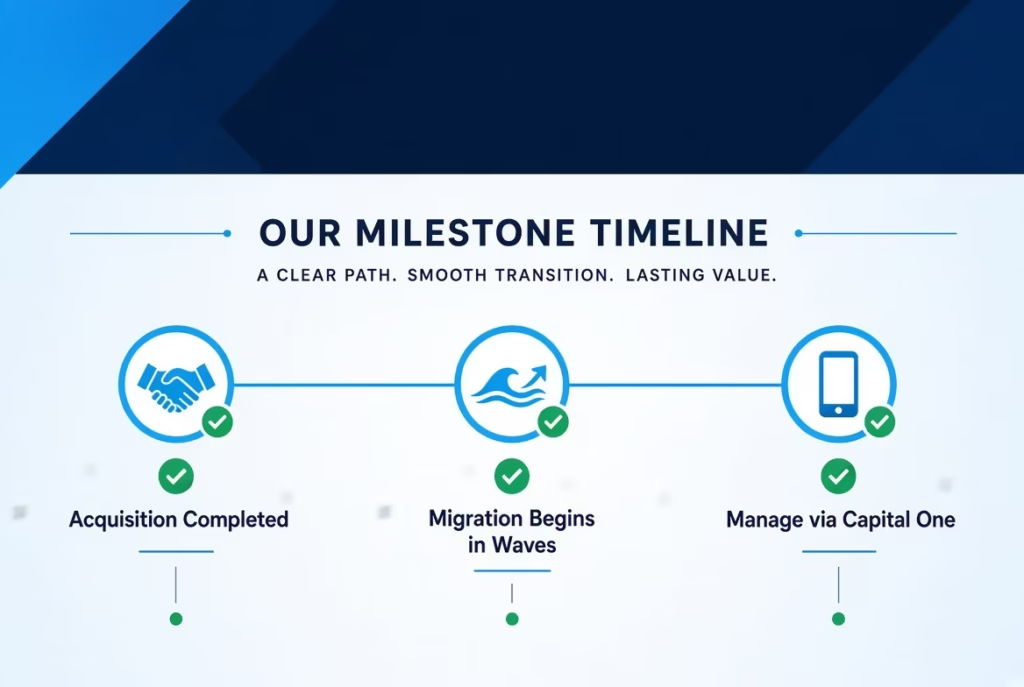
When it’s your turn, you’ll get notified directly by email or letter. After your account moves, you can no longer manage it on Discover.com or in the Discover app. You’ll use Capital One’s platform instead.
The good news: Capital One’s Discover FAQ confirms that primary cardholders keep their existing physical card, their card number, and their current card design after the move. Your rewards, credit limit, and account age also carry over.
One exception: authorized users and joint account holders receive new cards with their own unique 16-digit card numbers as part of the migration. That’s a separate event from a design change, and it happens automatically, not because of anything you requested.
Which Platform to Use Right Now: Discover.com or Capital One
The rule is simple:
- No migration notice yet? Keep using Discover.com or the Discover app. The design-change steps above apply to you.
- Already got your notice and set up with Capital One? Use the Capital One website or app for everything, including any card requests.
Don’t guess based on news headlines. Watch for the official notice. If you have more than one Discover account, they may move at different times, so check each account separately.
Does Capital One Offer the Same Design-Change Option?
This is where things get important. Capital One’s own credit cards have traditionally shipped with a single fixed design per product, with no ongoing redesign gallery like Discover’s.
For migrated Discover cardholders, Capital One says most primary cardholders keep their current card and design. The company also states it’s working on a feature to let primary cardholders update their card design in the Capital One app. As of now, that feature is not live, and Capital One has not announced a firm launch date or said whether the full Discover gallery will carry over.
The practical takeaway: if you have a design preference and your account hasn’t migrated yet, request your design now through Discover’s platform while the full gallery is definitely available.
Can You Change Your Card Design More Than Once?
Yes. Discover places no limit on how often you can request a new design, and there’s no fee no matter how many times you do it. Each request simply generates a new physical card in the mail.
One thing to keep in mind: every new card means a new CVV and expiration date. If you change designs often, you’ll be updating saved payment methods each time. For most people, that’s a small trade for a card they actually like looking at.
Frequently Asked Questions (FAQs)
Does Discover let you customize your card?
Yes, Discover lets cardholders pick a new design for free through the Card Design Gallery. You can choose from over 100 options, including solid colors, scenic backgrounds, flags, and NHL team designs.
How do you change your Discover card design?
Log in to Discover.com or the Discover app, go to Card Services, and select “Add or Replace a Card.” Pick your design from the gallery, confirm the cardholder, and submit the request.
What is the best Discover card design?
There’s no single best design since it comes down to personal taste. The NHL team card designs are especially popular since few major issuers offer official league-branded card art.
Can I change my Discover It card color?
Yes, changing your card’s color or design works the same way for Discover it Cash Back, Discover it Miles, and Discover it Secured cards. Submit the request through Card Services once your account is established.
What has happened to Discover card?
Discover is being acquired by Capital One, and accounts are moving to Capital One’s website and app in waves through early 2027. Most primary cardholders keep their existing card, number, and design during the transition.
Can I change my Discover card design after approval?
Yes, but new applicants see a smaller design selection at approval. The full gallery of 100+ designs unlocks once your account is established, usually after your first statement or two.
How do I change my card on the Discover app?
Open the Discover app, tap into your card account, and select “Add or Replace a Card” from the card management menu. Browse the gallery, pick a design, and confirm the cardholder before submitting.
Does changing my card design affect my rewards?
No, a design change is purely cosmetic and has zero effect on your account. Your rewards balance, credit limit, and credit history all stay the same.
Is changing your Discover card design free?
Yes, Discover doesn’t charge a fee for a design change, no matter which design you choose or how many times you request one. There’s no limit published on how often you can switch designs.
Wrapping Up
Changing your Discover card design is free, takes just a few minutes online or in the app, and has zero impact on your account, rewards, or credit. The only real changes are a new CVV and expiration date, so update your saved payment methods when the card arrives.
If your account hasn’t moved to Capital One yet, a practical approach is to pick your design now while the full gallery is guaranteed to be available.
Know someone still carrying a default Discover card? Share this guide so they can pick a design they love too.