
I know how stressful it feels when you stand at an ATM or face a chip-and-PIN reader abroad, and suddenly realize you do not know your Discover credit card PIN. Maybe you forgot it, maybe you just got a replacement card, or maybe you want to lock things down for safety.
The good news is simple: you can change your Discover credit card PIN by calling Discover at 1-800-347-2683 and following the automated prompts.
Below, I’ll walk you through every method, timing detail, and fix step by step.
Key Takeaways
This guide explains how to change or reset a Discover credit card PIN using four methods including the mobile app, Discover.com, phone support, and ATM, covering when a PIN is needed, how long activation takes, and what to do if something goes wrong.
Core Facts:
- Discover credit card PINs can be changed through four methods: the Discover mobile app, the Discover.com online portal, by phone at 1-800-347-2683, or at a compatible ATM on the Allpoint or MoneyPass network.
- Discover does not display your existing PIN anywhere in the app, online account, or to customer service agents. Forgetting your PIN means resetting it, not recovering it.
- A new PIN typically becomes active within a few minutes but can take up to one full business day, with longer delays possible for changes made on weekends or holidays.
- ATMs and card terminals allow a maximum of three incorrect PIN attempts before locking the card for PIN-based transactions. Unlocking requires calling Discover directly.
- A PIN is only required for ATM cash advances, chip-and-PIN purchases outside the U.S., and some unattended kiosks. Most U.S. in-store, online, and contactless purchases do not require a PIN.
- Replacement Discover cards do not always carry over the old PIN. Cardholders should set a new PIN after activating any replacement card before attempting ATM use.
Best for:
- Cardholders who have forgotten their Discover credit card PIN and need to reset it before an ATM withdrawal or international trip.
- Anyone who just received a new or replacement Discover card and needs to set a PIN before using it at a cash advance terminal or chip-and-PIN reader abroad.
- People who suspect their PIN may have been compromised and want step-by-step guidance on how to change it and secure their account quickly.
Reasons You May Need to Change Your Discover Credit Card PIN
People rarely think about their card PIN until they need it. Then the trouble starts. There are a few clear reasons you might need to change your Discover card PIN today.
You forgot your current PIN
This is the most common reason. You may have set a PIN months or years ago, used it once, and then forgotten it. Since Discover does not show your PIN anywhere in the app or online, you cannot just look it up. The only path forward is to reset it.
You just got a new or replacement card
If your old card was lost, stolen, expired, or replaced, Discover will ship you a new one. In many cases, your old PIN does not carry over. You will need to set a PIN on your Discover credit card before you can use it for cash advances or chip-and-PIN purchases abroad.
You think your PIN may be compromised
Maybe someone watched you type it at an ATM. Maybe you wrote it down and lost the note. If you feel even a little unsure, a Discover credit card PIN reset is the safest move. Changing it right away closes that risk.
You are traveling internationally
Many countries outside the U.S. use chip-and-PIN systems instead of signatures. Without a working PIN, your card may get declined at train stations, gas pumps, or small shops. Setting a PIN before you fly saves a lot of stress.
You want stronger account security
A simple PIN like “1234” or your birth year is risky. Updating to a stronger four-digit code is a smart habit, even if nothing is wrong yet.
💡 Pro Tip: Pick a PIN that has no link to your birthday, address, or phone number. Thieves often try those first if they steal your wallet.
How to Change Your Discover Credit Card PIN
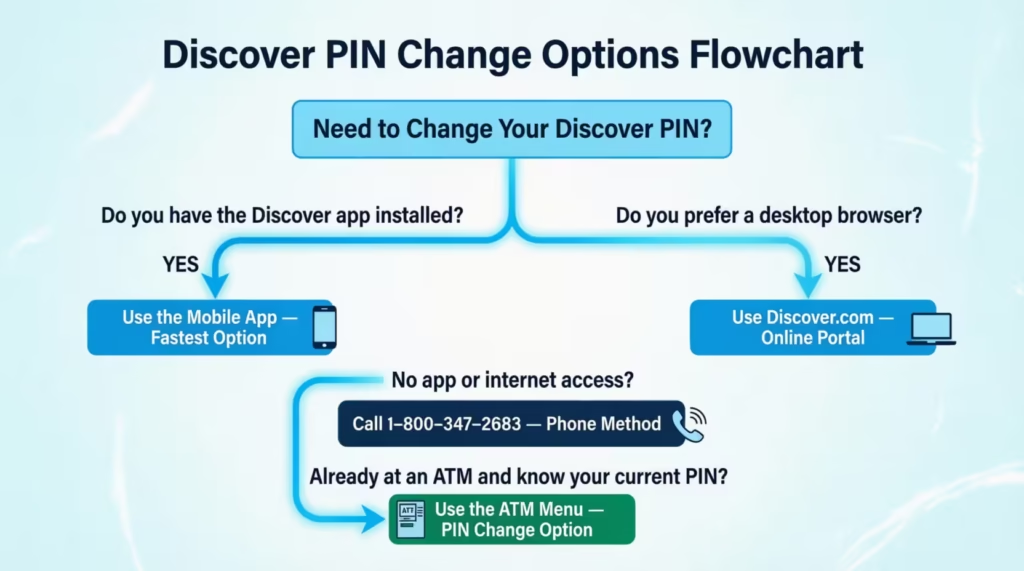
There is more than one way to update your PIN. The best method depends on how fast you need it and what tools you have nearby. Below is a quick guide, plus full steps for each option.
Which Method Should You Use
Not every method fits every situation. Here is a simple way to pick.
| Your Situation | Best Method | Why |
|---|---|---|
| You want the fastest option | Mobile app or phone call | Both take just a few minutes. |
| You are locked out of the app | Phone call to Discover | A live agent can help right away. |
| You are already at an ATM | ATM PIN change | No need to log in anywhere else. |
| You prefer a bigger screen | Online account center | Easier to read and type. |
| You forgot your PIN fully | Phone call | Agents can guide a full reset. |
The phone method works well in almost every case. The mobile app is the quickest if you are already logged in.
What You Need Before You Start
Before you begin, gather a few things. This saves time and stops mid-step errors.
- Your Discover credit card in hand
- Your card number, expiration date, and CVV
- Your Discover online account login (username and password)
- Your registered phone number for one-time codes
- The last four digits of your Social Security Number
- A new four-digit PIN you can remember, but others cannot guess
Avoid using simple patterns like 1111, 1234, or 0000. These are blocked or flagged by most banks.
How to Change Your Discover PIN in the Mobile App
The Discover Mobile app is the simplest path for most users. Download it from the Apple App Store or Google Play if you do not have it yet.
Follow these steps:
- Open the Discover app and sign in with your username and password.
- Tap the Card menu or the Profile icon at the bottom.
- Look for Manage or Card Services.
- Select Change PIN or Set PIN.
- Confirm your identity. Discover may send a one-time code by text or email.
- Type your new four-digit PIN.
- Type it again to confirm.
- Tap Submit or Save.
You will see a confirmation screen that says your PIN has been updated. Take a screenshot if it helps you remember.
How to Change Your Discover PIN Online
If you prefer a desktop or laptop, the online account center works just as well.
- Go to Discover.com and click Log In.
- Enter your username and password.
- From the dashboard, click Profile or Account Services.
- Find the Card Management section.
- Click Change PIN or Set Up PIN.
- Pass the identity check. This may be a text code or a security question.
- Enter your new PIN twice.
- Click Save Changes.
The screen will refresh and show a success message. Log out when you are done, especially on a shared computer.
How to Change Your Discover PIN by Phone
If you cannot log in or you just prefer talking to a real person, call Discover.
- Dial 1-800-347-2683 (1-800-DISCOVER), the main customer service line.
- Listen to the automated menu.
- Say “PIN change” or press the matching number.
- Enter your card number and Social Security Number for ID checks.
- Follow the prompts to type your new PIN on the keypad.
- If the system cannot help, say “agent” to reach a live representative.
- Confirm the change before you hang up.
This option works at any hour of the day. Most PIN changes by phone take under five minutes.
⚠️ Mistake to Avoid: Do not say or type your PIN out loud near other people. Even a live agent will ask you to enter it using the keypad, not speak it.
How to Change Your Discover PIN at an ATM
If you are already standing at an ATM, you can update your PIN there. This works on most major networks like Allpoint, MoneyPass, and bank-owned ATMs that accept Discover.
- Insert your Discover card into the ATM.
- Enter your current PIN. If you do not know it, this method will not work. Use the phone option instead.
- From the main menu, look for More Options, Services, or PIN Change.
- Choose Change PIN.
- Enter your new four-digit PIN.
- Type it again to confirm.
- Take your card and receipt.
Some ATMs do not offer a PIN change menu. If you do not see one, try a different machine or use the app instead.
Changing Your PIN After Receiving a New or Replacement Discover Card
When a new card arrives, many people assume the PIN stays the same. That is not always true. With most replacement Discover cards, including the Discover it Card, you may need to set the PIN again before the card works at ATMs.
Here is what to do once your new card arrives:
- Activate the card first. You can do this through the app, online, or by calling the number on the sticker.
- Once active, go into the app or online portal.
- Choose Set PIN or Manage PIN.
- Pick a new four-digit code.
- Confirm and save it.
If you are not sure whether your old PIN still works, set a new one anyway. It only takes a couple of minutes, and it removes any doubt.
📌 Did You Know: A replacement card has a new card number, expiration date, and security code, even if the account stays the same. Old saved cards on websites will not work until you update them.
How long does it take for a New Discover PIN to Become Active
After you set or change your PIN, it does not always work right away. There can be a short waiting period before the system fully updates.
For most users, a new Discover PIN becomes active within a few minutes. In some cases, it may take up to one full business day. The delay depends on:
- The method you used (app, phone, ATM, or online)
- How busy is the card network at that moment
- Whether the change happened on a weekend or holiday
- The kind of transaction you are trying to make (ATM withdrawal, cash advance, or chip-and-PIN purchase)
If you need to use the PIN soon, the safest move is to change it at least 24 hours before any planned trip or ATM visit.
What to Do If Your New Discover PIN Is Not Working
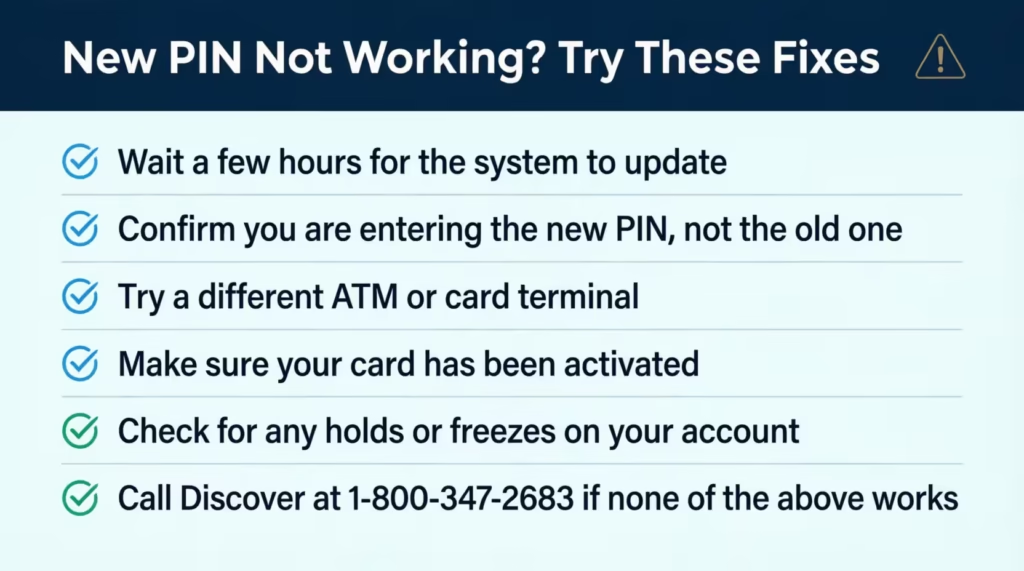
A new PIN that fails can feel like a real problem. Most of the time, the cause is simple. Try these steps in order:
- Wait a few hours. Many failures clear up on their own as the system finishes the update.
- Double-check the PIN. Make sure you are typing the new one, not the old one.
- Try a different ATM or terminal. Some older machines have slower updates.
- Make sure your card is activated. If it is brand new, an inactive card cannot use any PIN.
- Check for card holds. A frozen card will reject every PIN, even the right one.
- Call Discover at 1-800-347-2683. If nothing works, an agent can check the system from their end.
Do not keep guessing at the keypad. Too many wrong tries can lock you out.
What to Do If You Forgot Your Discover Credit Card PIN
Forgetting your PIN is more common than people think. Discover does not show your PIN anywhere, not even to its own agents. So instead of recovering it, you simply reset it.
Here is the fastest path:
- Open the Discover app or log in online.
- Go to Card Services or Profile.
- Choose Set or Change PIN.
- Pass the identity check.
- Type a new PIN twice and save.
If you cannot log in, call 1-800-347-2683. A Discover cardholder services agent can verify your identity and start a reset by phone. You may need to give your Social Security Number, address, and recent transaction details.
Once reset, the new PIN works the same way as before. There is no need to wait for a new card unless you also asked for one.
What Happens If You Enter the Wrong Discover PIN Too Many Times
ATMs and terminals limit the number of wrong PIN tries. The limit is usually three tries in a row. After that, the card may get locked for safety.
If your card gets locked:
- The ATM may keep your card or simply spit it back with a “declined” message.
- You will not be able to use the PIN until the lock is cleared.
- Your credit purchases (signature or contactless) may still work, but ATM and chip-and-PIN use will not.
To unlock it, call Discover right away. The agent will verify your ID and either reset your PIN or remove the lock. There is no fee for this, but it can take a few minutes to clear.
When Your Discover Credit Card Requires a PIN
Not every Discover purchase needs a PIN. In fact, most do not. Knowing when a PIN is required saves you from panic at the checkout.
A PIN is needed for:
- Cash advances at an ATM or bank teller
- Chip-and-PIN transactions in countries that do not use signatures
- PIN debit transactions at some U.S. terminals that ask for a PIN instead of a signature
- Some unattended kiosks, like gas pumps or train ticket machines, are mostly outside the U.S.
A PIN is not needed for:
- Standard in-store purchases in the U.S.
- Online shopping (you use the CVV instead)
- Contactless tap payments
- Most restaurants, gas stations, and grocery stores in the U.S.
The cash advance PIN is the one people forget most. If you ever plan to pull cash from your credit line, set the PIN well in advance. Also, keep in mind that cash advances often come with a cash advance fee and higher interest rates right away.
Can You Use Your Discover Card Without a PIN
Yes, in most U.S. shopping cases, you can. Discover credit cards are designed to work with a signature, contactless tap, or chip insert at the register. You do not need a PIN for everyday spending.
The PIN only comes into play when:
- You want cash from your credit line
- You shop in a country that requires chip-and-PIN
- A specific terminal asks for PIN debit verification
So if you only use your Discover card for groceries, gas, and online shopping, you may never need a PIN. But setting one is still smart for emergencies.
What to Do If You Think Your Discover PIN Was Compromised
If you think someone has seen or guessed your PIN, act fast. A few quick steps can stop fraud before it starts.
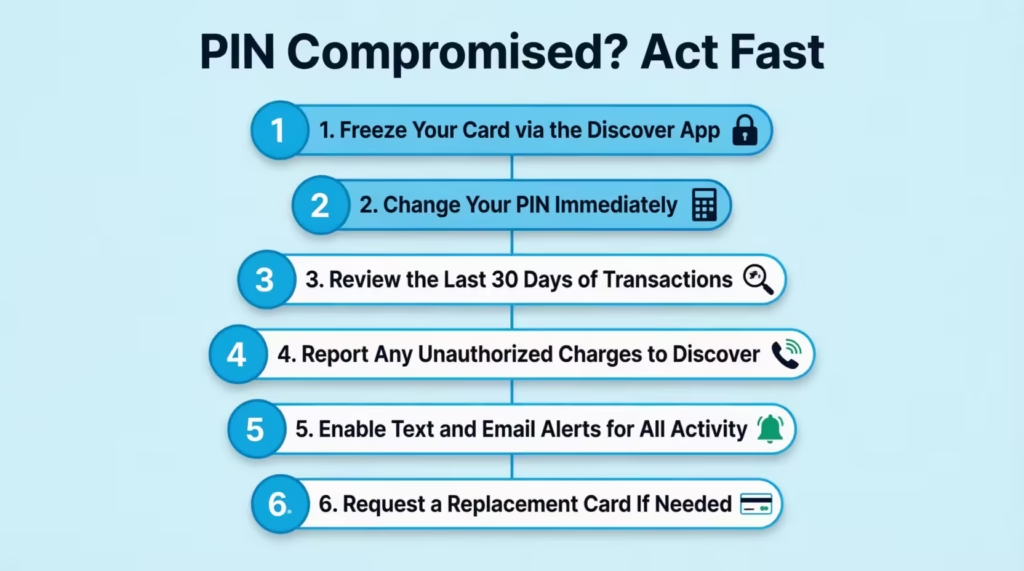
- Freeze your card. Open the Discover app and use the Freeze It feature. This blocks new purchases right away. You can unfreeze it later when safe.
- Change your PIN. Use the app, online portal, or phone to set a new one. Do not reuse any past PIN.
- Review recent activity. Check the last 30 days of transactions for anything unfamiliar.
- Report fraud if needed. Call Discover at 1-800-347-2683 to report any charge you did not make. Discover offers $0 fraud liability on unauthorized purchases.
- Turn on alerts. In the app, go to Card Security Settings and enable text or email alerts for purchases, ATM use, and large transactions.
- Ask for a new card. If you feel the card itself was copied, request a replacement. The new card has a new number and CVV, which closes the old door for good.
Discover Financial Services takes PIN safety seriously, and the support team can walk you through every step. The faster you act, the smaller the risk.
Frequently Asked Questions (FAQs)
How do I find my 4-digit PIN for my Discover credit card?
You cannot look up your existing PIN anywhere. Discover does not display it in the app, online account, or to customer service agents. The only option is to reset it through the app, online portal, or by calling 1-800-347-2683.
Is the CVV the same as a PIN?
No, the CVV is the 3-digit security code printed on your card and is used for online purchases, while a PIN is a 4-digit code you enter at ATMs or chip-and-PIN terminals. They serve different purposes and are not interchangeable.
Can I use my Discover credit card without a PIN?
Yes, most U.S. purchases, including in-store, online, and contactless tap payments, do not require a PIN at all. A PIN is only needed for ATM cash advances, chip-and-PIN terminals outside the U.S., and some unattended kiosks.
How many wrong PIN attempts are allowed before my Discover card gets locked?
Most ATMs and terminals allow three incorrect PIN attempts before locking your card. Once locked, your card will be declined for PIN-based transactions until you call Discover at 1-800-347-2683 to clear the hold.
Does my PIN stay the same when I get a new or replacement Discover card?
Not always. With most replacement Discover cards, your old PIN does not carry over automatically, so you will need to set a new one before using the card at ATMs or chip-and-PIN terminals abroad.
Can I change my Discover credit card PIN without going to a bank?
Yes. You can change your Discover PIN through the mobile app, at Discover.com, by phone at 1-800-347-2683, or at any compatible ATM on the Allpoint or MoneyPass network. No bank branch visit is needed.
Can I change my Discover credit card PIN online?
Yes. Log in to your account at Discover.com, navigate to Profile or Account Services, and select Change PIN or Set Up PIN. You will need to pass an identity check before the new PIN is saved.
How do I reset my Discover PIN if I forgot it?
Since Discover cannot retrieve your existing PIN, you will need to set a new one through the app, online account, or by calling 1-800-347-2683. You may need to provide your Social Security Number, address, or recent transaction details to verify your identity.
How long does it take for a new Discover PIN to become active?
A new Discover PIN typically becomes active within a few minutes, but it can take up to one full business day, depending on the method used and whether the change was made on a weekend or holiday.
Wrapping Up
Changing your Discover credit card PIN does not have to be confusing. You can do it through the app, online, by phone, or at an ATM, and each method takes only a few minutes. We also covered what to do if you forget your PIN, how long a new one takes to work, and how to react if you think your code was seen by someone else.
Based on the speed, safety, and ease shown above, the Discover Mobile app remains the most effective path for most cardholders.
If a friend or family member faces issues with their card abroad or at an ATM, share this guide to help them avoid a lot of trouble.