
Tired of signing in and out of Chase just to check your balances? If you run a small business or side hustle, you probably have two separate logins. Learning how to link Chase business and personal accounts fixes that problem in a few minutes.
Yes, you can link your Chase business and personal accounts into one online profile, as long as you meet a few eligibility rules.
Below, you’ll find the exact steps to link your accounts, who qualifies, what changes after you link, and how to undo it later if you need to.
At a Glance
This guide explains how to link Chase business and personal accounts online, including eligibility rules, the exact linking steps, what changes to your login afterward, and whether it affects rewards points or business liability.
Core Facts:
- Chase blocks linking for business accounts with more than one authorized signer on the signature card, and there is no self-service override for this rule.
- Linking is done from the Chase Business Online profile, not the personal login, through Profile and Settings, Manage Linked Accounts, and Link Relationship.
- After linking, the business profile becomes the primary login for viewing all accounts, with no self-service way to reverse this hierarchy.
- Linking online banking profiles does not merge or pool Chase Ultimate Rewards points, which stay in separate personal and business ledgers.
- Linked business and personal accounts can transfer funds between each other automatically, though transfer limits can vary by account type and history.
- Unlinking is not available online; reversing a link requires calling Chase’s online banking support team at 1-877-242-7372.
Best for:
- Solo business owners, freelancers, and single-member LLC owners managing separate Chase business and personal logins.
- Chase cardholders who want to view business and personal balances from one dashboard instead of switching logins.
- Business owners deciding whether to link accounts and wanting to understand the eligibility rules and login changes first.
Why Link Your Chase Business and Personal Accounts
Managing two logins gets old fast. You sign in to one profile, sign out, then sign in to the other. Linking your accounts solves that.
Here’s what you get after linking:
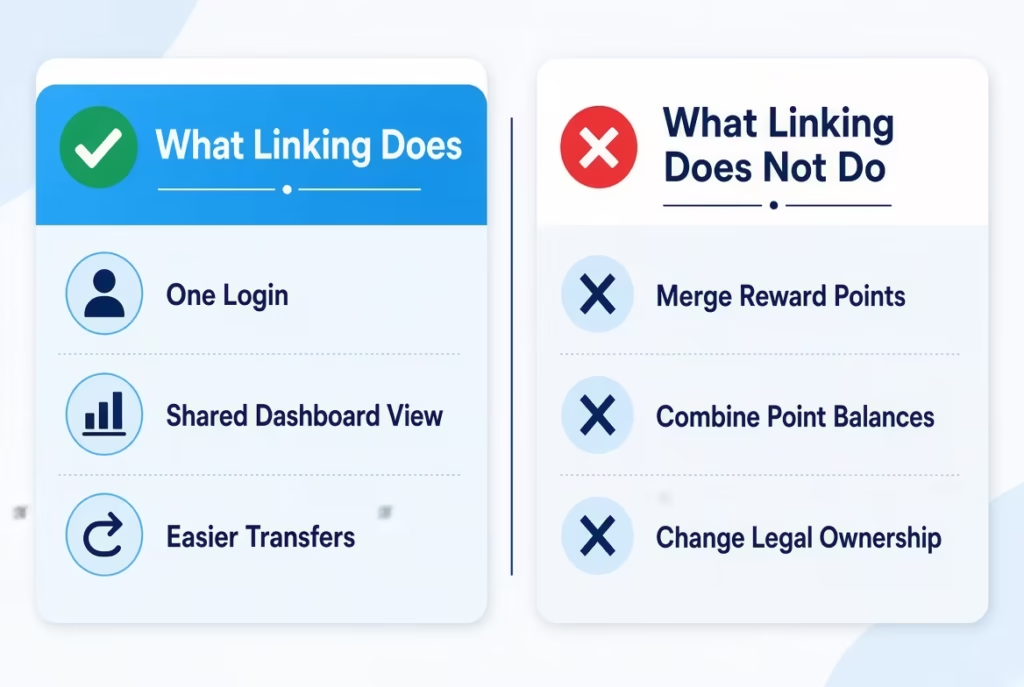
- One User ID and password. No more juggling two sets of login details.
- A single account overview dashboard. You can see your business and personal balances in one place.
- Easier card tracking. If you earn Chase Ultimate Rewards with cards like the Ink Business Preferred and the Chase Sapphire Preferred, you can view both cards from one login. This is about visibility only, not pooling points. More on that later.
- Simpler money movement. Once linked, eligible accounts show up in your transfer menus, so moving money between business and personal accounts takes fewer steps.
This setup works best for solo business owners, freelancers, sole proprietors, and single-member LLC owners. It’s also popular with points optimizers who hold several Chase products at once.
Eligibility Requirements Before You Start
Check these rules before you click anything. They can save you a lot of wasted time.
The biggest rule is about signers. If the signature card for your business account has more than one authorized signer, Chase says business and personal accounts cannot be linked. This is a hard rule, not a bug. So if you run a two-partner LLC where both partners can sign, the self-service linking tool won’t work for that account.
A few other requirements matter too:
- You must be an authorized signer on both the business account and the personal account you want to link.
- The accounts generally need to be connected to you as the same person. Name and Tax Identification Number (TIN) details can affect whether an account shows up as one of your eligible relationships.
- Most common account types can be linked, including checking, savings, money market accounts, credit cards, and CDs.
What You Need Before You Begin
Have these things ready:
- Your active Chase Business Online login credentials
- Access to the personal account you want to link
- Confirmation that you’re an authorized signer on both accounts
- A few uninterrupted minutes. The process is usually quick once you’re eligible
Is There a Fee to Link Chase Accounts?
Chase doesn’t typically charge a fee to link accounts online. It’s a free convenience feature. That said, bank policies can change, so it’s smart to confirm with Chase directly if cost is a concern. Keep in mind this is different from transfer fees, which may apply when you actually move money. Those are covered later in this guide.
Linking Accounts With Different Names
Don’t panic if your accounts don’t have identical names. Your personal account might show your legal name while your business account shows a business or DBA name. Accounts under different names can often still be linked, as long as the same person is an authorized signer on both. This is separate from the multi-signer rule above.
Step-by-Step: How to Link Your Chase Business and Personal Accounts
Here’s the exact process:
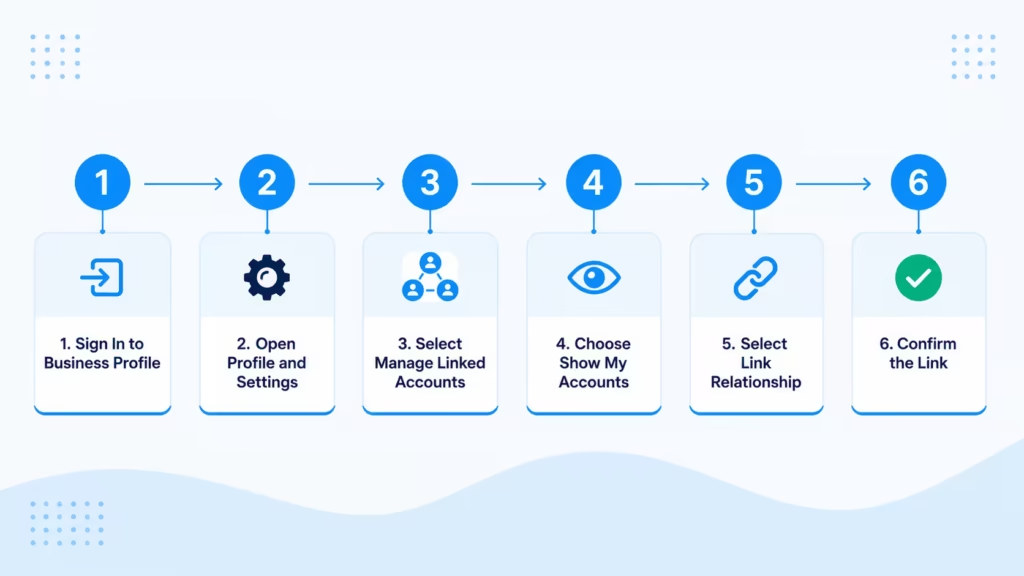
- Sign in to your Chase Business Online profile. Start from the business side, not your personal login.
- Choose the “Profile & Settings” menu in the top right corner.
- Select “Profile & settings.”
- Under Account settings, choose “Manage linked accounts.”
- Choose “Show my accounts.” This reveals your eligible relationships, meaning the accounts Chase allows you to link.
- Review the list and find the personal account you want to connect.
- Select “Link relationship” next to that account.
- Confirm by selecting “Link relationship” again.
That’s it. If the account you want doesn’t appear in the list, skip ahead to the Troubleshooting section below. Don’t keep retrying, because there’s usually a specific reason it’s missing.
⚠️ Mistake to Avoid: Don’t start the process from your personal login. The linking option lives inside the business profile, and you won’t find it if you sign in the wrong way.
Linking via the Chase Mobile App vs. Desktop
Chase’s official linking instructions are written for signing in at chase.com. Some users report finding a similar path in the Chase Mobile app through profile and account settings, but menu labels in the app can differ from the browser version. If you want the smoothest experience, use a desktop or laptop browser. The full Chase site shows every menu exactly as described above.
How to Confirm the Link Was Successful
After you confirm, Chase displays an on-screen confirmation message. Then check your account overview dashboard. Your linked personal accounts should now appear alongside your business accounts under the same login.
If you don’t see a confirmation message, or the account doesn’t show up on your dashboard, sign out and sign back in once. Still nothing? Head to the Troubleshooting section.
What Happens to Your Login After Linking
This part surprises a lot of people, so read it before you link.
Once you link accounts, your business profile becomes the primary login. Going forward, you sign in through the business side to see everything. There is currently no self-service way to make your personal profile the primary one instead.
What about your old personal login? It’s generally absorbed into the linked setup. The practical takeaway is simple: update your bookmarks, plan to use your business credentials, and get used to the business dashboard as your home base.
💡 Pro Tip: If you have strong habits or saved links tied to your personal login, note them before linking. Switching your routine is easier when you plan for it.
Understanding Duplicate-Looking Card Numbers
After linking, you might spot what looks like the same business credit card listed twice. It’s not an error.
Business credit cards show two numbers: a company account number and an individual cardholder number. So an Ink Business Unlimited card can appear as two entries.
This is normal. It doesn’t mean your accounts were double-counted or that the link went wrong. On your dashboard, the company number represents the overall business account, while the cardholder number represents your specific card.
Does Linking Combine Chase Ultimate Rewards Points?
No. Linking your online banking profiles does not merge or pool your Ultimate Rewards points. Your personal and business rewards balances stay in separate ledgers, even after linking.
What linking does give you is convenience. You can view both points balances from one login instead of two. That’s the full extent of it.
If your real goal is combining points, that’s a different process. Chase explains that you can transfer and combine Ultimate Rewards points between your own cards, and to one household member with a Chase card, through the Ultimate Rewards portal. So you can still bring your business and personal points together. Just don’t expect account linking to do it for you.
📌 Did You Know: Many people link their accounts expecting one big points balance, then find two separate totals. Linking is a login shortcut. Points transfers are a separate tool you use inside the Ultimate Rewards portal.
Can You Transfer Money Between Linked Chase Accounts?
Yes. Once your accounts are linked, eligible business and personal accounts can send money to each other. They appear automatically in your transfer-from and transfer-to menus, so you don’t need to set up external transfers.
One caution: transfer limits can apply, and they vary by account type and account history. Chase doesn’t publish one universal limit that applies to everyone.
If you’re planning a large transfer, like moving personal savings to cover a business shortfall, check your specific limit first. You can find it in your account details or by contacting Chase. A quick check beats a failed transfer when cash flow is tight.
To move your funds, navigate to the transfer section within the Chase mobile app or website. Select your source account and your destination account from the provided lists. Confirm the transfer amount, review the details, and submit your request. Most internal transfers process immediately, making your funds available right away.
Does Linking Accounts Affect LLC or Business Liability (Commingling Concerns)
This worry comes up a lot, especially for single-member LLC owners. The short answer: linking logins is not the same as commingling funds.
Linking is an access and convenience feature. It only changes how you view and manage accounts online. Commingling is about how money is actually used and recorded. Mixing business and personal funds in real life, like paying personal bills from a business account without documentation, is what creates liability risk. Sharing a login dashboard doesn’t do that.
Still, good habits matter. Keep separate bookkeeping records for each account. Be deliberate about any actual transfers between linked accounts, and document them. This is general information, not legal advice. If you have real concerns about liability protection, talk to a qualified attorney or accountant.
If you feel uneasy, you can always keep your logins separate. Many people prefer to use different passwords for their business and personal profiles. This simple step adds an extra layer of security.
It also provides a clear mental boundary between your two worlds. You can still see both balances on your phone or computer whenever you need to. Just remember that the specific app settings do not dictate your legal standing. Focus your attention on maintaining organized and distinct financial records instead.
Who Can See Your Information After Linking (Security and Access)
Here’s a question worth asking before you link: who else has access to your business login?
Linking connects your profile views. That means users with business account access may be able to see linked personal account information, depending on their permissions. In fact, Chase notes that you can grant access to your personal accounts through Access & Security Manager once they’re linked to your business accounts.
A few key points:
- Access & Security Manager is the tool that controls what each user can view and do.
- There’s one account administrator with full control. Other authorized users get the access the administrator grants them.
- If employees or a bookkeeper have business login access, review their permission settings before or right after linking.
If you want your personal balances visible to no one but you, check those settings first. It takes a few minutes and prevents an awkward surprise.
You should also review these settings periodically. Business needs change over time. An employee might get a new role that requires more data.
Or, a team member might leave the company entirely. Regularly checking your permission levels ensures that only the right people see your private details. Taking this quick step provides extra peace of mind for your personal finances.
Troubleshooting Common Linking Problems
Sometimes the process doesn’t work, even when you follow every step. The two most common problems have specific causes and specific fixes.
Account Not Showing as Eligible
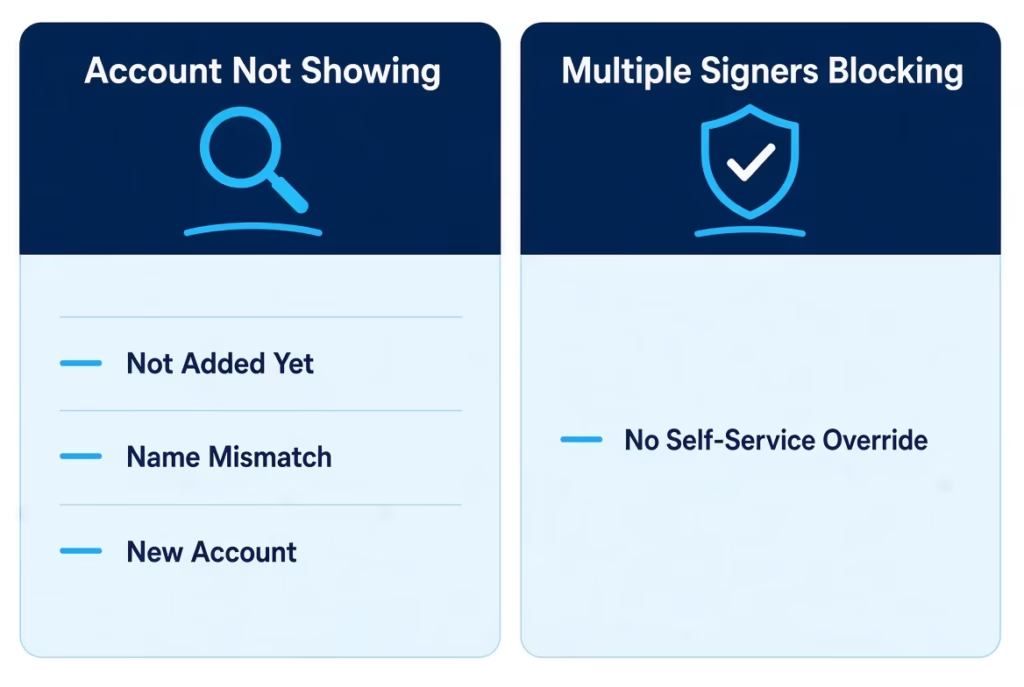
You did everything right, but the account you want isn’t in your eligible relationships list. Common reasons include:
- The account isn’t added to your Chase Business Online view yet
- A name mismatch between accounts
- The product type isn’t supported for self-service linking
- The account is very new
First, try the “Show/hide accounts” option in your settings. The account may exist but simply be hidden from view. If that doesn’t work, the fallback is phone support. Chase can often link accounts manually that the online tool won’t show. Call the number on Chase’s customer service page, or reach the online banking support team at 1-877-242-7372.
Multiple Signers Blocking the Link
If your business account has more than one authorized signer on the signature card, linking is blocked. No error message explains this clearly, which is why so many people think the tool is broken.
Why the restriction? It protects the confidentiality of your personal financial information from co-signers on the business account. There’s no self-service override for this rule. If your situation changes, like a partner leaving the account, you can ask Chase whether removing a signer would make the account eligible. That’s a conversation to have with Chase directly.
How to Unlink or Reverse Linked Chase Accounts
Changed your mind? You’re not trapped, but you can’t undo linking yourself.
Unlinking is not a self-service option in Chase Business Online. There’s no “unlink” button anywhere in the online interface. To reverse the link, you need to call Chase. The online banking support team at 1-877-242-7372 handles these requests, and Chase lists this number for account access help.
Common reasons to unlink include adding a business partner, selling the business, or simply wanting separate logins again for privacy. After unlinking, you go back to two separate logins, one for business and one for personal.
Be prepared for the agent to ask security questions during your call. They need to verify your identity before making any changes. Once the request is processed, you will need to set up your login credentials again.
Your business and personal accounts will function independently, just as they did in the past. This process ensures your financial data stays secure while giving you full control over how you access your accounts.
Frequently Asked Questions (FAQs)
Can you link a personal and business bank account?
Yes, Chase lets you link business and personal accounts into one online profile if you’re an authorized signer on both. Your business account must have only one signer for the link to work.
Can I see my Chase business account on my personal account?
No, linking works the other way. Your business profile becomes the primary login, so you view both accounts from there instead of your personal side.
Can I combine points from my Chase business and personal accounts?
Linking your logins alone won’t combine your points. Personal and business Ultimate Rewards balances stay in separate ledgers even after your accounts are linked.
Can I transfer Chase points from business to personal account?
Yes, Chase lets you transfer and combine Ultimate Rewards points between your own cards through the Ultimate Rewards portal. This is a separate step from linking your online banking login.
What happens if my business account has multiple signers?
Chase blocks linking for business accounts with more than one authorized signer on the signature card. This protects the confidentiality of personal financial data from co-signers, and there’s no self-service override.
Does linking Chase accounts cost anything?
No, Chase doesn’t typically charge a fee to link accounts online. It’s a free convenience feature, though transfer fees may apply separately once you actually move money.
Can I connect my personal bank account to my LLC?
Yes, as long as you’re an authorized signer on both the LLC’s business account and your personal account. Linking is an access feature only and doesn’t itself create commingling risk.
How do I unlink my Chase business and personal accounts?
There’s no self-service unlink option in Chase Business Online. You’ll need to call Chase’s online banking support team at 1-877-242-7372 to reverse the link.
Does linking accounts affect my credit score?
No, linking your Chase online banking profiles doesn’t affect your credit score. It only changes how you view and access your accounts online, not your credit history or reporting.
Wrapping Up
Linking your Chase business and personal accounts gives you one login, one dashboard, and easier transfers. Just remember the key limits: multi-signer business accounts can’t be linked, the business profile becomes your primary login, and linking doesn’t merge Ultimate Rewards points or create legal risk by itself.
A practical approach is to confirm your eligibility first, then follow the steps above.
If anything goes wrong, phone support is the fix. Know a freelancer or small business owner juggling two Chase logins? Share this guide with them. It could save them a support call.