
You want to buy something online with your American Express card, but typing your real 15-digit number into yet another checkout box feels risky. You might be starting a free trial, paying a new vendor, or covering an employee expense. If so, you may want some safety between the merchant and your real account.
The frustrating part is that an Amex virtual card number works differently from those from Capital One or Citi. So, the steps you found may not apply.
The short answer: To get an Amex virtual card number, first enroll your eligible Amex card in Google Pay through your online account. Then, use Google Chrome when you check out.
Here are the enrollment methods, eligibility rules, device requirements, and steps to take if an option is missing from your account.
Key Takeaways
This guide explains how to get an Amex virtual card number for personal and business accounts, covering eligibility requirements, three enrollment methods, device and browser restrictions, spend controls for business cards, and troubleshooting steps when the option does not appear.
Core Facts:
- Personal Amex virtual card numbers work only through Google’s ecosystem: Google Chrome on desktop (Windows, Mac, or Chromebook) and Android devices. Safari, Firefox, Edge, Apple Pay, and iPhone are not supported.
- To enroll, log in at americanexpress.com, go to Account Services, then Card Management, then Manage Digital Wallets and Payment Features, and add your card to Google Pay.
- Enrollment requires a working mobile number on file with Amex. A one-time verification code is sent by text and expires in approximately 10 minutes.
- Not all personal Amex cards are eligible. Third-party Amex cards issued by other banks, most Corporate cards tied to employer programs, and prepaid products typically do not qualify.
- Business and Corporate cardholders access virtual cards through the Amex dashboard (not Google), and can set a spending limit, expiration date, and a vendor or project label for each card created.
- The personal virtual card number is generated automatically by Chrome or Android at checkout. You do not manually copy or retrieve a separate number from the Amex app or website.
Best for:
- Personal Amex cardholders who shop online frequently and want to protect their real 15-digit card number from merchants without opening a new account.
- Business owners and corporate account holders who need to issue separate virtual cards to employees or vendors with defined spending limits and expiration dates.
- Anyone troubleshooting a missing virtual card option in their Amex account and needing a structured checklist to identify whether the issue is eligibility, browser choice, or account settings.
What an Amex Virtual Card Number Is
An Amex virtual card number is a digital stand-in for your real card. It replaces your 15-digit Amex number at online checkout, so the merchant never sees your physical card. The virtual number links back to your real account on Amex’s end, but it appears as a different number on the outside.
The number works with a dynamic security code. That means the CVV refreshes regularly rather than staying fixed, as the one printed on the back of your card. If a merchant’s database is breached later, the stolen code is already useless.
The benefit is simple. You keep using your same Amex account, you still earn rewards, and you still see one bill at the end of the month. But you stop handing out your physical card number to every website you buy from. That alone removes a lot of risk if a store you trusted today gets hacked next year.
Amex Virtual Card vs. Instant Card Number vs. Business Virtual Card
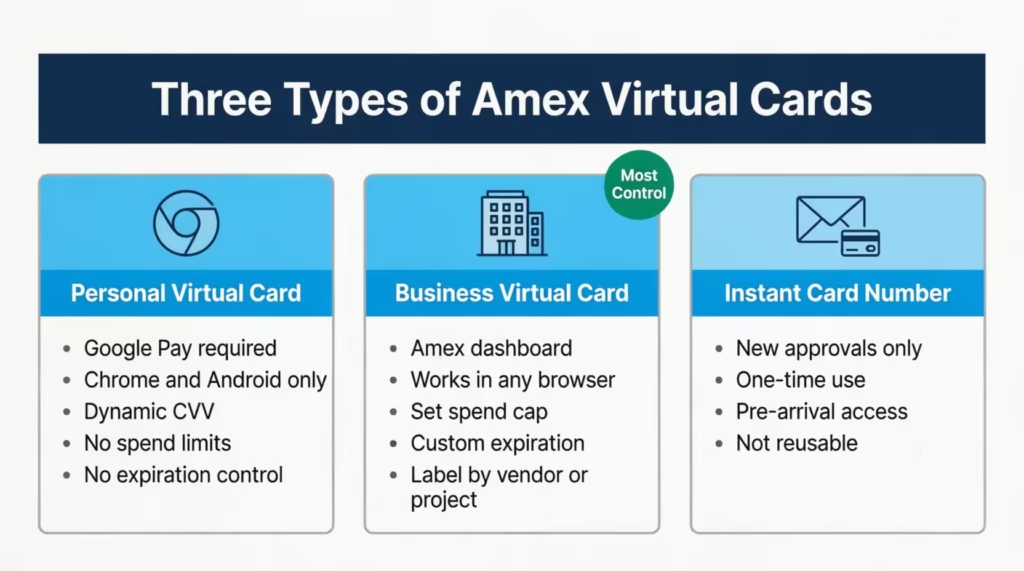
Amex uses three terms that sound alike but mean different things. Picking the right one saves time.
A virtual card number for personal cards lives inside the Google ecosystem. You enroll your card, and Chrome or Android shows the virtual number at checkout. You don’t pick spend limits or expiration dates. The number just shields your real card from merchants.
A business virtual card is built for Amex Business and Corporate accounts. It lives inside the Amex dashboard, not Google. You can name each card, set a spend cap, and pick when it expires. It’s meant for paying vendors, sharing with employees, or covering one project.
So if you’re a personal cardholder shopping online, you want the Google-based virtual card. If you run a company and need control over who spends what, you want the business virtual card. New applicants get something else entirely, which is covered next.
Instant Card Number (New Approvals Only)
An Instant Card Number is a one-time perk for people who just got approved for a brand-new Amex card. Right after you apply and get accepted, Amex may give you a number you can start using before the physical card arrives in the mail.
This is not a reusable virtual card tool. You can’t pull a fresh one later. Once your real card arrives, the Instant Card Number role is basically done. If you’re an existing cardholder looking for a virtual number to protect online purchases, this is not the feature you want.
Which Amex Cards Are Eligible
Not every Amex card supports the Google-based virtual card number. The feature is open to many personal Amex cards, but some are left out.
Cards that usually don’t qualify include:
- Third-party Amex cards (issued by other banks but branded with Amex)
- Certain Corporate cards are linked to your employer’s account
- Prepaid products
Eligibility can also vary by product line, so two people with different Amex cards may see different results.
Amex doesn’t publish a full list. The reliable way to confirm is to check your own account:
- Log in at americanexpress.com.
- Open Account Services, then Card Management.
- Click Manage Digital Wallets & Payment Features, or go straight to americanexpress.com/managedigitalwallets.
- Look for the option to add your card to Google Pay or create a virtual number.
If the option shows up, your American Express card qualifies. If it doesn’t, that card isn’t supported for this feature, and no amount of retrying will change that.
📌 Did You Know: Amex’s virtual card feature is tied to your specific card account, not your overall membership. If you carry two Amex cards, one may show the option while the other does not.
Device and Browser Requirements
This is the rule that catches most people off guard. The Amex personal virtual card is built around the Google ecosystem. It doesn’t run anywhere else.
You can use it on:
- Google Chrome on desktop (Windows, Mac, or Chromebook)
- Android phones and tablets
- Some Android apps that accept Google Pay
You cannot use it on:
- iPhone or iPad through Safari
- Apple Pay
- Edge, Firefox, or other browsers when paying through autofill outside Chrome
Apple Pay handles cards through its own tokenization system, which is separate from this Amex feature. That system also hides your real card from merchants, just in a different way. So if you’re on iPhone, you’re not without options. You just don’t have this option.
If you want a “virtual card” toggle on the Amex website that works in Safari, like Capital One’s Eno, it’s not available for Amex personal cards. The path is Chrome and Android, or nothing.
How to Enroll for a Personal Amex Virtual Card Number
You have three ways to enroll your personal Amex account. All three end in the same place: your card lives in Google Pay, and Chrome can pull a virtual number at checkout. After you finish, Amex sends a confirmation email. Pick the path that fits where you are right now.
Method 1: Add Card to Google Pay on americanexpress.com
This is the direct path through your Amex account. Use it when you’re not in the middle of a purchase.
- Sign in to your account at americanexpress.com.
- Go to Account Services > Card Management > Manage Digital Wallets & Payment Features, or jump straight to americanexpress.com/managedigitalwallets.
- Find your eligible card in the list.
- Click Add Card to Google Pay.
- Sign in to your Google account if asked.
- Confirm the card details and accept the terms.
- Verify your identity with the one-time code Amex sends to your phone.
Once the card is in Google Pay, Chrome can use it for autofill, and a virtual number is generated automatically at checkout.
Method 2: Enroll During Chrome Checkout
You can also enroll on the fly while you’re paying for something. This works when your Amex card is already saved in Chrome autofill.
- Open the merchant’s checkout page in Google Chrome.
- Pick your saved Amex card from the autofill list.
- Chrome may show a prompt to “use a virtual card number” or to add the card to Google Pay.
- Tap or click the prompt and follow the steps.
- Verify your identity through the one-time code from Amex.
- Finish the purchase. The merchant receives the virtual number, not your real one.
This is handy when you didn’t plan ahead but realize at checkout that you’d rather not share your real card.
Method 3: Enroll via Google Account Payment Settings
The third path starts inside your Google account, not Amex’s. Use it if you already manage other cards in Google Pay and want this one in the same place.
- Open pay.google.com or go to Payment methods in your Google account.
- Find your Amex card or add it if it’s not there yet.
- Tap the three-dot menu next to the card.
- Pick the option to turn on the virtual card feature.
- Sign in to your Amex account when prompted.
- Complete the one-time verification.
If you get stuck on the Google side of the setup, the Google Pay virtual card help page walks through the same steps from Google’s view.
Verifying Your Identity During Enrollment
Every enrollment path ends with the same step: Amex confirms it’s really you. The system sends a one-time verification code by text to the mobile number on your Amex account. You type that code into the enrollment screen, and the virtual card turns on.
Two things trip people up here.
First, you need a working mobile number on file with Amex. Not an old landline. Not a number you used five years ago. If the number is wrong or outdated, the text never arrives, and enrollment stops cold. Fix this before you start. Log in to your Amex account, open Account Services, find Contact Information, and update your mobile number.
Second, the code expires fast. You have about 10 minutes from when Amex sends it. After that, the code is dead, and you need to ask for a new one.
If the code doesn’t show up:
- Wait 60 seconds before tapping “resend.” Carrier delays are real.
- Check that your phone has a signal and isn’t blocking short codes.
- Look in your spam or filtered messages folder if you use a filter app.
- If two tries fail, call the number on the back of your card. Amex can verify you by phone and help complete enrollment.
⚠️ Mistake to Avoid: Don’t request three or four codes in a row out of frustration. Some texts arrive late, and stacking requests can confuse the system. Wait, then resend once.
How to Use Your Amex Virtual Card Number
Once enrollment is done, using the card is almost invisible. You don’t copy a special number from your Amex app. You don’t generate a new one each time. Chrome and Android handle the swap for you.
Here’s the flow at checkout:
- Open the merchant site in Google Chrome (or use an Android app that supports Google Pay).
- Start the payment step.
- Pick your Amex card from the autofill list. Chrome may label it as “Virtual card” next to the card name.
- Confirm the purchase.
Behind the scenes, Chrome sends the merchant a virtual number with a dynamic security code instead of your real card details. Your real number stays inside your Amex account. You still see the transaction on your normal Amex statement, and you still earn rewards as usual.
The virtual number works anywhere Amex is accepted, as long as you’re paying through Chrome on a desktop or through Google Pay on Android. There’s no separate spending pool, no extra fees, and no different rewards rate. It’s your normal card with a safer face.
Where Your Amex Virtual Card Number Won’t Work
The virtual card is helpful, but it has clear limits. Knowing them ahead of time saves you a failed checkout.
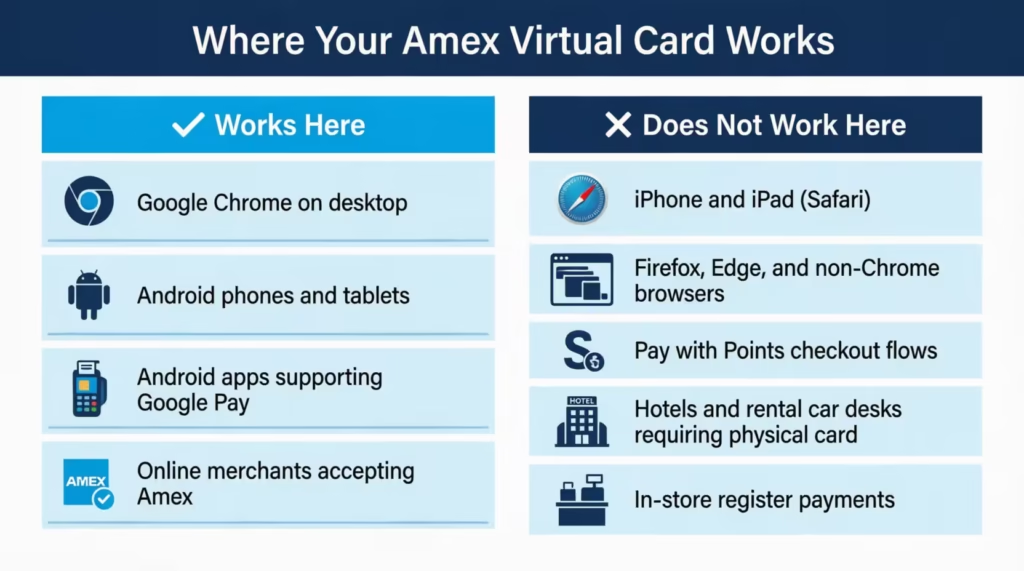
- Pay with Points checkouts. If a merchant offers Amex Membership Rewards “Pay with Points” at the checkout page, the virtual card number won’t work for that flow. You’ll need to use your real card details to redeem points directly.
- iOS and non-Chrome browsers. Safari, Firefox, and Edge don’t tie into this Amex feature. If you start a payment outside Chrome, you’ll just be paying with your real card.
- Apple Pay. Apple Pay does its own thing. It’s secure, but it’s not the Amex virtual card number system.
- Merchants that require the physical card. Some places, especially hotels and rental car desks, ask to see the actual plastic card at pickup. A virtual number can’t satisfy that check.
- In-store payments at the register. This feature is built for online and in-app checkout. It’s not a tap-to-pay tool by itself.
- Some recurring subscriptions tied to your real card. If a merchant already has your physical card number stored, switching them to the virtual one means updating your payment info on that account. The virtual card doesn’t override past saved cards.
If you hit one of these walls, it’s not a bug. It’s how the product is built.
How to Get a Virtual Card for an Amex Business or Corporate Card
Business and Corporate cardholders get a different and more powerful virtual card. This one lives inside the Amex dashboard, works in any browser, and gives you real spend controls. It’s designed for paying vendors, contractors, and recurring business expenses without sharing your main Business Card number.
To set one up:
- Log in to your Amex business account at americanexpress.com.
- Open your Business Card account page.
- Look in the account menu for Add or Manage Virtual Cards. Depending on your product, this may sit under “Account Services” or “Card Management.”
- Click to create a new virtual card.
- Enter the CSC code (the security code on the back of your physical Business Card) to verify the request.
- Choose your settings (covered just below).
- View the virtual card number, expiration date, and security code on the next screen. You can copy these into a vendor’s payment form right away.
Some Amex Business products use a partner platform called Extend to issue virtual cards instead of the built-in tool. If that’s your setup, you’ll see a link to set up Extend from your Amex business account. The end result is the same: a virtual number tied to your real card, with controls you set.
Customizing Spend Limits and Expiration Dates
This is the part that personal cardholders don’t get. With a business virtual card, each card you create can be locked to a specific purpose.
You can set:
- A spending limit. Cap each virtual card at the exact amount you plan to spend. A $500 cap means a vendor can charge $499.99 and not a penny more.
- An expiration date. Pick a date when the card stops working. Great for one-time projects or short-term contractors.
- A name or label. Tag the card by vendor, project, or employee so charges are easy to track on your statement.
- One-time or recurring use. Some cards are built for a single charge, others for ongoing subscription billing.
This is what makes business virtual cards genuinely useful for fraud control. If a vendor’s system gets hacked, the worst case is that they charge up to your set limit before expiration. They can’t drain your real card.
💡 Pro Tip: Create a separate virtual card for every recurring vendor, not just risky ones. When a vendor relationship ends, you cancel one card instead of updating payment info across other accounts.
Viewing, Managing, or Cancelling a Virtual Card
How you manage virtual card activity depends on which type you have.
For business virtual cards, everything happens inside Amex. Log in to your business account and open the virtual cards screen. You’ll see a list of every active card, the number, expiration date, spending limit, and the transactions charged to each one.
From that screen, you can:
- Change the spending limit on a card that’s still active.
- Push out or shorten the expiration date.
- Cancel virtual card access by closing a card you no longer need. Once cancelled, that virtual number stops working, but the real Business Card behind it is untouched.
- Pull a transaction report for accounting or expense reimbursement.
For personal virtual cards, you manage things through Google rather than Amex. Open pay.google.com or your Google Pay app, select the Amex card, and use the menu to remove it or turn off the virtual card feature.
Removing the card from Google Pay stops Chrome from generating virtual numbers tied to it. Your real Amex account is unaffected, and you can re-enroll later if you change your mind.
If you lose your phone or think your Google account is hacked, remove the card from Google Pay. This is the quickest way to stop access to your virtual number.
What to Do If the Virtual Card Option Isn’t Showing Up
This is the most common dead end. You log in, click around, and the virtual card or Google Pay option just isn’t there. Walk through this checklist before you call support.
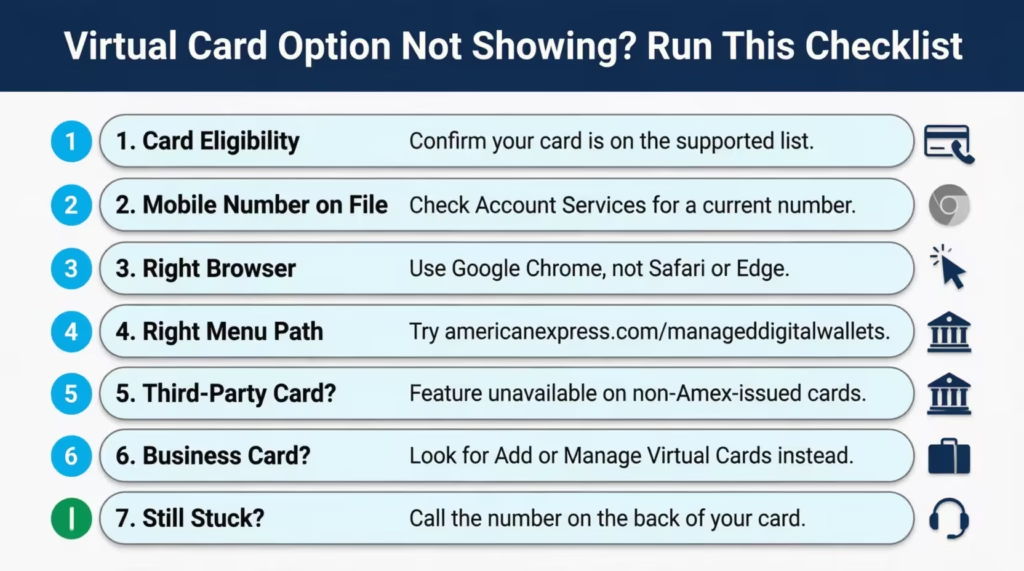
1. Confirm your card is eligible. Some personal Amex products don’t support the virtual card feature. Also, most Corporate cards from employer programs and Amex cards from other banks lack this support. If you see other digital wallet options but not this one, your card probably isn’t on the list.
2. Check your mobile number on file. No mobile number means no one-time verification code, which means enrollment can’t finish. Open Account Services > Contact Information, and make sure your number is current and able to receive texts.
3. Use the right browser and device. The enrollment and use steps require Google Chrome on a desktop or an Android device. Try the same steps in Chrome if you’ve been using Safari or Edge. The option that looks missing may simply not load in other browsers.
4. Look for the right menu path. The exact wording varies a little by card product. Try both:
- Account Services > Card Management > Manage Digital Wallets & Payment Features
- Direct link: americanexpress.com/managedigitalwallets
5. Rule out a third-party Amex card. If your Amex was issued by another bank (the bank’s name, not American Express, shows up on your monthly statement), the feature is not available to you. There’s no workaround. You’d need a card issued by American Express directly.
6. Try a business or Corporate path instead. If you have a Business or Corporate Card and don’t see the personal Google Pay option, that’s expected. Look for Add or Manage Virtual Cards in your business account instead.
7. Call Amex if all else fails. The number on your card links you to an agent. They can confirm if your account is eligible and if anything is blocking enrollment on Amex’s side.
Most missing-option problems trace back to one of the first three items on this list. Run the checklist before assuming something is broken.
Frequently Asked Questions (FAQs)
Why is my virtual card number different than my physical card?
Amex virtual card numbers are designed to protect your real 15-digit card number. They act as stand-ins to keep it hidden from merchants. The virtual number also uses a dynamic security code that refreshes regularly, so even if a merchant’s system is breached, the stolen code has already expired.
Can I see my full Amex card number on my iPhone?
The Amex personal virtual card feature runs through Google’s ecosystem and does not work on iPhone, iPad, or Safari. Apple Pay is available on iOS and also protects your real card from merchants, but it is a separate system from Amex’s virtual card number.
Are virtual cards linked to my real card?
Yes, your Amex virtual card number connects back to your real account on Amex’s end. You still receive one monthly statement, earn the same rewards, and manage everything through your normal Amex account.
Can I get cash back or rewards when paying with a virtual card?
You earn the exact same rewards as you would paying with your physical card. The virtual number is just a protected face on your real account, so your rewards rate, statement, and earning rules stay unchanged.
How do I see my Amex virtual card number?
You don’t look it up manually. Once your card is enrolled in Google Pay, Chrome automatically generates and sends a virtual number to the merchant at checkout without showing it to you.
Can I get an Amex virtual card number instantly?
Enrollment takes just a few minutes. First, you need to verify your identity. Amex will send a one-time code to your mobile number on file. The code expires in about 10 minutes, so have your phone nearby when you enroll.
Can I use my American Express card without the physical card?
Yes, when you enroll in Google Pay with your Amex account, you can pay online. Use Chrome or Google Pay on Android, and you won’t need the physical card. New applicants may also receive an Instant Card Number to use before the physical card arrives.
How fast can you get an Amex virtual card number?
Most people complete enrollment in under five minutes if their mobile number is current on their Amex account. The main variable is how quickly your carrier delivers the one-time verification text Amex sends at the end of setup.
Can I set a spending limit on my personal Amex virtual card number?
No. Personal Amex virtual card numbers do not include spend controls or custom expiration dates. Those features are only available on Amex Business and Corporate virtual cards, where you can cap each card at a specific dollar amount and set an end date.
Can I create multiple Amex virtual card numbers on one personal account?
No. The personal virtual card feature links one virtual number to your enrolled card. This means you don’t need to create separate numbers for different merchants. Multiple custom virtual cards with individual limits are a Business and Corporate card feature only.
Wrapping Up
Getting an Amex virtual card number comes down to knowing which version fits your card and following the right path. Personal cardholders enroll through Google Pay and use Chrome at checkout. Business and Corporate cardholders now have a better tool in the Amex dashboard. It includes spending limits and expiration dates. Eligibility, your mobile number, and your browser are the three things that decide whether setup works on the first try.
To make the most of Amex’s feature, first confirm your eligibility. Then, enroll through your Amex account. This makes everything else easy.
If you know someone who shops online with their Amex and worries about saving card details on every site, share this guide. It could save them a real headache later.