
Tracking every charge on a corporate card is stressful. Miss one line item, and the whole month’s books can fall apart. The ACFE’s 2024 Report to the Nations puts the median loss from workplace fraud at $145,000 per case, and poor expense tracking is often the open door.
A ready-made credit card reconciliation template solves this fast. It gives you a structured form to log, match, and verify every transaction against your statement.
Below, you’ll find free downloads in multiple formats, plus a full walkthrough on how to fill them out, avoid common errors, and close your books with confidence.
Download Your Free Credit Card Reconciliation & Expense Report Templates
5 ready-to-use templates are available to make tracking expenses simple. Each one has every section you need to log transactions, match them to your statement, and get manager sign-off.
Pick the format and paper size that works best for you:
Disclaimer: The Templates & Printables on this site are provided for informational and personal tracking purposes only. This is not financial, legal, tax, or credit advice. While reasonable efforts are made to ensure accuracy, Credit Card Wind makes no warranties as to the completeness, reliability, or accuracy of the calculations generated by these Templates & Printables. Users are responsible for independently verifying all data and calculations. Terms, conditions, rates, regulations, and legal requirements vary by institution, jurisdiction, and individual circumstances.
Always refer to your official statements, account agreements, and applicable laws, and consult a qualified professional before making any financial, legal, or other important decisions. By using these Templates & Printables, you acknowledge that Credit Card Wind and its owner shall not be liable for any damages, losses, or financial consequences arising from the use or misuse of these Templates & Printables.
This universal disclaimer applies to all templates and printables provided by Credit Card Wind (https://creditcardwind.com), created by Robert Williams (Owner at Credit Card Wind).
© Credit Card Wind. All rights reserved.
These templates and printables may be downloaded and used for personal, non-commercial purposes only. Redistribution, resale, or modification for commercial use without permission is strictly prohibited.
What Is Credit Card Reconciliation (and Why Does It Matter)?
Credit card reconciliation is the process of comparing each charge on a card statement to the matching record in a company’s books. The goal is to confirm that every transaction is correct, accounted for, and approved.
Think of it like balancing a checkbook, but for corporate card spending. Each line on the bank statement should match a receipt or log entry. If something doesn’t line up, it gets flagged for review.
This matters for three big reasons:
- Catching errors early. Duplicate charges, wrong amounts, and overlooked fees show up fast when someone reviews the numbers each month.
- Stopping fraud. The ACFE’s 2024 study of 1,921 real fraud cases found that a lack of internal controls was behind 32% of all occupational fraud. A structured expense log with monthly verification is one of the simplest controls a company can add.
- Staying audit-ready. Clean records make tax season and internal audits far less painful. Every charge has a receipt, a category, and a reason on file.
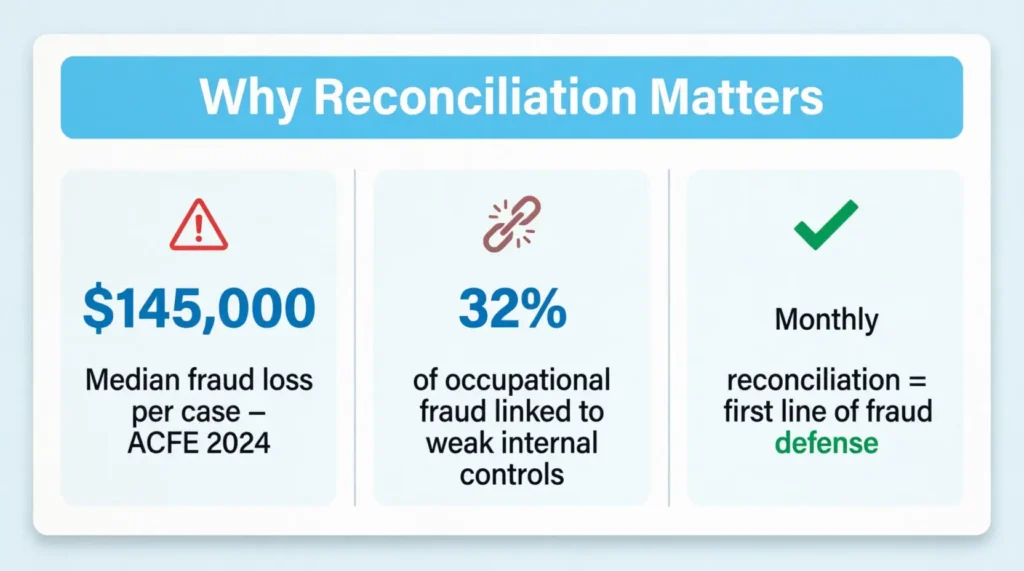
Without a system for matching card activity to accounting entries, errors pile up. A monthly credit card expense report keeps things clean from day one.
📌 Did You Know: Over half of all occupational fraud happens because of missing or overridden internal controls. A simple monthly reconciliation log can serve as a first line of defense.
How to Use These Credit Card Reconciliation Templates
Each template follows the same core layout. The steps below apply to the PDF, Word, and Excel versions. Once you understand the workflow, switching between formats is easy.
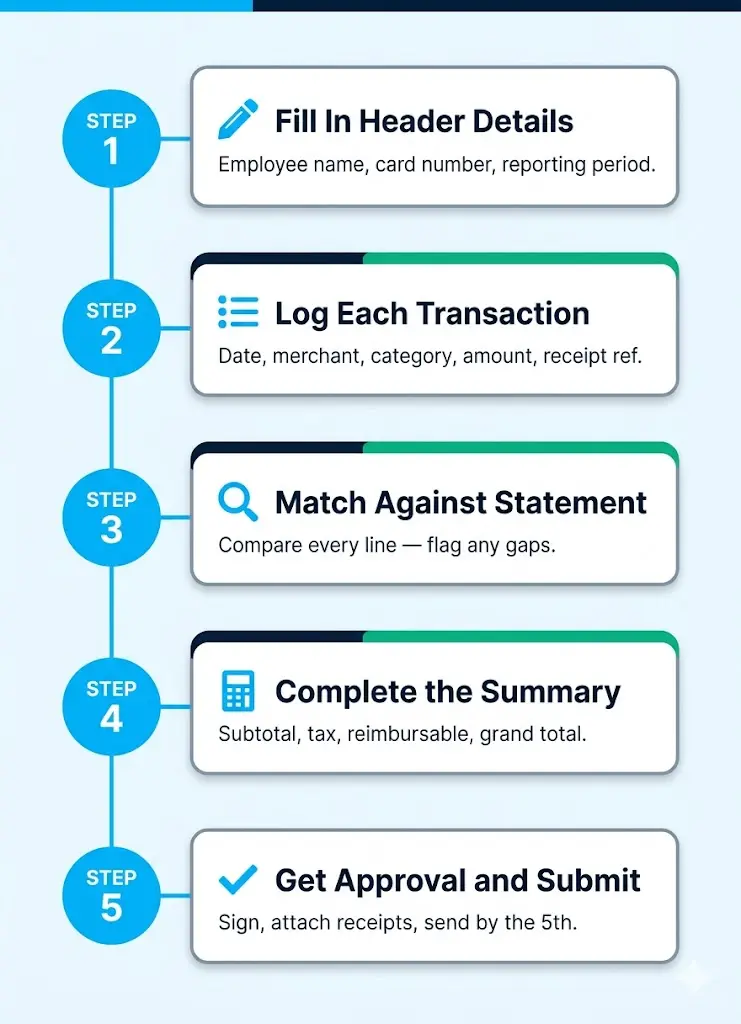
Step 1: Fill In the Header Details
Start at the top of the form. Enter the following:
- Employee/Submitter Name – The cardholder or person filing the report
- Department – The team or division the expenses belong to
- Company – Your organization’s name
- Card Name and Last 4 Digits – Identifies which card this report covers
- Reporting Period – The start and end dates for the month being reported (for example, Jan 1 to Jan 31)
- Prepared Date – The date the form is being completed
- Approver Name – The manager who will sign off
The Excel version pulls some of these fields from a Settings sheet. Set your company name, currency, and tax rate there first.
Step 2: Log Each Transaction in the Itemized List
The main table is where all spending goes. For each charge on the card, fill in one row:
| Column | What to Enter |
|---|---|
| Date | The posted date of the transaction |
| Merchant/Payee | The vendor name (Amazon, Delta Air, Uber, etc.) |
| Description | A short note about what was purchased |
| Category | Select from the dropdown: Travel, Meals, Office Supplies, Software, etc. |
| Project/Client | Tag the expense to a project, client, or mark it Internal |
| Amount | The dollar amount charged |
| Tax | Sales tax for that purchase |
| R? (Reimbursable) | Check this box if the employee paid out of pocket or if it needs separate reimbursement |
| Rec? (Reconciled) | Check this box once the charge is verified against the statement |
| Receipt Ref | Enter the receipt number, file name, or attachment reference |
The PDF templates have 25 blank rows. The Excel workbook handles unlimited entries.
Tip: → Spotted an interest charge that looks off? Double-check it with the daily credit card interest calculator.
Step 3: Match Transactions Against Your Card Statement
Once the statement arrives, compare it line by line to the log. Every charge on the statement should have a matching row in the template.
In the PDF and Word versions, enter the totals at the bottom:
- Statement Total – The ending balance from the credit card statement
- Transactions Total – The sum of all amounts in the log
- Difference – Should be $0.00 if everything matches
In the Excel version, this matching happens on the Reconciliation sheet. It supports both exact matching (by reference ID) and fuzzy matching (by amount, card number, and date). Unmatched statement lines get flagged automatically.
Step 4: Complete the Summary Section
The template auto-calculates (in Excel) or requires manual entry (in PDF/Word) for:
- Subtotal – Sum of all transaction amounts
- Total Tax – Sum of all tax entries
- Total Reimbursable – Sum of charges marked as reimbursable
- Grand Total – The final combined total
Review these numbers before sending the form for approval.
Step 5: Get Approval and Submit
At the bottom of each template, there’s room for:
- Employee Signature and Date
- Manager/Approver Signature and Date
The Word template also includes submission instructions. It reminds employees to scan all receipts and attach them in order. Submit the completed form to the finance department by the 5th of the following month, or per your company’s policy.
⚠️ Mistake to Avoid: Don’t forget to subtract personal charges from the business total. One of the most common reconciliation errors happens when a personal meal or purchase stays on the corporate card report.
What’s Included in Each Template Format
Not every format works the same way. Choosing the right one depends on team size, workflow, and how much automation is needed.
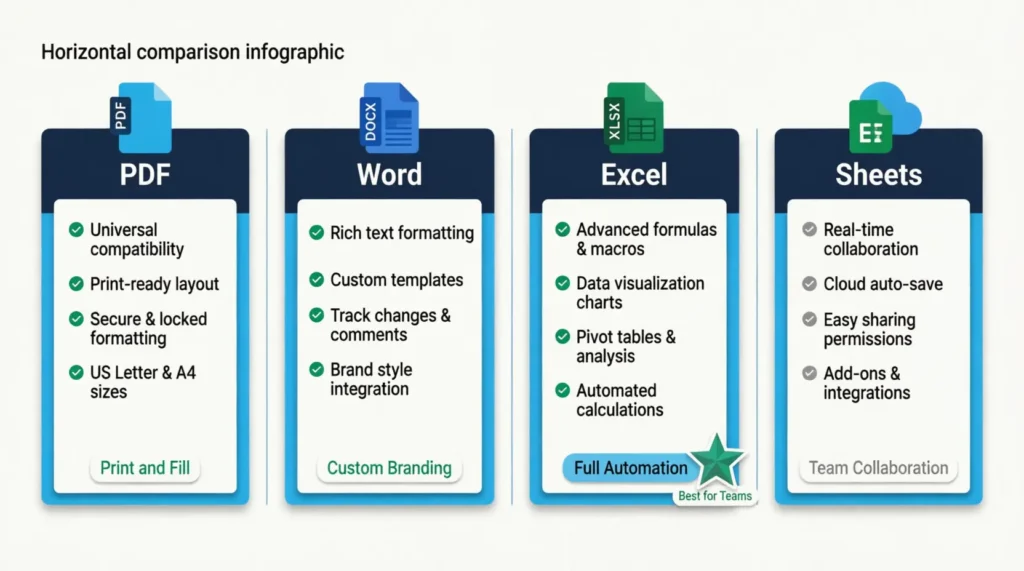
PDF Templates (US Letter & A4)
- Best for: Quick, one-off monthly reports or teams that prefer print-and-fill
- Features: Fillable fields, category dropdowns, reimbursable and reconciled checkboxes, reconciliation section, signature lines, notes area
- Paper Sizes: US Letter (8.5″ x 11″) and A4 (international)
- Rows: 25 blank transaction lines per page
Both PDF files are fully fillable in any PDF reader. Type directly into the fields, check the boxes, and print or save.
Word Template (.docx)
- Best for: Companies that want to customize formatting, add a logo, or include extra instructions
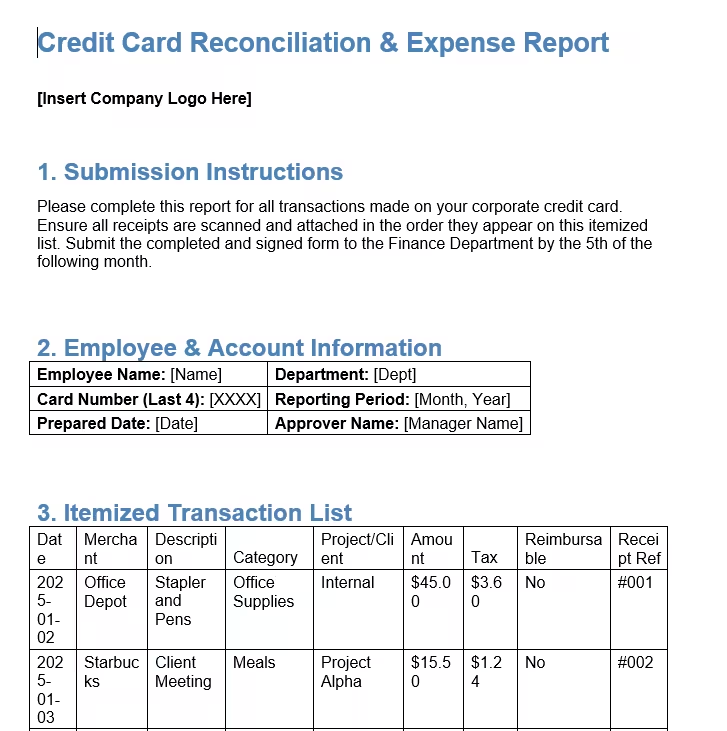
- Features: Submission instructions, employee info section, 18-row itemized transaction table with demo data, expense summary, reconciliation workspace, authorization signatures, FAQ section on common errors
- Bonus: Comes pre-filled with sample transactions (Office Depot, Starbucks, Delta Air, Marriott, Uber, and more) so new users can see exactly how to fill it out
Open in Microsoft Word, replace the demo data with real entries, and save.
Excel Workbook (.xlsx)
This is the most powerful option. The workbook has 9 sheets built for end-to-end tracking:
| Sheet | Purpose |
|---|---|
| Instructions | How to use the workbook, shortcuts, PDF export steps |
| Settings | Company name, currency, tax rate, dropdown lists for categories and projects |
| Transactions | Main data entry with 23 columns per transaction |
| StatementImport | Paste bank statement CSV data for automated matching |
| Reconciliation | Auto-matching engine with exact and fuzzy logic, flags unmatched lines |
| MonthlySummary | Dashboard with spending by category, top merchants, project/client breakdown, and charts |
| ExpenseReport | Print-ready monthly expense report pulled from transaction data |
| PrintableItemizedStatement | Clean itemized credit card statement for filing |
| AuditLog | Tracks every change made to transactions (amount edits, recategorizations, flag updates) |
This credit card log template in Excel format handles auto-calculations, formula-driven summaries, and visual dashboards. It’s the best choice for finance teams that manage multiple cards or high transaction volumes.
Google Sheets Version
A cloud-based version is also available for teams that need shared, real-time access. It works in any browser and syncs across devices. Look for the Google Sheets download link alongside the other formats at the top of this page.
Step-by-Step Credit Card Reconciliation Process
The templates handle the logging and math. But the process itself follows a clear pattern that every business should know.
1. Gather Statements and Receipts
Pull the monthly credit card statement. Then collect all receipts, invoices, and proof of purchase for that period.
The IRS requires businesses to keep records that show the payee, amount, date, and business purpose for each expense. Organized receipts make this straightforward.
2. Compare Each Transaction
Go through the statement line by line. For every charge, look for a matching entry in the expense log. Confirm that the amount, date, and vendor name all agree.
3. Flag Discrepancies
When something doesn’t match, mark it. Common issues include:
- Duplicate charges – The same vendor appears twice for the same amount
- Missing receipts – A charge shows up on the statement but has no supporting document
- Amount mismatches – The log says $45 but the statement says $54
- Unauthorized charges – A transaction nobody recognizes
4. Investigate and Resolve Differences
For each flagged item, dig deeper. Contact the vendor for a corrected receipt. Check with the cardholder about missing entries. If a charge looks fraudulent, report it to the card issuer right away.
5. Update Your Records
Once every issue is resolved, update the general ledger. Mark each transaction as reconciled. The difference between the statement total and the transaction total should now be zero.
6. Document and Archive
Save the completed form, attach all receipts, and store everything in a secure location. Most tax authorities expect businesses to keep these records for at least three years.
Tip: → Not sure if a fee on your statement is correct? Verify it with the credit card fee calculator.
Business Credit Card Reconciliation: Extra Steps for Companies
For small businesses and large corporations alike, the process needs a few extra layers beyond basic personal tracking.
Set clear card usage policies.
Before handing out company cards, define what counts as an approved expense. Cover categories like travel, meals, office supplies, and software subscriptions. Make the rules specific. “Business meals under $75 per person” is much clearer than “reasonable meals.”
Assign one card per employee.
When multiple team members share a single card, tracking gets messy. One card per person makes it easy to know exactly who spent what.
Require receipts for every charge.
Some companies skip receipts for small purchases. That’s a risk. Jennifer, a controller at a 200-person marketing agency, found $2,300 in duplicate software charges during one quarterly review. Every one of those charges was under $50. Small charges add up when nobody checks.
Use the audit log.
The Excel workbook includes an AuditLog sheet that records every change to a transaction. That includes amount corrections, category updates, and flag status changes. This trail protects both the employee and the finance team during audits.
Submit on a fixed schedule.
The Word template recommends submitting by the 5th of the following month. A fixed deadline keeps the entire finance team on the same cycle and prevents a backlog at quarter-end.
💡 Pro Tip: One mid-sized consulting firm cut its monthly close time by 4 days after switching from loose email receipts to a structured Excel reconciliation log. The time savings came from fewer back-and-forth emails asking “What was this charge for?”
Common Credit Card Reconciliation Mistakes (and How to Fix Them)
Even with a good template, mistakes happen. Knowing the most frequent ones helps avoid them.
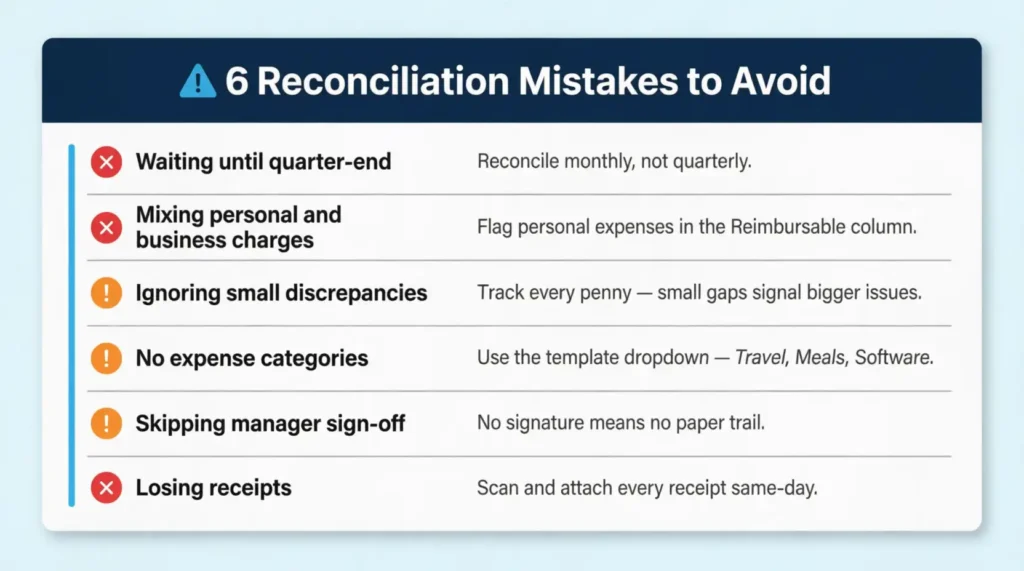
1. Waiting until the end of the quarter.
Reconciling once every three months means three months of stacked-up transactions to sort through. By that point, memories fade, and receipts get lost. Monthly reconciliation is the standard for a reason.
2. Mixing personal and business charges.
An employee grabs lunch on the company card during the weekend. It happens. The problem comes when that personal charge stays in the business report. Always check the “Reimbursable” column and flag any personal expenses for deduction.
3. Ignoring small discrepancies.
A $2 difference between the statement and the log might seem harmless. But small gaps often point to rounding errors, overlooked fees, or the start of a bigger pattern. Track every penny.
4. Not categorizing expenses.
Dumping every charge into a generic “Other” category makes the data useless for budgeting and tax prep.
Select from the dropdown categories in the template:
- Travel
- Meals
- Office Supplies
- Software
- Advertising
- Utilities
- And more.
5. Skipping the approval step.
A completed form without a manager’s signature is just a personal log. The sign-off step creates accountability and a paper trail.
6. Losing receipts.
Missing documentation is one of the top reasons expense reports get rejected. Scan or photograph every receipt as soon as the purchase happens. Attach it to the transaction row right away.
How Often Should You Reconcile Credit Card Statements?
The short answer: every month, without exception.
Most companies reconcile their corporate card accounts at the end of each billing cycle. That means once the monthly statement arrives, the matching process should start within a few days.
For businesses with high transaction volumes (50+ charges per card per month), weekly spot checks can catch issues even faster. A quick 15-minute review each Friday keeps the month-end close from turning into a marathon.
Quarterly and year-end reconciliation is also important. These larger reviews look at trends across multiple months. They help spot recurring errors, budget overages, or patterns of misuse.
The bottom line: monthly is the minimum. Weekly is better for busy cards. And quarterly reviews add an extra safety net.
Tips for Faster, More Accurate Expense Reporting
Speed and accuracy don’t have to be opposites. A few habits can make the monthly expense report process smoother.
- Log expenses in real time. Don’t wait for the statement. Enter each charge into the tracker as it happens. The Excel and Google Sheets formats make this easy since they’re always open and ready.
- Standardize merchant names. “AMZN*12345” on the statement and “Amazon” in the log mean the same thing, but they won’t match in a search. Pick one format and stick with it.
- Use the category dropdowns. The templates include preset categories for a reason. Travel, Meals, Office Supplies, Software, and more. Consistent categorization makes monthly and quarterly summaries accurate.
- Attach receipts right away. Scan or snap a photo of every receipt on the same day. Link it to the matching row in the log. The template includes a Receipt Reference column for exactly this purpose.
- Review before submitting. Spend 5 minutes checking the math. Make sure the Reconciliation section shows a $0 difference. Then submit with confidence.
- Keep a backup. Save a local copy of every completed report. If a file gets corrupted or a cloud platform goes down, that backup is the only way to recover months of work.
⚠️ Mistake to Avoid: Michael, a team lead at a logistics company, once submitted a December expense report with November’s statement total in the reconciliation section. The $3,200 mismatch triggered a full audit review. Always double-check that the statement period matches the reporting period on the form.
Frequently Asked Questions (FAQ)
What is the difference between credit card reconciliation and bank reconciliation?
Credit card reconciliation matches charges on a card statement to internal expense records. Bank reconciliation matches deposits and withdrawals in a bank account to the general ledger. Both verify accuracy, but they cover different accounts.
Can a small business use these templates without an accounting department?
Yes. The PDF and Word templates are simple enough for a solo business owner to fill out each month. No accounting software or special training is needed.
How long should completed reconciliation reports be kept on file?
The IRS generally requires businesses to keep financial records for at least three years from the date the return was filed. Some states and industries require longer retention periods.
What should an employee do if a receipt is lost?
Contact the finance department for a “Missing Receipt Declaration” form. Document the purchase details from memory, including the date, vendor, and amount. Repeatedly missing receipts may result in non-reimbursement.
Is it better to reconcile weekly or monthly?
Monthly is the minimum standard. For cards with many transactions (50+ charges a month), weekly spot checks can catch errors early. This also lightens the month-end workload.
What counts as a discrepancy during reconciliation?
Any difference between the card statement and the internal log counts. This includes wrong amounts, missing transactions, duplicate charges, unrecognized vendors, and fees not recorded in the books.
Do these templates work for personal credit card tracking too?
Yes. While designed for business use, the PDF templates work well for personal budgeting. Track monthly spending, categorize purchases, and verify charges against a personal card statement.
What is the best file format for a company with multiple cardholders?
The Excel workbook is the strongest choice. It supports multiple cards, auto-matching, audit logging, and monthly dashboards. Each cardholder fills out the Transactions sheet. Then, the finance team reviews the Reconciliation and Summary sheets.
Bottom Line
Keeping corporate card expenses organized doesn’t have to be hard. The templates above cover every step, from logging each charge to matching totals against the statement. Choosing the right format depends on team size and workflow. The Excel workbook handles automation and dashboards. The PDF and Word options work well for quick, one-off reports.
Based on the data, businesses that reconcile every month catch errors and fraud faster than those that wait for quarterly reviews. Grab the template that fits your needs and start your next month-end close with a clear system.
If you know a colleague or business owner juggling multiple company cards, share this page. A structured expense tracker could save them hours of guesswork each month.