
Credit Card Surcharge Calculator
Calculate the total price with a surcharge or find the surcharge needed to cover your fees.
Every time a customer swipes a card, a merchant pays for it. Processing fees quietly eat into your revenue on every single transaction. In fact, swipe fees on credit cards totaled $148.5 billion in 2024 alone, according to the Merchants Payments Coalition. If you’ve ever wondered whether adding a checkout fee is actually worth it, you’re not alone. A credit card surcharge calculator can show you the exact numbers before you commit.
The fix is simple: add a surcharge that covers what the processor takes, so you keep every dollar you earned.
In this guide, we’ll break down the formulas. We’ll walk you through both calculation modes step by step. We’ll also show you real examples. This will help you make a confident and informed decision.
Tip: → Once you’ve got the right number, disclose it properly with the credit card surcharge notice template.
What Is a Credit Card Surcharge?
A credit card surcharge is an extra fee that a merchant adds to a customer’s bill. It applies only when the customer pays with a credit card. The goal is straightforward: pass some or all of the processing cost to the buyer, so the business doesn’t absorb it.
Think of it like this. A coffee shop charges $5.00 for a latte. If the card processor takes 2.9% plus $0.30, the shop actually nets about $4.55 on that sale. A surcharge lets the shop collect a little more to cover that gap.
📌 Did You Know: Surcharges are not the same as convenience fees. A convenience fee applies when a customer uses a payment method that isn’t the merchant’s standard channel, such as paying a utility bill by phone. A surcharge applies specifically to credit card use at the point of sale.
There are a few important boundaries to keep in mind. Swipe fees on credit cards totaled $148.5 billion in 2024 alone, according to the Merchants Payments Coalition. There are a few important boundaries every merchant needs to understand before adding a surcharge:
- Surcharges only apply to credit cards, not debit cards or prepaid cards.
- They cannot exceed the merchant’s actual cost of acceptance.
- Visa’s rules cap the surcharge at 3% (lowered from 4% effective April 15, 2023).
- Mastercard sets an absolute maximum of 4%, but only for merchants whose actual acceptance cost exceeds 4%.
- Most U.S. states cap surcharges at 3%. Colorado sets a stricter limit of 2%.
Some states still restrict or ban surcharging entirely, so checking your state’s rules before you start is a must.
How This Calculator Works
This tool runs two distinct calculation modes. Each one serves a different need.
Mode 1: Normal Surcharge
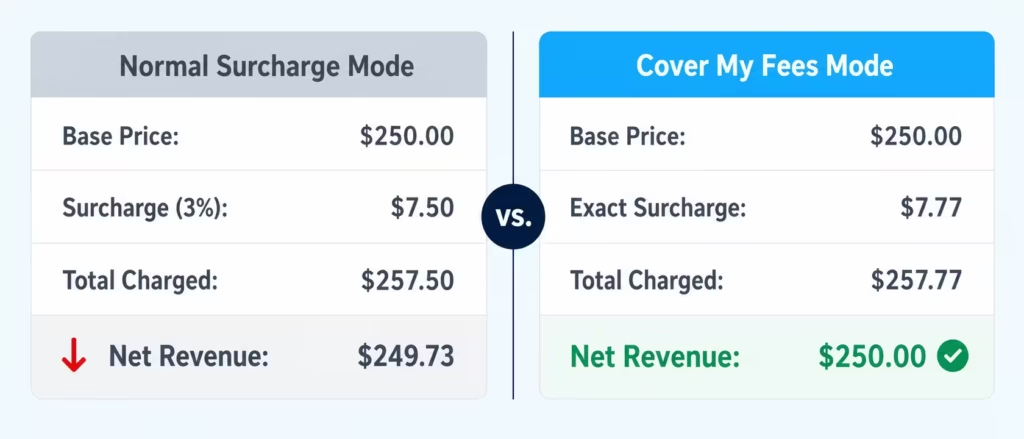
Use this mode when you already know what surcharge percentage you want to charge. The calculator takes your base price and the surcharge rate you set, then tells you the total your customer will pay. It also shows you the processor fee against that new total, and what your net revenue will be.
Mode 2: Cover My Fees (Reverse Mode)
This is the more powerful mode. It solves for the exact surcharge needed so that after the processor takes its cut, you walk away with your original base price. No guessing. No shortfalls.
Here’s what you can control inside the tool:
| Input Field | What It Does |
|---|---|
| Item/Service Price ($) | Your base price before any fees |
| Processor Variable Fee (%) | The percentage your processor charges per transaction |
| Processor Fixed Fee ($) | The flat per-transaction fee (e.g., $0.30 for Stripe) |
| Fee Presets | Quick-fill for Stripe, Square, or a common low rate |
| Surcharge (%) | The rate you plan to add (Normal Mode only) |
| Rounding Rule | How the final total gets rounded |
The calculator creates a donut chart. It shows how your total amount divides into net revenue and processor fees. It supports PDF export and social sharing so you can save or send your results.
💡 Pro Tip: Use the Fee Presets dropdown to instantly load the standard fees for Stripe/PayPal (2.9% + $0.30) or Square (2.6% + $0.10). This saves time and reduces input errors.
The Formula Explained
Understanding the math behind the tool helps you trust the numbers it gives you. There are two sets of formulas, one for each mode.
Normal Surcharge Mode Formula
Step 1: Calculate the surcharge amount
Surcharge Amount = Base Price × (Surcharge % ÷ 100)
Step 2: Calculate the total charged to the customer
Total Customer Charge = Base Price + Surcharge Amount
Step 3: Calculate what the processor takes
Processor Fee = Total Customer Charge × (Processor Variable % ÷ 100) + Fixed Fee
Step 4: Calculate your net revenue
Net Revenue = Total Customer Charge – Processor Fee
Cover My Fees (Reverse) Mode Formula
This mode uses algebra to solve for the surcharge that makes your net revenue equal to your base price.
The logic works like this:
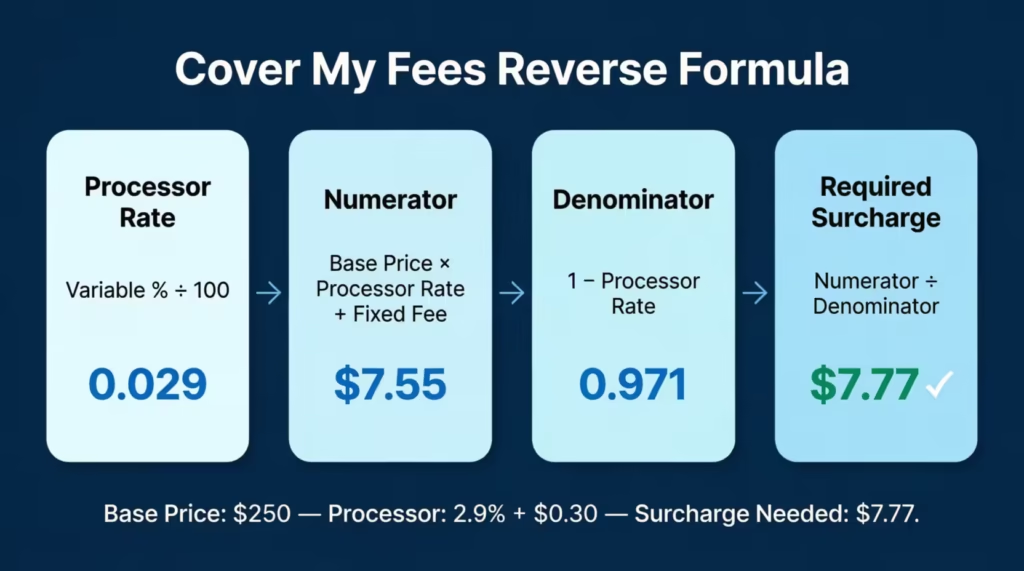
Required Surcharge = (Base Price × Processor Rate + Fixed Fee) ÷ (1 – Processor Rate)
Where:
Processor Rate = Processor Variable % ÷ 100Why does this formula look different? Because the processor charges its percentage on the total collected amount, which already includes the surcharge. So if you just add 2.9% as your surcharge, you still end up short. The reverse formula accounts for this compounding effect and gives you the precise surcharge to charge.
Let’s put numbers to it:
- Base Price: $100.00
- Processor Rate: 2.9% (0.029)
- Fixed Fee: $0.30
Required Surcharge = ($100 × 0.029 + $0.30) ÷ (1 – 0.029) = ($2.90 + $0.30) ÷ 0.971 = $3.20 ÷ 0.971 = $3.30
Required Surcharge = ($100 × 0.029 + $0.30) ÷ (1 - 0.029)
                   = ($2.90 + $0.30) ÷ 0.971
                   = $3.20 ÷ 0.971
                   = $3.30
So you’d charge the customer $103.30 instead of $103.20. That extra $0.10 covers the fact that the processor also takes a cut of the surcharge itself.
Tip: → Adding this to your checkout process? The credit card checkout form template is the next step.
How to Use This Calculator (Step by Step)
Follow these steps to get accurate results.
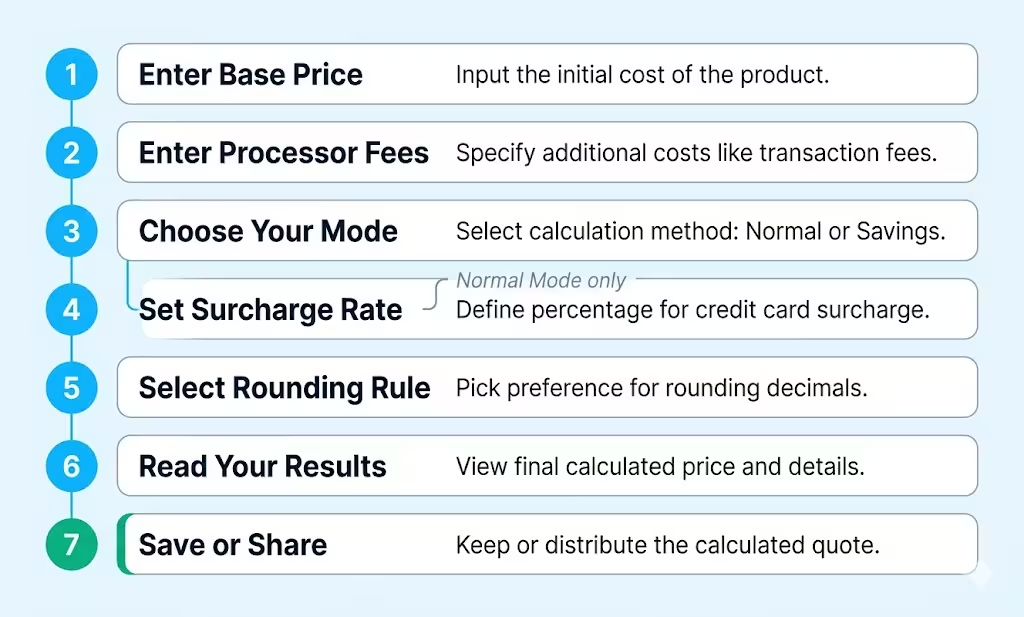
Step 1: Enter your base price.
Type the original price of your product or service in the “Item/Service Price” field. Don’t include any fees yet. Just the price you normally charge.
Step 2: Enter your processor fees.
Type in your processor’s variable percentage fee and fixed per-transaction fee. If you use Stripe, Square, or PayPal, click the “Fee Presets” dropdown and select your provider. It fills everything in without any manual input.
Step 3: Choose your calculation mode.
Look at the toggle switch labeled “Normal Surcharge” and “Cover My Fees (Reverse).”
- Keep it on Normal if you want to see what a specific surcharge percentage does to your total and your profit.
- Switch to Cover My Fees if you want the tool to calculate the exact surcharge needed to net your original price.
Step 4: Set your surcharge rate (Normal Mode only)
If you’re in Normal Mode, use the slider or type a percentage in the box. The default is 3%, which aligns with Visa’s current cap for most merchants.
Step 5: Select a rounding rule
Choose how you want the final total rounded. Options include:
- Round to nearest cent (default)
- Round up to the next cent
- Round to the nearest 5 cents
- Round up to the next 5 cents
- Round to the nearest 10 cents
Step 6: Read your results.
The results panel updates instantly. Check the total, the surcharge added, the processor fee, and your net revenue. If you’re in Cover My Fees mode, the calculator will show you the surcharge amount it calculated for you.
Step 7: Save or share your results.
Hit “Download PDF” to save a copy for your records. Use “Copy Link” to share the exact calculation with a colleague or accountant.
How to Read Your Results
The results panel shows four key numbers. Here’s what each one means.
Total Charged to Customer: This is the full amount your customer pays. It includes the base price plus the surcharge. This is the number you’d put on the invoice or receipt.
Surcharge Added: This is the surcharge part in dollar terms. It’s broken out separately so you can see exactly what extra amount the customer is covering.
Processor Fee: This appears in red. It’s the amount your payment processor deducts from the transaction. It’s calculated on the total collected amount, not the base price. That’s why Normal Mode sometimes leaves the fee partially uncovered.
Your Net Revenue: This is shown in green. It’s what you actually keep after the processor takes its cut. In Normal Mode, this may be slightly less than your base price if your surcharge doesn’t fully offset the fees. In Cover My Fees mode, it should match your base price exactly (minus any rounding shortfall, which is shown separately).
Rounding Shortfall/Gain: This small amount only appears when rounding creates a tiny difference between the mathematically perfect surcharge and the rounded one. For example, rounding to the nearest 5 cents might make your net revenue $0.02 more or less than exact.
The Donut Chart: The visual chart shows the split between your net revenue and the processor fee as a percentage of the total collected. It gives you an at-a-glance picture of how much of each dollar is going to the processor.
⚠️ Mistake to Avoid: Many merchants look only at the “Total Charged to Customer” and assume their profit is the base price. Always check the Net Revenue line. That’s the number that matters for your bottom line.
Real-World Example
Scenario: A freelance graphic designer is invoicing for a $250 project
Marcus, a freelance graphic designer in Austin, invoices clients using Stripe. His processor rate is 2.9% + $0.30 per transaction. He wants to make sure he nets his full $250 on every invoice.
Using Normal Mode first:
Marcus tries a 3% surcharge to see what happens.
- Base Price: $250.00
- Surcharge (3%): $7.50
- Total Charged to Customer: $257.50
- Processor Fee: $257.50 × 0.029 + $0.30 = $7.47 + $0.30 = $7.77
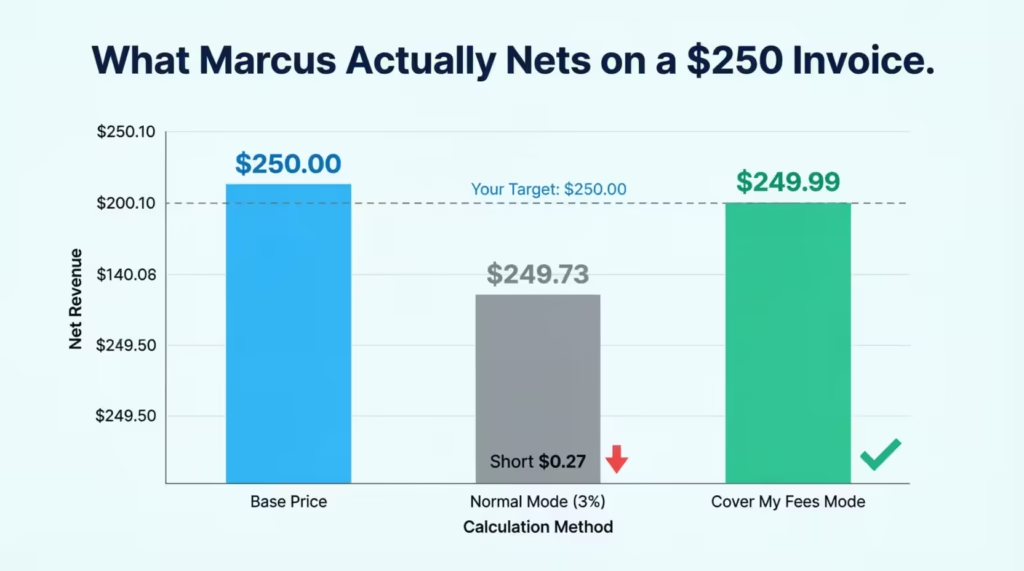
- Net Revenue: $257.50 – $7.77 = $249.73
Marcus is short $0.27. Not a lot for one invoice, but across 100 invoices a year, that’s $27 walking out the door for no reason.
Switching to Cover My Fees Mode:
The calculator solves for the exact surcharge:
Required Surcharge = ($250 × 0.029 + $0.30) ÷ (1 - 0.029)
                   = ($7.25 + $0.30) ÷ 0.971
                   = $7.55 ÷ 0.971
= $7.77- Total Charged to Customer: $250.00 + $7.77 = $257.77
- Processor Fee: $257.77 × 0.029 + $0.30 = $7.48 + $0.30 = $7.78 (rounding note: $0.01 shortfall)
- Net Revenue: $249.99
Marcus gets within a penny of his full $250 every time. Over the year, he saves roughly $27 compared to just eyeballing a 3% rate.
Expert Tips and Insights
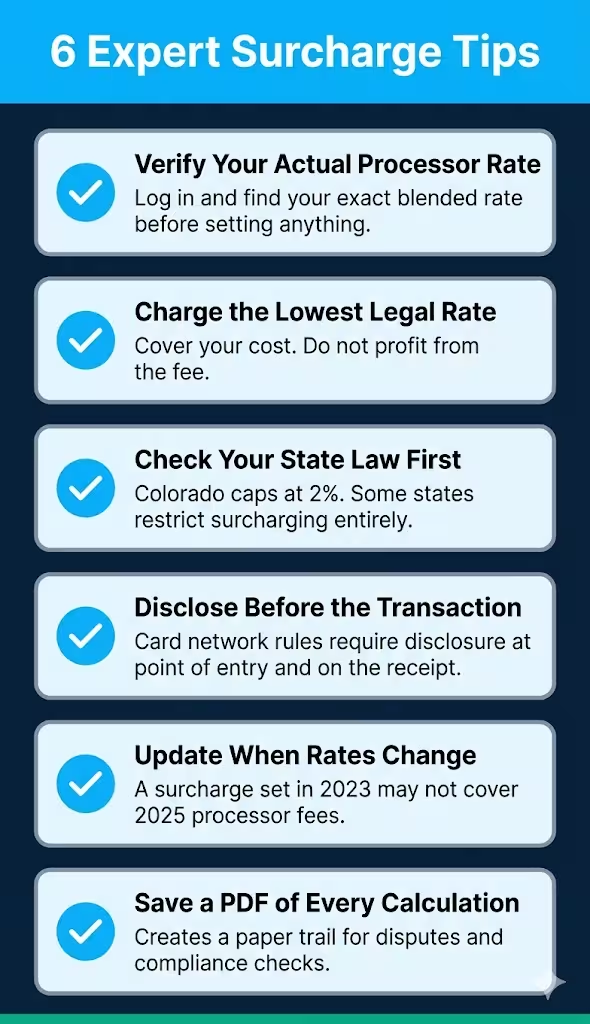
Always verify your actual processor rate first
Don’t guess at your processing cost. Log in to your payment processor’s dashboard and find your exact blended rate. The difference between 2.6% and 2.9% might seem small, but on a $500 transaction, it’s $1.50. That adds up across dozens of transactions every week.
Use the lowest legal surcharge, not the highest
Charging the maximum can frustrate customers and hurt loyalty. The goal is to break even on processing costs, not to profit from the fee. Keep your surcharge as low as possible while still covering your actual cost.
Check your state law before adding surcharges
By 2025, most U.S. states will allow surcharging. But some states have rules or specific disclosure needs. For example, LawPay’s 2025 state-by-state guide is a useful reference. Colorado’s 2% cap is lower than the federal 3% limit. So, merchants in Colorado should be aware of this before setting anything up.
Disclose the surcharge clearly before the transaction
Card network rules say merchants must inform customers about a surcharge before completing the purchase. This must appear at the point of entry and on the receipt. Mastercard’s rules, for instance, need a specific disclosure format. Skipping this step can result in fines or losing your merchant account.
Consider whether a cash discount program fits better
Some merchants prefer a cash discount program over a surcharge. Instead of adding a fee for card use, they advertise a slightly higher “card price” as the regular price and offer a discount for cash. This reframes the fee in a way that influences perception. Both approaches end up in the same financial place, but customer perception can differ significantly.
Keep a PDF of every calculation
Use the PDF download feature to save surcharge calculations for specific clients or service types. This creates a paper trail that’s useful if a customer disputes a charge or if you need to show compliance with card network rules.
Common Mistakes to Avoid
Applying a flat 3% without accounting for the fixed fee
This is the most common error. Processors like Stripe charge 2.9% plus $0.30 per transaction. On a $10 sale, that $0.30 fixed fee represents 3% all by itself. If you add only a 3% surcharge, you’re not covering the full cost on smaller transactions. Use the Cover My Fees mode to handle both components together.
Charging a surcharge on debit card transactions
Card network rules are clear on this: surcharges are only permitted on credit card transactions. Debit cards, even when run through the Visa or Mastercard network, cannot be surcharged under current rules. Misapplying this can lead to customer complaints and card network penalties.
Ignoring the “surcharge on surcharge” problem
Jennifer, a salon owner in Seattle, set her surcharge at exactly 2.9% because that matched her processor rate. After reviewing her monthly statement, she noticed she was still losing money on every card transaction. The reason: her processor calculated its fee on the total collected, not just the base price. Her 2.9% surcharge was itself being charged 2.9%, creating a small but consistent shortfall. The reverse formula solves this automatically.
Not updating the surcharge when processor rates change
Payment processors update their fee structures periodically. A surcharge set in 2023 may no longer fully cover fees in 2025. Review your settings whenever you receive a notification about rate changes from your processor.
Failing to notify the card networks before surcharging
Both Visa and Mastercard require merchants to register their intent to surcharge before doing so. Visa requires at least 30 days’ notice. This is a commonly overlooked step, especially for small businesses new to surcharging.
Assuming all customers are comfortable with surcharges
Some customers will choose to pay cash or use a debit card to avoid the fee. That’s fine and actually good. But businesses in high-competition markets like retail food service should be careful. A surcharge that surprises customers at checkout can hurt repeat business more than the processing fee costs.
Frequently Asked Questions (FAQs)
Can I charge a surcharge on both Visa and Mastercard transactions?
Yes, but each network has its own rules. Visa caps the surcharge at 3% of the transaction amount, while Mastercard sets an absolute cap of 4%. You must follow whichever limit is lower and follow each network’s disclosure requirements.
Is a credit card surcharge the same as a service fee?
No. A surcharge is added specifically because the customer paid with a credit card. A service fee (or convenience fee) is charged for using a non-standard payment channel, such as paying a bill online instead of in person, and it applies regardless of the payment method.
Do I have to register with Visa and Mastercard before charging a surcharge?
Yes. Visa requires merchants to notify both Visa and their acquirer at least 30 days before implementing a surcharge. Mastercard has similar registration requirements. Skipping this step can result in fines or termination of your merchant account.
Can I surcharge debit card transactions?
No. U.S. card network rules prohibit surcharges on debit card transactions, even if the debit card runs through the Visa or Mastercard network. The surcharge restriction applies to credit cards only.
What states currently prohibit or restrict credit card surcharges?
As of 2025, most U.S. states allow surcharging, but a few still have restrictions. Colorado caps surcharges at 2%. Some states require specific written disclosures before a surcharge can be applied. Always verify your state’s current rules before enabling a surcharge program.
Does a surcharge need to appear on the receipt?
Yes. Card network rules require the surcharge amount to be itemized separately on the customer’s receipt. Do not lump it into the product price. Transparent disclosure is a compliance requirement, not just good practice.
What happens if my surcharge accidentally exceeds the legal cap?
Charging over the allowed cap breaks the card network rules and may violate state consumer protection laws. The customer may dispute the charge, and your merchant account could be penalized. Always run the numbers through a tool before setting a live surcharge rate.
Why does the “Cover My Fees” result sometimes differ from my base price by a cent or two?
This small difference comes from rounding. When the exact surcharge has fractions of a cent, your rounding rule will tweak the final total a bit, either up or down. The tool shows this as a “Rounding Shortfall/Gain” in the results.
Conclusion
We covered a lot of ground here. Processing fees are a real cost for merchants. Understanding how to offset them can significantly improve your bottom line.
We walked through what a surcharge is, how the formulas work, what both calculation modes do, and how to apply the results in real situations.
If we had to pick one thing, it’d be this: use the Cover My Fees mode rather than guessing at a flat rate. It removes the math error from the equation completely. If you found this useful, share it with a fellow business owner or freelancer who’s still leaving money on the table. They’ll thank you for it.